Permissions — Role Bundles · Data Scope · Document Grades
Copilot sets three things per person. This is a feature introduced in re-release 6 (2026-10-08) of 2026.10.
| What | What it decides | Where |
|---|---|---|
| Role bundle | What you can do — menus · source of suggestions · approval · review · chat tools · automation · admin console | Admin Console › Role Bundles(/admin/bundles), attached per person in Users(/admin/users) |
| Data scope | Which equipment · project · PO you can see | Per person — the Scope·Grade bundle in the Users editor. See Data Scope below |
| View grade | Which grade of document you can view — General · Internal · Confidential · Restricted | Per person — the Scope·Grade bundle in the Users editor. For documents: Admin Console › Document Grades(/admin/grades) |
The evaluation happens in one place, Copilot, and the backend (Digital Thread · RAG · time series insight) just filters according to the user information that Copilot attaches to every request. That's why Ask · Suggestions · Automation · Document answers · API — wherever you ask, you see the same scope only. Changed values apply from that person's next request (within 30 seconds at the latest), with no need to log in again.
On first boot, every existing user gets the bundle for their work role (admins also get the «Administrator» bundle), scope All, and view grade Confidential.
Menus · approvals · reviews remain the same as before the upgrade, and this is recorded in the audit log as system:migration. The one thing that changes —
Restricted-grade documents only open if the person's view grade is explicitly set to Restricted.
The default bundles are the five Operator · Shift Lead · Maintenance · Plant Manager · Administrator, and the remaining eight are shown separately as Other Bundles — functionality · permissions · attached people stay the same. Along with this, the default permissions of field bundles were reduced (table below). Boot changes the Operator · Shift Lead · Maintenance bundles only once, when they are «exactly the previous default», and does not touch bundles an administrator has customized. It is intentional that Operators do not see "Anomalies to check" in Suggestions.
Copilot is used in three ways — Ask · Suggestions · Automation (the sidebar has New Chat · Suggestions · Automation from top to bottom, and Ask is entered via "New Chat" and the first screen). The permission list and bundle defaults have not changed; only the spot that the same permission unlocks has moved to the new screens — the old "Perform suggestion · diagnose anomaly · resolve" permission now unlocks the sources of Suggestions (Plan · Anomalies to check · Incidents). Nothing needs to be touched at upgrade time → Copilot Screen Map
Role Bundles
Permissions do not attach directly to a person, but to a bundle. One person can have multiple bundles, and permissions are the sum of them.
In Admin Console › Role Bundles(/admin/bundles), the Default Bundles (five) and Other Bundles are shown separately. The columns are Bundle · Permission Count · Default View Grade ·
Person Count · Last Changed, and bundles you created yourself show a "Custom" label. Clicking a row opens the bundle on the right.
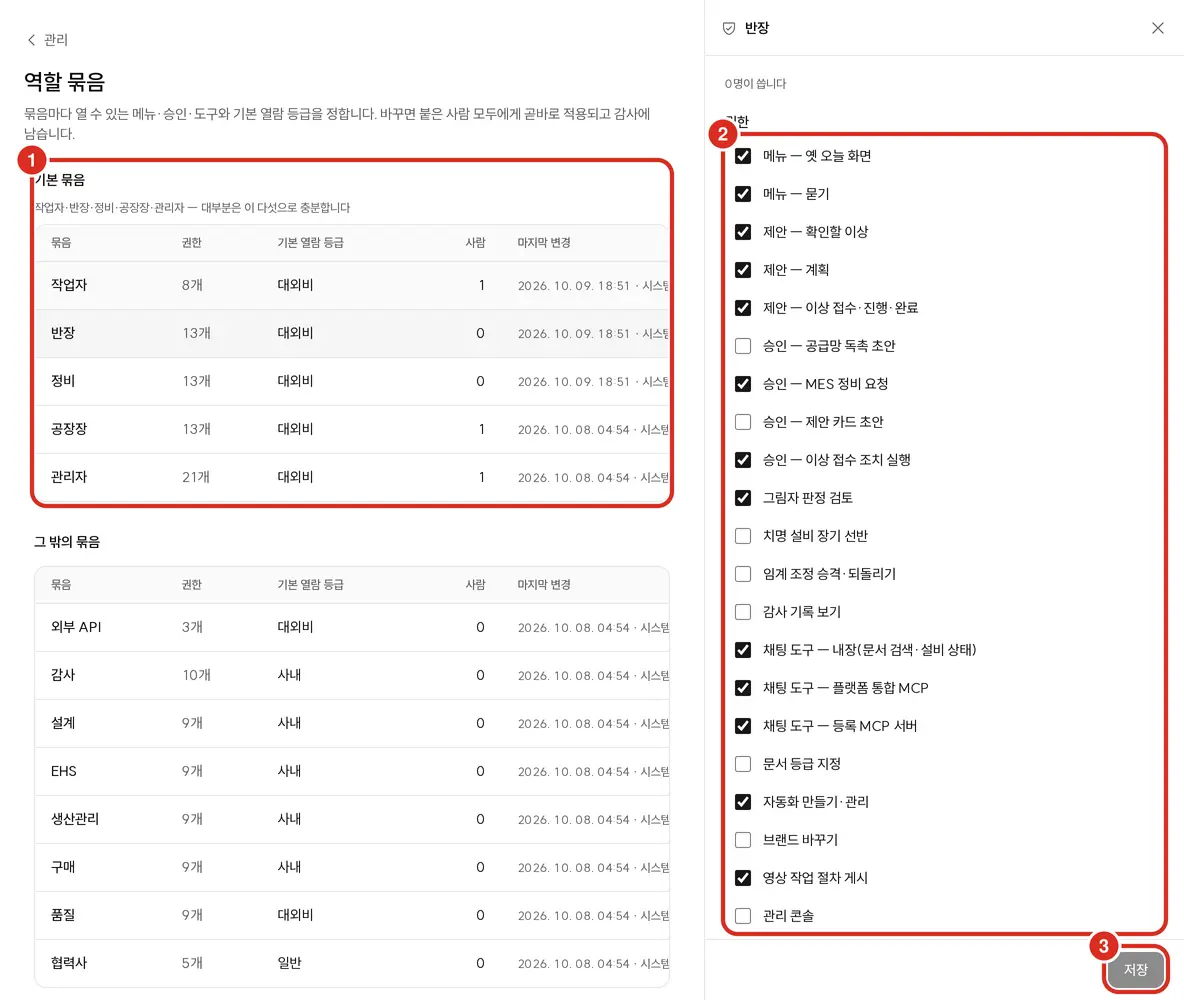
| # | Location | What it does |
|---|---|---|
| ① | Bundle list | The five default bundles. Clicking a row opens it on the right, and at the top you see the number of people with this bundle ("Used by N people") |
| ② | Permissions | The permissions this bundle has — see table below |
| — | Scope type · default view grade | Below the permissions. The type of scope to assign to people in this bundle (equipment · project · customer PO · partner, etc.) and the default grade |
| ③ | Save | Only clickable when something has changed. Applies from the next request of anyone with this bundle, and is recorded in the audit log |
The values that actually filter a person's answers are the data scope · view grade set per person (the two sections below). The bundle's scope type · default view grade are stored as a "template" for that bundle, and changing them in the bundle does not change the scope · grade of people already attached to it. The exception is the "External API" bundle — calls coming in with an API key follow this bundle's default view grade.
Permission names are exactly as shown in the admin screen, with the permission code in parentheses.
| Permission | What it unlocks · if absent |
|---|---|
Menu — Ask (menu:ask) | Ask(/chat). Without it, the New Chat button disappears from the sidebar and the address returns 403 |
Suggestions — Plan (menu:work) | Plan source of Suggestions — cards posted by suggested actions and automation |
Suggestions — Anomalies to check (menu:floor) | "Anomalies to check" among Unplanned in Suggestions |
Suggestions — Incident reception·progress·completion (menu:resolve) | "Incidents" among Unplanned in Suggestions, plus the In Progress · Completed tabs. Approve Action Plan · Edit and Approve · Reject on an incident's action plan is also done with this permission — no separate approval permission is needed |
Menu — Old Today screen (menu:today) | 🔴 The new screens have no spot that uses this permission. It's the permission that used to open the old "Today" screen; it remains in the bundle as-is |
| Approve — Supply chain follow-up draft · Approve — MES maintenance request | The approve button won't appear on the "Actions you can take" card below Ask answers |
Approve — Draft suggestion card (approve:proposal) | The Approve and create draft button in suggestion details is missing (the field is still visible). Draft work orders proposed by automation are also approved with this permission |
Approve — Execute incident action (approve:incident_action) | Cannot execute actions (acknowledge alarm · notify assignee · field inspection · log investigation) in suggestion details, and execution requests return 403. Approving · rejecting the action plan is not this permission but «Suggestions — Incident reception·progress·completion». Also cannot send automation results to anyone other than themselves — a role or messenger channel (the destination stays fixed to "Me") |
Review shadow judgment (review:shadow) | 🔴 The new screens have no spot that uses this permission. The permission to mark shadow judgments as correct · incorrect from "Pending Verification" on the old screen; it remains in the bundle as-is |
Critical equipment long-term shelving (shelve:alert) | 🔴 The new screens have no spot that uses this permission. The permission to snooze critical equipment notifications for over an hour on the old notification shelf; it remains in the bundle as-is |
Threshold adjustment promote·revert (tune:accuracy) | Cannot promote · revert · resume in Admin Console › Accuracy Tuning |
View audit log (read:audit) | Audit screen is blocked with "A bundle with the «View audit log» permission is required." |
| Chat tools — Built-in (document search · equipment status) · Platform-integrated MCP · Registered MCP server | Tools from that source disappear from Ask, and execution is refused |
Assign document grade (grade:set) | Document Grades screen is blocked with "A bundle with the «Assign document grade» permission is required." |
Create·manage automation (manage:agent) | Automation disappears from the sidebar |
Change branding (manage:brand) | Cannot change the name · logo · color in Admin Console › Branding |
Publish video work procedure (publish:procedure) | Cannot publish a draft work procedure created from video — "You don't have permission to do this — only the creator or someone with publish permission can do this" (creating and editing drafts still works) |
Admin Console (admin) | The entire Admin Console. Cannot be removed from the "Administrator" bundle |
- If there is no source visible in Suggestions (none of Plan · Anomalies to check · Incidents), Suggestions disappears from the sidebar. Without "Menu — Ask," the New Chat button disappears.
- Old value not shown on screen —
menu:report. This permission only opened/closed the old report screen, so it doesn't block anything in the new screens and is not shown in bundle editing. The Completed tab and summary are unlocked by the "Suggestions — Incident reception·progress·completion" permission. Values that were set in a bundle remain even if you edit and save other fields. - There is no separate permission for handling notification channels · allowed email domains — being able to open the Admin Console is sufficient → Copilot Admin Console — Notification Channels
- No new permissions were added with this screen replacement.
Built-in Bundles — Five + Eight Advanced
Added only if absent at first boot. Values an administrator subsequently customizes are not overwritten by upgrades. The first five are the screen's Default Bundles, the rest are Other Bundles.
| Bundle | Visible | Other permissions |
|---|---|---|
| Operator | Ask · Suggestions (Plan · Incidents) — approves · rejects action plans and logs results from Incidents (cannot execute actions) | — |
| Maintenance | Ask · Suggestions (Plan · Anomalies to check · Incidents) | Approve maintenance request · Review shadow judgment · Execute incident action · Publish video work procedure |
| Shift Lead | Same as Maintenance | Approve maintenance request · Review shadow judgment · Execute incident action · Publish video work procedure |
| Plant Manager | All | Approve follow-up draft · Approve maintenance request · Execute incident action · Publish video work procedure |
| Administrator | All + Admin Console | All (including change branding) |
| (Other) Quality | All | — |
| (Other) Design · Procurement · Production Control · EHS · Audit · Partner | All (Partner is Ask only) | Audit has "View audit log." Not attached to anyone by default — attached when needed |
| (Other) External API | — | Permissions · grade for when an external system calls with an API key — not attached to a person |
- Create·manage automation is included in all built-in bundles attached to people (only the External API bundle is excluded). Automation only ever runs within the creator's permissions · scope, so this does not widen permissions. It was initially only on Plant Manager · Administrator, and on existing installs, boot adds it to the remaining bundles once — after that, if an admin removes it, it won't be re-added.
- Every bundle other than Administrator has chat tool permissions (Partner only has Built-in · Registered MCP).
- Every person bundle still contains the old "Today" permission — currently it doesn't open or block anything.
Attaching to a Person — Editing Users
In Admin Console › Users(/admin/users), click a person's row to open the edit panel on the right. Create new people with Add User.
The panel has five sections from top to bottom: Basic · Role Bundles · Scope·Grade · Delegation·Expiry · Platform Connection.
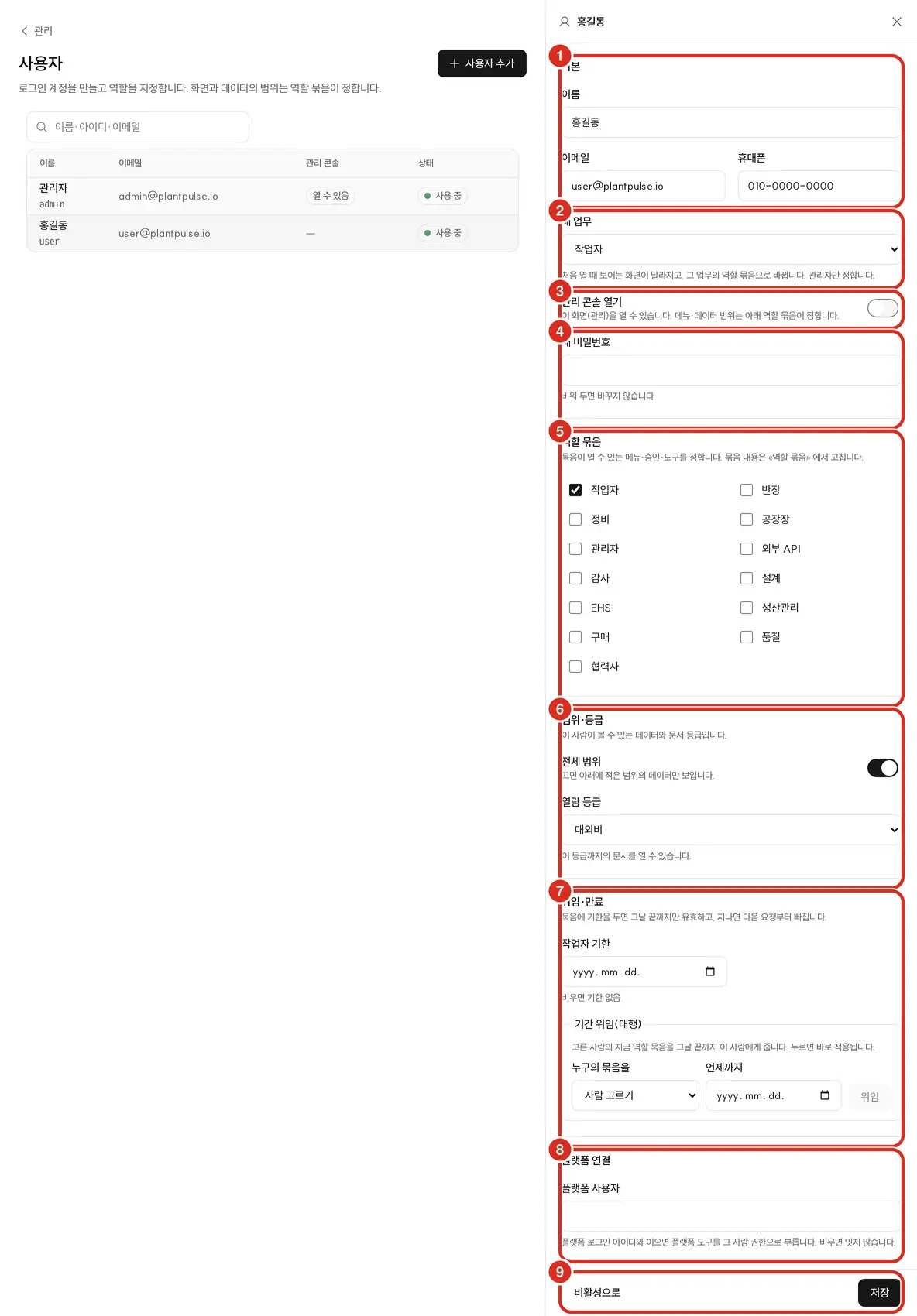
Every field in the editor screen (exactly as labeled).
| Section | Field | What it does |
|---|---|---|
| Basic | Name · Email · Phone | Account info |
| My Work | One of Operator · Shift Lead · Maintenance · Quality · Plant Manager. "Changes the screen shown at first open, and switches to that work's role bundle. Only administrators set this." — choosing one checks only that one of the five work role bundles below in Role Bundles, leaving other bundles like Administrator · Partner unchanged → User Permissions and Work Roles | |
| Open Admin Console | When enabled, this person opens the Admin Console(/admin). This is the same as the "Administrator" bundle, so changing one changes the other | |
| New Password | Leave blank to not change it. 8+ characters | |
| Role Bundles | Bundle checklist | Default Bundles and Other Bundles are in one list. Multiple can be chosen, and permissions are the sum of chosen bundles |
| Scope·Grade | All Scope switch | When enabled, sees everything. "When disabled, only the data from the scope listed below is visible." |
| Type · Key · Add Scope | Choose a type (Equipment·Line·Site · Project · Customer PO · Partner) and enter a key to add a row at a time. For equipment, the key field lets you pick a site · line · equipment from the asset tree. Remove a row with the × at the end | |
| View Grade | "You can open documents up to this grade." — General · Internal · Confidential · Restricted | |
| Delegation·Expiry | Expiry per bundle | A date field appears for each selected bundle. "If a bundle has an expiry date, it is valid only until the end of that day; once past, it drops from the next request." Leave blank for no expiry. The "Partner" bundle requires Expiry date (required) |
| Time-bound Delegation (Act on behalf of) | Enter Whose bundle(select person) · Until when(date) and click Delegate. "Gives the selected person's current role bundle to this person until the end of that day. Applies immediately upon clicking." — saved separately from the Save button below. Only in editing, not in Add User | |
| Platform Connection | Platform User | Choose or type a platform login ID from the list. "Linking to a platform login ID calls platform tools with that person's permissions. Leave blank to not link." If the list can't be loaded, "Could not load the platform user list — enter the ID directly." appears |
| Bottom | Deactivate · Save | Below |
- Save applies account info → My Work → permissions (bundle · scope · grade) in that order. If rejected midway, "Saved: … / Not saved: … — reason" tells you how far it got, and the field being edited stays as-is.
- If the permission panel fails to load, "Could not load permission settings. Saving now will only change account info." appears — saving at this point does not touch scope · grade.
- A person created with Add User who has nothing selected starts with Operator bundle · All Scope · Confidential view grade.
- Changes are recorded in the audit log as
access.user:<아이디>(old → new values of bundle · scope · grade, and who did it). Changing My Work is recorded asemployee.work_role:<아이디>. - You can only view your own role and visible scope, in the profile section of Settings(
/settings).
Reasons shown on-screen when saving is rejected.
| Message | Meaning |
|---|---|
| "Scope is empty — saving this way means no data will be visible." | All Scope is off and no item has been added (warning — save still succeeds) |
| "Scope is too large (over 6KB) — group by site·line" | Too many items |
| "Partner bundle requires an expiry date" · "Partner account scope can only be set with Partner items (one or more)" · "Partner accounts cannot view Restricted-grade" | Partner Accounts rules below |
| "Expiry must be in the future" | Bundle expiry · delegation date is before today |
| "Cannot delegate to yourself" · "There's no bundle to delegate" | Wrong target for time-bound delegation, or the chosen person has no bundle to give |
Data Scope
Where to set it — Admin Console › Users › that person › Scope·Grade section. Turn off the All Scope switch, enter type · key, and add rows one at a time with Add Scope. The view grade is also chosen in the View Grade field of the same section (document grades are covered separately in Document Grades).
| Scope item | Meaning |
|---|---|
all("All Scope") | Sees everything. Cannot be combined with other items |
asset:<자산 id> | A node of the platform asset tree — whichever level — site · zone · line · equipment, all equipment below it is in scope |
project:<id> · customer_po:<PO> · supplier:<id> | Items tied to that project · customer PO · partner |
- 🔴 If left empty, nothing is visible. To see everything, turn on the All Scope switch(
all). Even when the switch is off, items already entered remain visible on screen, so turning it off again brings them back. - If items grow too large to exceed 6 KB, saving is rejected — group by site · line instead of entering each piece of equipment one at a time. A single key can be up to 200 characters.
- Scope has the same meaning as the platform's asset scope (security policy). This is so the same person doesn't see different equipment between the platform screens and the AI answers.
Where Scope Filters Apply
| Where | What a scoped user sees |
|---|---|
| Screens | "Today's tasks" on the Ask first screen · Suggestions (Anomalies to check · Incidents · In Progress · Completed) · Notifications(/alerts) — only items for equipment in scope. Plan cards in Suggestions only show cards that have equipment listed |
| Plant-wide aggregates | Values that count the whole plant, like Plant OEE, are closed off, and equipment health is counted only for in-scope equipment. The ontology graph answers "Unknown" |
| Notifications | On-screen notifications · mobile · browser push are also only for in-scope equipment. Plant-wide notifications without equipment only go to people with All Scope. App notifications sent by automation only remain in the notification list of the designated recipient, and are not sent if the equipment the result deals with is outside that person's scope |
| Ask | Asking about out-of-scope equipment gets an "out of scope" answer. Answers from document answers · today's work · readiness · digital thread tools are also scope-limited |
| Automation | Only runs within the creator's permissions · scope. The All tab (everyone's automation) in the automation list is only visible to Administrator and "Plant Manager" bundles, and opening · toggling · deleting others' automation is admin-only |
| Opening an out-of-scope target by address | "Not found" (404) — does not disclose whether it exists but is blocked. In Suggestions, it appears as "This task could not be found" |
In the 241 demo, narrowing scope to a single rotor line reduces visible equipment from 122 to 3, incidents from 100 to 0, and refuses answers when asked about out-of-scope equipment.
When an account is deactivated, that person's open sessions are cut off on the next request, and automation they created also stops running.
Document Grades
There are four grades — General < Internal < Confidential < Restricted. A person sees only documents at or below their own view grade. Documents with no assigned grade default to Internal.
In Admin Console › Document Grades(/admin/grades, permission "Assign document grade"), narrow by equipment and pick a grade per document. The moment you pick, it is assigned on the document server and recorded in the audit log —
there is no separate Save button.
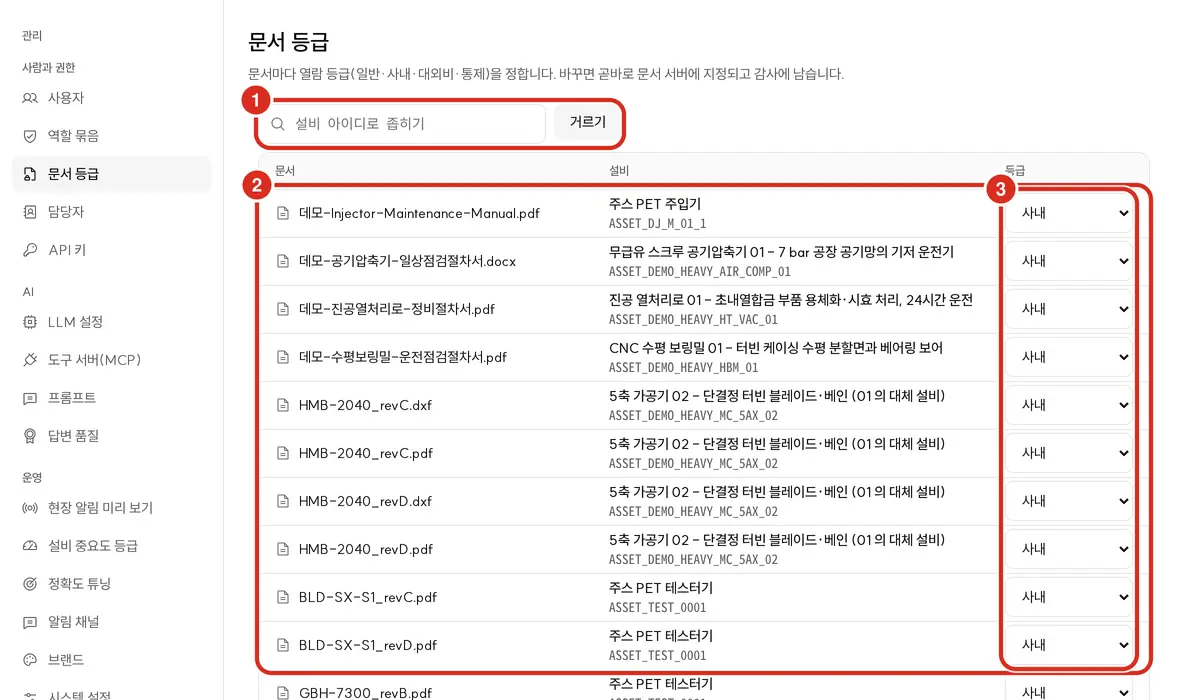
| # | Location | What it does |
|---|---|---|
| ① | Narrow by equipment ID | Narrows by equipment ID. Leave blank for all — only the first 300 are shown, so narrow down if there are many |
| ② | Table | Document name · Equipment |
| ③ | Grade | Picking a grade per row assigns it immediately |
- The person assigning must be able to view both the current and the new grade. To assign Restricted, their own view grade must be Restricted.
- For drawings, all files with the same number · sheet (DXF original · PDF · per-equipment copies) are treated at the highest grade among them. Grouping is based not on file name but on the number · sheet in the title block.
- Assignments are recorded in the audit log as
access.grade:<설비>/<문서>.
| Grade | Screen | Ask |
|---|---|---|
| General · Internal | As-is | As-is |
| Confidential | Viewer ID · timestamp watermark on drawing page previews. Viewing is logged | Cited answers are logged |
| Restricted | Watermark + limited preview resolution, original download is blocked even for those who can view it. Viewing is logged | Cited answers are logged |
Documents above a user's view grade cannot be opened in video · drawing page · sheet comparison, and are also excluded from Ask's answer material — they don't appear in evidence cards or citation numbers either.
What gets logged as a viewing record — the start of video playback, viewing drawing pages, citations in Ask answers (only those actually cited in the answer), and documents cited as evidence by Suggestions for Confidential · Restricted documents.
Audit Screen — /audit
View settings · permission changes and viewing logs of Confidential · Restricted documents in one screen. Read-only.
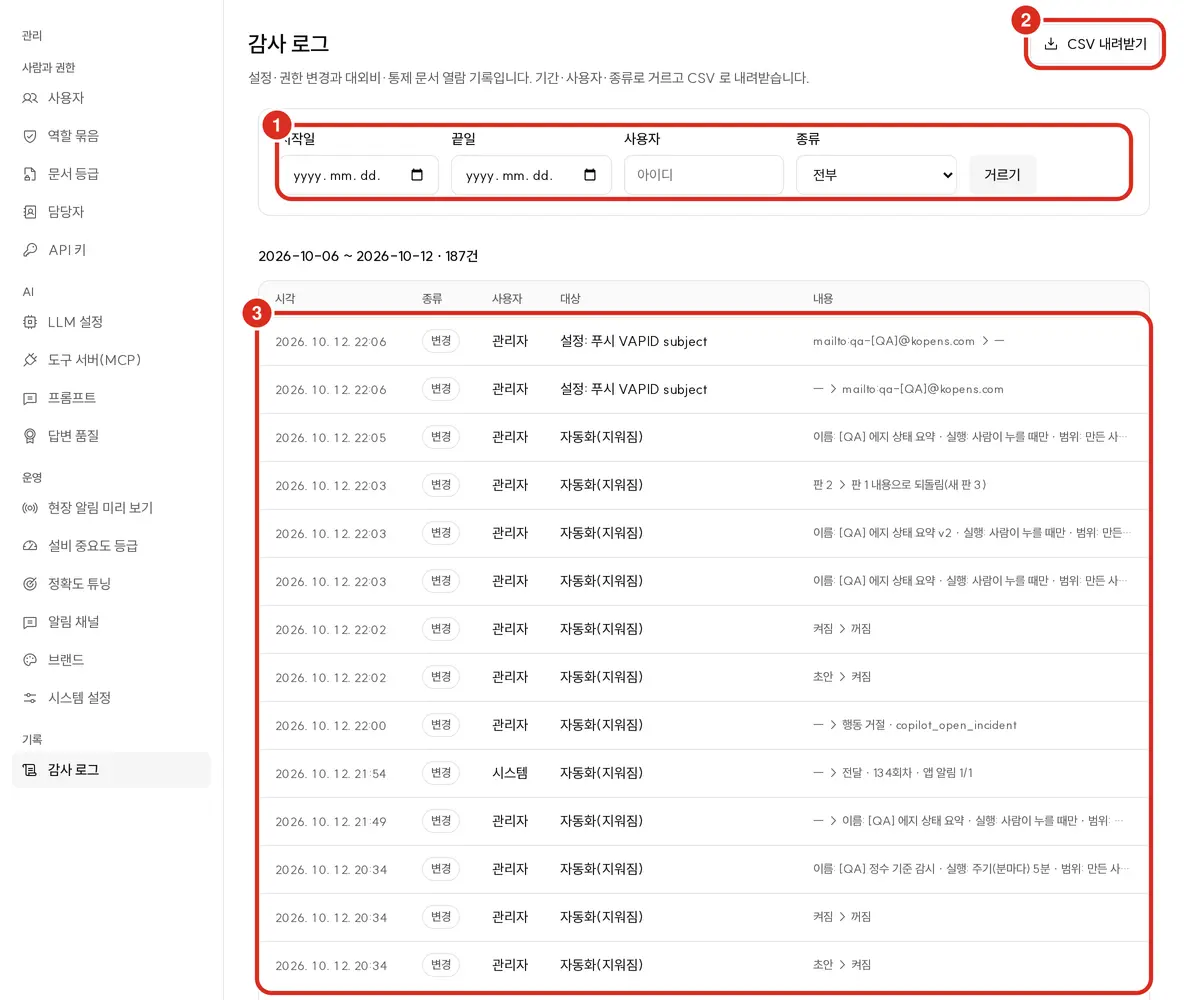
| # | Location | What it does |
|---|---|---|
| ① | Filter fields | Start date · End date · User (ID) · Type (All · Change · View). Defaults to last 7 days if left blank |
| ② | Download CSV | Downloads the filtered results. Opens in Excel. The filtered period and row count appear above the table, up to 2,000 rows at a time — narrow the period if exceeded |
| ③ | Table | Timestamp · Type · User · Target(access.bundle:… · access.user:… · agent:…, etc.) · Content (old value → new value) |
How to get in
| Who | Where |
|---|---|
| Administrator | Admin Console › Audit Log(/admin/audit) |
| Non-admins with the "View audit log" permission (e.g., "Audit" bundle) | Audit(/audit) below the profile row in the sidebar — same screen |
Opened by the single permission "View audit log." Migration records at boot time are logged with the user as system:migration.
Two-Person Approval · Delegation · Partner Accounts
Rules introduced in re-release 7 (2026-10-09).
| What | How |
|---|---|
| What | How |
| --- | --- |
| Two-person approval | The "Actions you can take" card below an Ask answer cannot be approved by the person who had that conversation (the author) — "The author cannot approve this — ... another person with permission approves it from the approval queue in Suggestions." appears, and a different person with approval permission opens the item in Suggestions, enters a reason, and approves · rejects. For high-impact actions, after the first approval it becomes "XX has approved first. Waiting for another approver," and it's sent only once a second, different person approves. The draft created on approval in suggestion details follows the same rule → Suggestions |
| Delegation | Gives another person's current bundle to this person until the end of the given date. Can also set an expiry per bundle, dropping from the next request (within 30 seconds at the latest) once past |
| Partner account | When attaching the "Partner" bundle, saving requires scope to be supplier:<협력사 키> only (one or more), the bundle's expiry date is required, and the view grade must not be Restricted. Once the expiry date passes, that account's open sessions are cut off on the next request |
When an approver is unavailable due to vacation · shift, fill in with delegation. All of this is recorded in the audit log as access.user:<아이디>.
External Systems — API Key Only
The external integration addresses /api/v1/** and /mcp only open with an API key. Calling with a logged-in browser session is rejected (403).
Permissions · grade for calls made with an API key follow the "External API" bundle (default Confidential), and scope is always All → Copilot Admin Console — API Keys
Operations — Backend User Info Check Mode
The three backends decide how to handle calls arriving without user info via a single installation setting (PI_USER_CONTEXT_MODE, default off).
Since calls sent by Copilot always carry user info, the scope · grade described above still applies even at the default off.
| Value | Call without user info |
|---|---|
off (default) | Treated as All Scope (Restricted documents stay closed) |
log | Treated as All Scope, but logs a warning and metric user_context_missing_total |
enforce | Rejected with 401 |
The recommended operating value is log. enforce is not a security boundary but "detection of missing user info forwarding" (the side holding the backend inbound key already
has all permissions), and should only be enabled on installs that do not expose the backend to outside customer clients — where the proxy's /mcp/rag/ · /mcp/timeseries/ and rag.* · timeseries.*
hosts are not used by customer MCP · API clients. Outside machine clients receive a 401 at enforce.
Before switching to enforce, run with log for a day to confirm the metric stays at 0. Calls where the Admin Console (admin-web) directly calls the backend are also
subject to this. If the backend returns a 401 user_context_*, check whether Copilot and the backend's inbound key match and whether host clocks are aligned
(allowed tolerance 30 seconds).
Troubleshooting
| Symptom | Cause · remedy |
|---|---|
| Login works, but Suggestions is empty and the "Today's tasks" row is missing on the Ask first screen | Data scope may be empty. In the Users editor's Scope·Grade, turn on All Scope or add scope items |
| Saving a user shows "Saved: Account info / Not saved: ..." | Only account info went through and the permission side was rejected. Fix the shown reason (Partner rule · scope · expiry) and save again |
| The "Report" permission isn't visible in bundle editing | This is normal — menu:report no longer blocks anything on the new screens, so it's hidden |
| No Suggestions menu in the sidebar | No visible source at all — add one of "Suggestions — Plan · Anomalies to check · Incident reception·progress·completion" to the bundle |
| No Automation menu in the sidebar | "Create·manage automation" is missing from the bundle. It's included in built-in bundles, so an admin must have removed it |
| No answer when asking about plant-wide figures like Plant OEE | This person has scope assigned — plant-wide aggregates are only visible to people with All Scope |
| An equipment that exists shows "Not found" when opened by address | That equipment is outside my scope |
| Original drawing download is blocked | It's a Restricted document. Originals of Restricted documents are never given to anyone |
| Changing a document grade to Restricted is rejected | My view grade isn't Restricted, or that equipment is outside my scope |
| As Plant Manager, there's no approve button on the follow-up card | Normal if it's a card from a conversation I initiated — the author cannot approve; another approver approves it in Suggestions. If it's missing even for someone else's card, the "Plant Manager" bundle isn't attached |
| Approved a follow-up but it wasn't sent | It's a two-person approval action — waiting for a second approval from someone other than the first approver |
| After upgrade, Operators don't see "Anomalies to check" in Suggestions | This is the re-release 7 default. If needed, check "Suggestions — Anomalies to check" on the "Operator" bundle |
| Quality · Design bundles not visible | They're under Other Bundles on the Role Bundles screen. In the Users editor, all bundles are in one list |
| Document answers for a scoped person are a bit slower | Normal — if document grades are assigned or the user is scoped, answers are built only from filtered evidence |
Opening /api/v1/... in a browser returns 403 | Normal — external integration addresses only open with an API key |
Related Documents
- User Permissions and Work Roles — menus visible by work role
- Copilot Admin Console — users · role bundles · document grades · audit log
- Copilot Screen Map · Suggestions
- Asking with Drawings