Copilot Admin Console
There is a console that only administrators can open, at the same address /admin as the Copilot screen. Here you set people and permissions, connect the models and tools the AI will use, handle operational values like equipment grade · notification channels · brand, and see who changed what.
| Where | What it shows | |
|---|---|---|
| Copilot Admin Console (this document) | /admin at the same address as Copilot | People · permissions · LLM · prompts · operational switches · audit |
| AI Admin Console | admin.* or :5959(HTTPS :5960) | GPU · LLM response speed · RAG indexing · service health · digital thread integration map · MCP Gateway (turning on/off the tools the AI uses) |
The former is about how you use AI, the latter is about whether the stack is alive.
Getting started
Click the profile row at the bottom of the sidebar, then click Admin in the menu that opens upward. The address is https://<server>/admin.
- It is the same account as Copilot. You don't log in separately.
- The Admin item only shows for people who can open the admin console. If someone who cannot open it visits the address, «Only administrators can open the admin console.» appears.
- Whether someone can open the admin console is decided per-person with a single Users › Open Admin Console switch.
- For people who are not administrators but have View Audit Log permission (audit · quality assurance staff, etc.), Audit appears separately in the profile menu (
/audit). Administrators use Audit Log inside the admin console.
Screen map
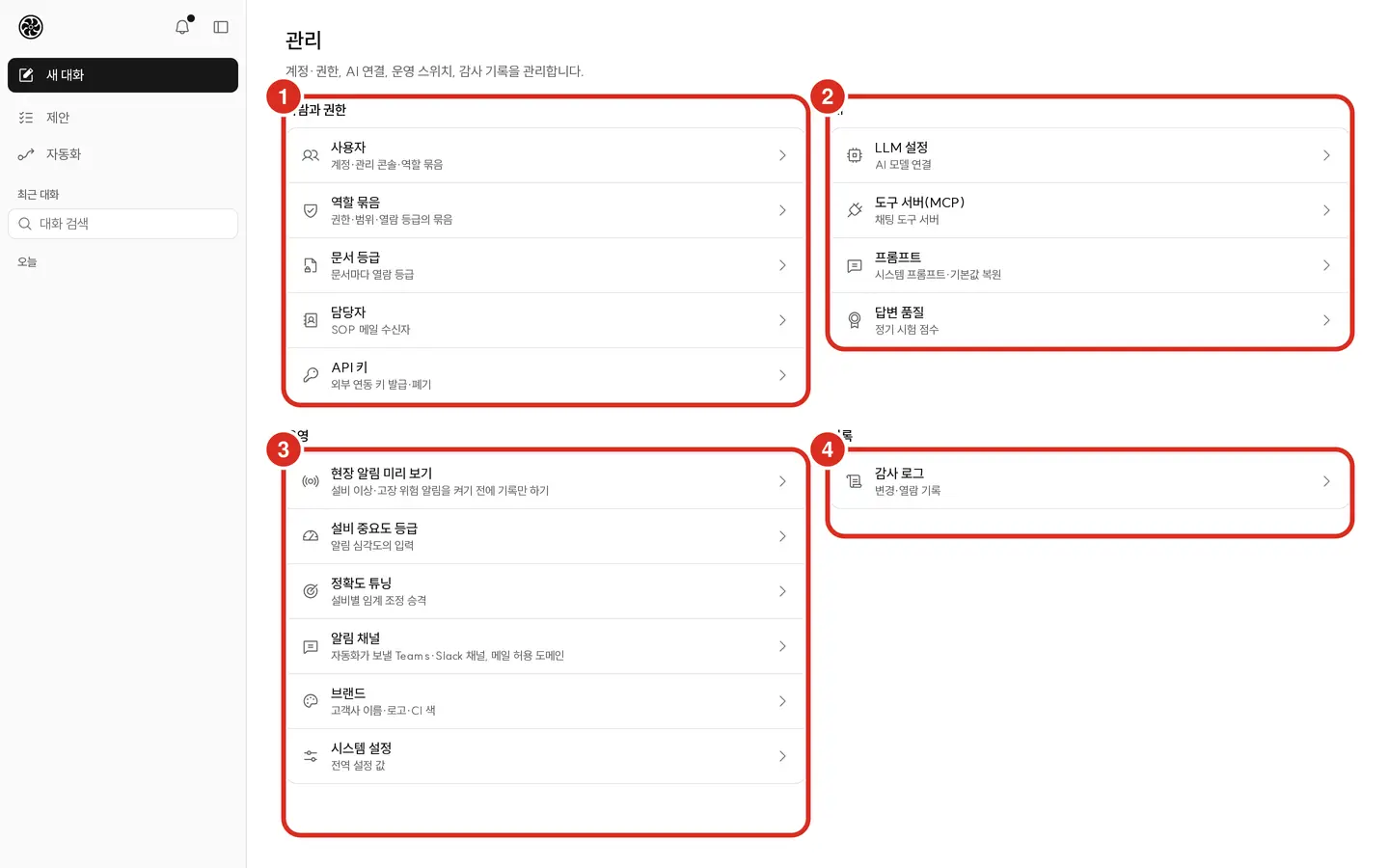
The admin home begins with "Manage accounts, permissions, AI connections, operational switches, and audit records." and the sixteen screens are divided into four groups. On wide screens (1024px and up), the list shows on the left, and clicking a row opens the detail on the right while the list collapses. The "one-liner" below is exactly as written on the screen.
| Group | Screen | One-liner |
|---|---|---|
| People and Permissions | Users | Accounts · admin console · role bundles |
| Role Bundles | Bundles of permissions · scope · view grade | |
| Document Grade | View grade per document | |
| Contacts | Recipients of incident actions and SOP mail | |
| API Keys | Issue · revoke keys for external integration | |
| AI | LLM Settings | AI model connection |
| Prompts | System prompts · restore defaults | |
| Answer Quality | Regular test scores | |
| Operations Overview | Usage, proposals, incidents and automations | |
| Operations | Field Alert Preview | Record-only equipment anomaly · failure risk alerts before turning them on |
| Equipment Criticality Grade | Input for alarm severity | |
| Accuracy Tuning | Promotion of per-equipment threshold tuning | |
| Notification Channels | Teams · Slack channels for automation to send to, allowed mail domains | |
| Brand | Customer name · logo · CI color | |
| System Settings | Global configuration values | |
| Records | Audit Log | Change · view records |
If you try to close the right-side edit panel without saving what you were editing, or navigate to another row or screen, it asks once: "There are unsaved changes" — "If you leave now, your changes will be lost." You must click Leave Without Saving to leave.
Session management · execution logs · system monitor are not in the new console. Usage statistics are on Operations Overview (its fields differ from the old "AI usage statistics"). The role of the old "alert shelf·criticality" (/admin/alerts) is now in Field Alert Preview · Equipment Criticality,
and the role of the old "permission management" (/admin/roles) is now in Role Bundles. Old admin addresses do not carry over — visiting a nonexistent admin address shows "No such screen" same as any other.
Service status · logs are viewed in the AI Admin Console.
People and Permissions
Users — /admin/users
The list shows name (with ID below), email, admin console ("Can Open"), and status (Active · Inactive), and you search by name · ID · email. Clicking a row opens the edit panel on the right. The panel has five groups.
| Group | Fields |
|---|---|
| Basic | Name · email · mobile phone · My Job (operator · shift lead · maintenance · quality · plant manager) · Open Admin Console · new password (leave blank to keep unchanged, 8+ characters) |
| Role Bundles | Check multiple bundles. The content of a bundle is edited on the Role Bundles screen |
| Scope·Grade | All Scope switch — when off, add a type (equipment · line · site · project · customer PO · partner) and key via Add Scope. And View Grade |
| Delegation·Expiry | An expiry date for each selected bundle (blank = no expiry), and Term Delegation (acting on behalf) |
| Platform Connection | Platform User — link with the Platform login ID |
- Add User — ID (cannot be changed later) · password (8+ characters) · name · email · My Job · Open Admin Console, followed below by Role Bundles · Scope·Grade · Delegation·Expiry · Platform Connection in the same panel as editing (mobile phone and term delegation are added later via edit). If nothing is selected, it starts with Operator bundle · All Scope · Confidential.
- Changing My Job switches the job role bundle (operator · shift lead · maintenance · quality · plant manager) to that one, while other bundles like administrator · partner remain unchanged.
- The Open Admin Console switch and the "Administrator" bundle are the same thing — changing one changes the other.
- Save applies in the order account info → My Job → permissions (bundle · scope · grade). If rejected midway, "Saved: … / Not saved: … — reason" tells you how far it got, and the field being edited remains as-is. Only Term Delegation applies separately from save, immediately upon clicking Delegate.
- Set people who have left to Inactive. There is no delete — because records must remain under that person's name. Restore with Reactivate.
- 🔴 You cannot set your own account to Inactive. Keep at least two people who can open the admin console.
The meaning and rules for each field (nothing shows when scope is empty · partner expiry date is required, etc.) are in Permissions — Attaching to People.
Role Bundles — /admin/bundles
The five default bundles (operator · shift lead · maintenance · plant manager · administrator) are shown separately from other bundles, and custom-made bundles are marked "Custom". Columns are bundle · permission count · default view grade · number of people · last changed.
Opening a bundle lets you edit permissions · scope types · default view grade, and saving applies immediately to everyone who has that bundle and is logged in the audit trail.
The "admin console" permission in the administrator bundle cannot be removed — this prevents a situation where no one can enter the admin console.
The permission that only toggled the old report screen (menu:report) blocks nothing on the new screen, so it doesn't appear in this edit panel (values that were already in a bundle remain even after saving).
Document Grade — /admin/grades
Sets the view grade (General · Internal · Confidential · Controlled) per document. Requires being an administrator with Assign Document Grade permission.
- The list shows up to the first 300 items. If exceeded, narrow with "narrow by equipment ID".
- If the document server rejects it, it's "out of scope or grade higher than my view grade" — you cannot change the grade of a document whose grade is higher than your own.
Contacts — /admin/employees
A list of people who receive by email incident actions (Notify Owner · On-site Inspection) and the SOPs/reports generated by AI. This is separate from login accounts — people who don't log into Copilot can still be registered as contacts.
| Field | What goes in |
|---|---|
| Name · Email | Required |
| Organization · Job Title | Notes for reference. Not used to pick recipients |
| Notify Role | None (not picked automatically) · Maintenance · Operations · Safety |
| Sites Covered · Assets Covered | What this person is responsible for. Empty means all; separate several with commas |
The list shows, along with the name, the Notify Role and the Scope ("Sites … · Assets …" or "All").
How the recipient is determined. If exactly one person has a Notify Role equal to the AI action plan's role (maintenance · operations · safety) and a scope that covers the incident's site and overlaps its assets in at least one, that person receives it. If there is none or several, the person running the action picks on screen → Proposals — Execute Action — Recipients
A contact whose Notify Role is «None» is never picked automatically. Contacts carried over from earlier versions have this field empty. If you leave it empty, the person running every notification · inspection has to pick the recipient each time. For actions to go to the right person automatically, set the Notify Role and Sites Covered · Assets Covered for each contact. If two people have the same role · same scope, neither is picked automatically.
Notify Owner goes out by email. If the mail server (SMTP) is not set in System Settings, notify actions do not run.
API Keys — /admin/api-keys
Issues and revokes keys used by external systems calling Copilot's public API (/api/v1) and MCP (/mcp). Carried in the request header X-API-Key.
- Issue — enter the name of where this key will be used (within 80 characters, e.g.
설비관리시스템). - The key value appears. 🔴 It is shown only this once. Copilot stores only a hash of the key, so even administrators cannot view it again.
- Revoke unused keys. This cannot be undone, and anything using that key is cut off immediately.
Keys where "Last Used" is "Never used" are revocation candidates. This key only opens the public API · MCP and does not reach the admin console → API Integration Guide
AI
LLM Settings — /admin/llm
The connection to the AI model used by chat.
| Field | What to enter |
|---|---|
| Address | OpenAI-compatible address — up to http(s)://…/v1 |
| Model | Enter a name, or pick from the list received after Test Connection |
| API Key | Changes only when newly entered. The screen only shows status, like "A key is configured" |
Test Connection shows response time and number of models. Saving means everyone's next question onward uses the new connection.
Tools the AI uses — turned on not in this console but in the MCP Gateway
From 2026.10 re-release (2026-10-20), this console no longer has the Tool Servers (MCP) screen (/admin/mcp). The copilot does not attach MCP servers directly; it looks only at
the single address of the MCP Gateway. Server registration · tool on/off · connection checks are all done in AI Admin Console › MCP Gateway
→ AI Admin Console — MCP Gateway
- Values turned on and off on this screen in older releases (
mcp_server·mcp_tool_pref) are not carried over. The copilot drops those tables at startup, and the initial on/off follows the gateway policy → MCP Tool Map — what is on at first - What remains in the copilot is the approval gate · the per-person audit log · the scope of role bundles. The copilot still makes sure write tools are not called without approval.
Connectors for external systems like MES · SCM · PLM · QM are registered in AI Admin Console → Digital Thread → Integration Map. If you attach one to the gateway as a server,
its connector tools (mes_ · erp_ …) cannot be enabled → Digital Thread
Prompts — /admin/prompts
View and edit the AI's system prompts by category (name · version · length · last changed).
- Editing and saving in the Edit tab increments the version.
- The History tab retains initial creation · modification · product upgrade · deletion, and you can Load into Editor an old version.
- Restore Default overwrites with the product default after confirmation. The version before overwriting remains in history.
Answer Quality — /admin/quality
Shows regular test (benchmark) scores over the last 90 days — tool calls · ontology · answer grounding · daily · what-if. Each round is summarized with median · range · count, and rounds that couldn't be measured due to backend instability during measurement are excluded from the score. Read-only → Accuracy · Benchmarks
The Diagnosis Accuracy section lower on the same screen is the share of incident AI diagnoses that people judged «correct · wrong».
| What is shown | Meaning |
|---|---|
| Period | 30 days · 90 days · 180 days (default 90 days). Counted by the day the incident was opened |
| Correct Rate | Correct among those judged — "N correct of N judged". If nothing has been judged it is «Unknown» (not 0%) |
| Judged Sample | Diagnoses that were judged |
| Outcome Unknown | Diagnoses without a judgement. Not part of the correct-rate denominator; counted separately |
| Small Sample | Attached beside the rate when there are fewer than 20 judgements. The number is still shown |
| Breakdowns | By Incident Type (sensor anomaly · alarm · precursor) · By Model · Top 10 Assets · Weekly Trend (weeks start on Monday, latest on top) · By Actual Cause and Remedy |
- Judgements come from the incident's Record Result ("Was the diagnosis right?") and from action plan Reject («Diagnosis is wrong» counts as wrong) → Proposals — Action Plan Review
- By Model is the name of the model that actually answered with that diagnosis. Diagnoses from before the model was recorded are «Model unknown». The same model name (only the weights changed) counts as the same model — compare before and after a version swap with Weekly Trend.
- Only incidents within the viewing admin's data scope are counted.
Operations Overview — /admin/ops-stats
Counts on one screen how much the copilot is used, and how proposals · incidents · automations were handled. Read-only, and it counts only what the copilot itself recorded.
- The Period is 7 days · 30 days · 90 days (default 7 days), counted in days of the plant time zone including today. The header reads "Counts only what copilot recorded from (start) to (end) (plant time zone)."
| Section | What is shown |
|---|---|
| Usage | Conversations · active users (only the number of people who asked) · tool calls (errors · denied · unknown tools) · response time median · p90 · failed responses · tool error rate · Daily Trend (bars of questions per day) |
| Proposals | Proposal cards raised by findings — raised · accepted · dismissed · no decision · handled (outcome recorded) · time to decision (median) |
| Incidents | Incidents · time to acknowledge (median) · time to close (median) · judged by people (share of incidents with a diagnosis verdict) · By Type (anomaly · alarm · precursor · forecast · watch · automation) |
| Automations | Runs (previews excluded) · succeeded · could not judge · failed · stopped · skipped · in progress · auto-paused · Top Failure Reasons |
- A field with no records shows «No records» — not 0.
- Response time is the whole turn including tool calls. LLM tokens · model latency are not counted on this screen (Phoenix LLM traces cover them).
- The Proposals section counts only cards raised by findings — suggested-action (plan) cards and automation cards are not included.
- Diagnosis accuracy is seen not on this screen but on Answer Quality.
- 🔴 For an admin limited to an asset scope, only proposals · incidents are counted within the scope ("Filtered by your asset scope"). Usage · Automations, which are not tied to assets, show «Unknown» — only plant-wide admins see them.
Operations
Field Alert Preview — /admin/field-modes
A switch to try out new determinations (equipment anomaly alerts, short-term failure risk) in record-only mode before notifying the field. "Shadow" is record-only, "Field" notifies the field. Turning on "Field" requires entering a reason, and it is logged in the audit trail.
What to monitor and when will be set via Automation going forward. This screen and Accuracy Tuning below are scheduled to be replaced by automation templates in a future release, so build any new monitoring with automation.
Equipment Criticality Grade — /admin/criticality
Sets Critical · Major · Normal · Minor for each equipment. This grade feeds into the severity of alarms · suggestions. Equipment without a grade is "Normal".
- Changing it requires a note (within 200 characters) and is logged in the audit trail.
- The last 50 entries appear below in Recently Changed Grades.
Accuracy Tuning — /admin/tuning
Promotes or reverts autonomous adjustments to per-equipment sensor anomaly determination thresholds. Requires being an administrator with Promote·Revert Threshold Tuning permission. It only changes determination thresholds and does nothing to equipment · processes. As noted above, it is scheduled to be replaced by automation in a future release.
Notification Channels — /admin/channels
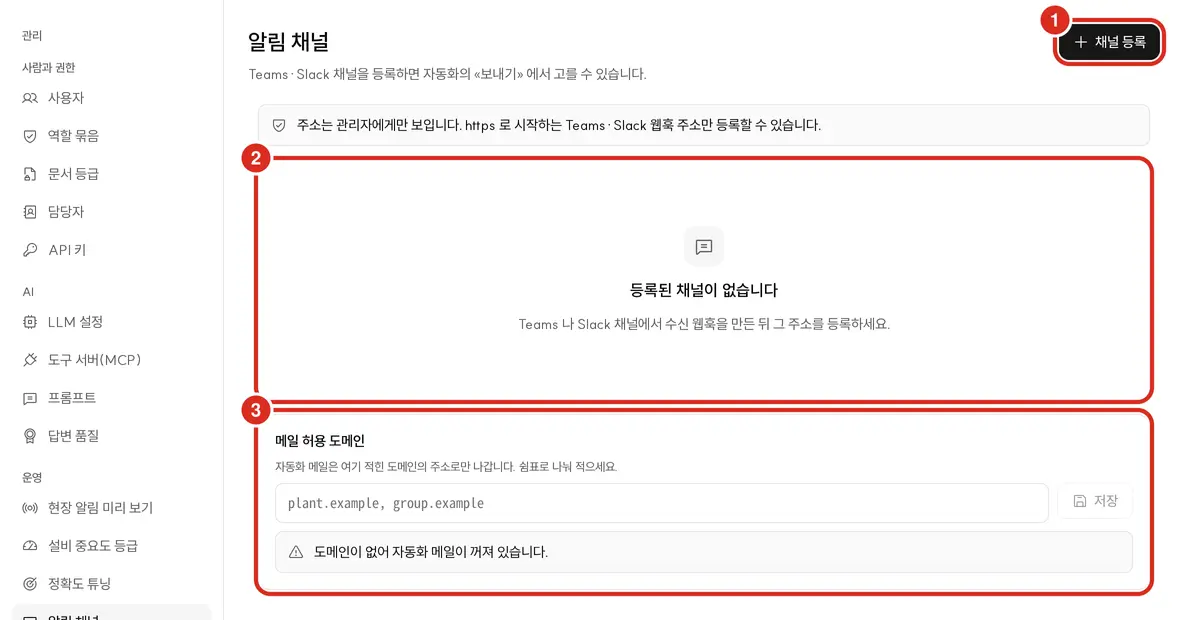
The screen where an administrator pre-defines where automation can send results — to messengers and email. The screen header reads "Register Teams·Slack channels so they can be selected in automation's 'Send'." and below it is the Allowed Mail Domains field. Anyone who can open the admin console can manage this (no separate permission is required).
Messenger Channels
- Create an Incoming Webhook in that Teams or Slack channel to get the address.
- Click Register Channel, enter a Channel Name (within 60 characters, e.g.
정비팀 Teams) and the Webhook Address, and save. - Anyone creating automation selects this name from Messenger Channel in "Send."
| What | Rule |
|---|---|
| Receiving address | Only Teams · Slack webhooks starting with https — Slack hooks.slack.com, Teams …webhook.office.com · outlook.office.com · …logic.azure.com · …api.powerplatform.com. Other hosts · IP addresses · ports outside the default (443) are rejected |
| Type | Not selected separately. Teams vs. Slack is determined from the address's host, and appears in the list as "Teams · host" |
| Where the address is shown | 🔴 Only on this screen. The automation screen only shows the channel's name · type, and even the audit record retains only the host, not the address |
| Buttons per row | Disable · Enable (disabled channels show "Disabled") · Edit · Delete |
| Count | Up to 30 per installation |
- Disabling or deleting a channel means automations sending to it stop at their next run (deletion asks for confirmation with the same message).
- Only people with "Approve — Execute Incident Action" permission (default bundles: shift lead · maintenance · plant manager · administrator) can create automations that send to messenger channels. Automations made by partner · auditor bundle people don't go out via email · messenger, and only send in-app notifications to themselves.
- This screen has no Test Send button. Automation's "Preview" shows "will send like this" with the destination only, and does not send. To confirm actual delivery, you Run Now the automation that selected that channel and check "Sent To" in the execution record.
Allowed Mail Domains
Automation emails only go out to addresses in the domains entered here. Enter comma-separated and save (e.g. plant.example, group.example, up to 20).
- 🔴 If empty, automation email is off — the screen shows "Automation email is off because there are no domains," and Internal Mail cannot be selected in automation's "Send."
- The domain must match exactly. Entering
plant.exampledoes not send tomail.plant.exampleaddresses — subdomains must be entered separately. - Recipients are only selected by internal user · role, and the address comes from the email in the user directory. If a directory address is outside the allowed domain, that person is not sent to, and it's logged in the execution record as "Not an internal mail address."
- The mail server (
smtp.*) is configured in System Settings. Without a server, entering domains won't make mail go out. - The same value also appears in System Settings as "Allowed Mail Domains" (
automation.mail.allowed-domains) — editing either side changes the same value.
Daily Sending Limits (set in System Settings, defaults in parentheses)
| Key | Meaning |
|---|---|
automation.deliver.mail.daily-max (6) | Number of emails one automation sends to one person per day |
automation.deliver.webhook.daily-max (12) | Number of messenger messages one automation sends to one channel per day |
automation.deliver.role.max-members (50) | Number of people expanded when recipients are selected by role |
Exceeding this is logged in the execution record as "Exceeded today's send limit," and if identical content was already sent that day, as "Identical content already sent today."
Audit — channel registration · editing · disabling · deletion is logged under notify_channel:…, and allowed domains under automation.mail.allowed-domains in the Audit Log.
Records of what automation actually sent remain in that automation's agent:… row → Automation — Where to Send
This screen only handles where automation sends to. The email · Slack notifications sent directly by AI anomaly diagnosis and incidents still use the
anomaly.notify.* · incident.notify.* keys in System Settings as before.
Brand — /admin/brand
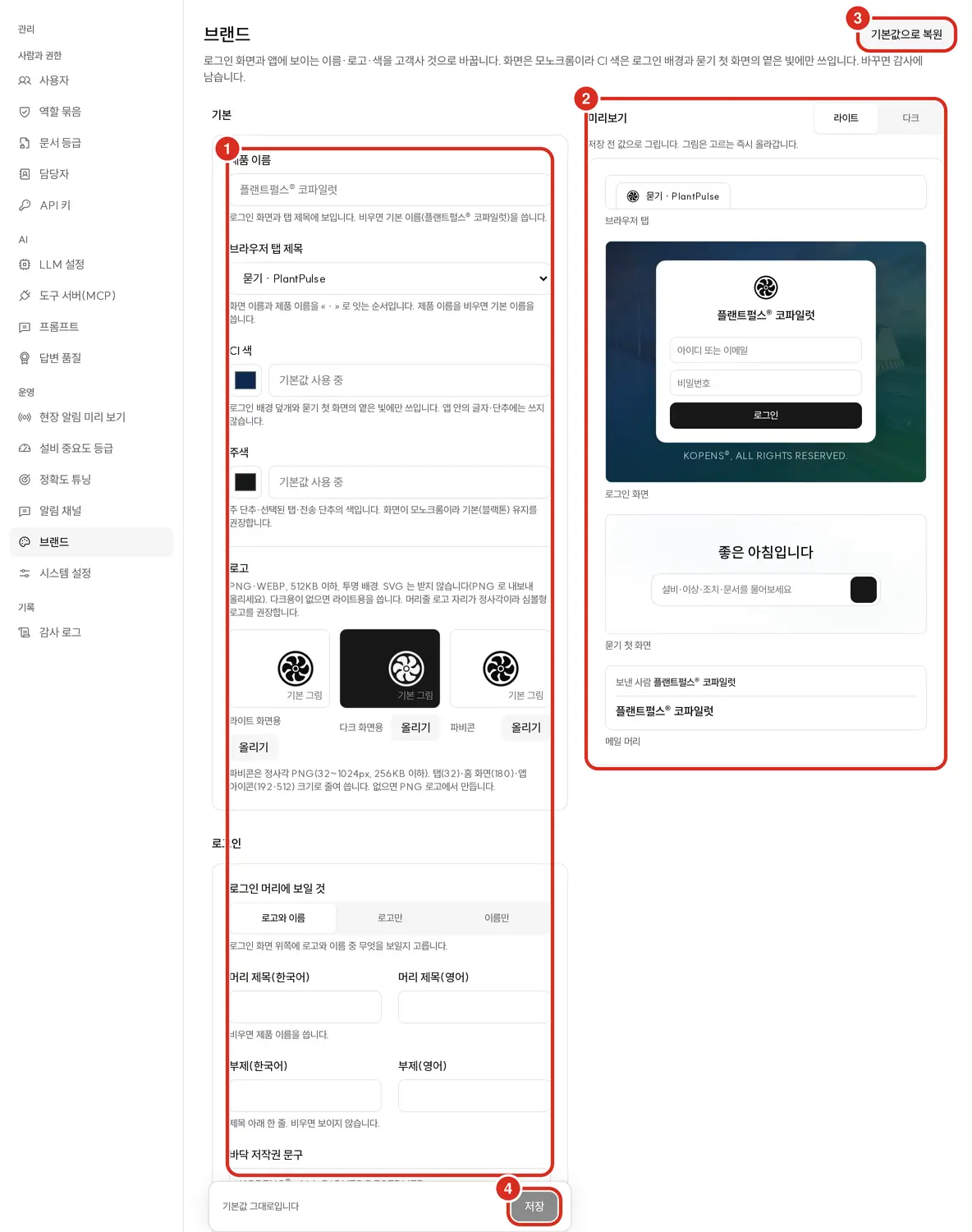
Changes the login screen and Copilot screen's customer name · logo · color. Requires being an administrator with Change Brand permission, which is included by default only in the administrator bundle.
The fields are in four groups.
| Group | Fields |
|---|---|
| Basic | Product Name (single line within 60 characters, blank = default name) · Browser Tab Title · CI Color · Primary Color (both #rrggbb, blank = default) · logo for Light Screen · for Dark Screen · Favicon |
| Login | What to show in Login Header (logo and name · logo only · name only) · Header Title (Korean · English, 60 characters — blank = product name) · Subtitle (Korean · English, 120 characters — blank = not shown) · Footer Copyright Text (120 characters — blank = default text) · Login Background |
| Contact | Customer Documentation Address (only addresses starting with https://, blank = default docs) · Support Email · Support Phone (digits and + - ( ) · spaces) — shown only if entered, in the "Contact" of the help screen and error screen |
| Sender Display Name (60 characters — blank = default name) · Include Logo in Mail Header (switch) — used for automation emails · report emails |
Browser Tab Title is not a free-text field but a selection of three options — the order of joining screen name and product name with " · ".
| Choice | Tab title shown on question screen |
|---|---|
| Screen Name · Product Name (default) | 묻기 · 제품 이름 |
| Product Name · Screen Name | 제품 이름 · 묻기 |
| Product Name only | 제품 이름 |
Image formats and limits.
| Image | Format | Size limit |
|---|---|---|
| Logo (Light · Dark) | PNG · WEBP, transparent background | 512 KB, long side 2048px. The header logo area is square, so a symbol-type logo is recommended. If no dark version exists, the light version is used |
| Favicon | Square PNG only | 256 KB, each side 32–1024px. Scaled down for tab (32) · home screen (180) · app icons (192 · 512). Generated from the PNG logo if not uploaded |
| Login Background | PNG · WEBP | 3 MB, long side 4096px (around 1920px wide recommended). A CI color overlay is placed over the photo |
| Mail Header Logo | — | Not uploaded separately. Turning on the switch places the Light Screen Logo at the top of the mail |
- 🔴 The app screen is achromatic. CI color is used only in the login background overlay and the light tint on the question home screen — letters · buttons inside the app are not tinted with CI color. Primary Color is the color of primary buttons · selected tabs · send button, and keeping the default (black tone) is recommended.
- SVG · HTML · GIF are not accepted (export SVG as PNG before uploading). Format is determined by file content, not the filename.
- Keep colors readable — text on the primary color uses whichever of white · black has higher contrast, and a warning appears if contrast is below 4.5:1. If the primary color is too similar to the background (Light · Dark) (below 3:1), it's automatically darkened · lightened for that mode only.
- Images upload immediately upon selection (Upload · Replace, Restore Default to revert), while text fields require clicking Save. Before saving, use Preview to view browser tab · login screen · question home screen · mail header in Light · Dark.
- Restore Default reverts product name · color · logo · login background all at once and removes uploaded images.
- Each changed field is logged in the audit trail under its
brand.…name (who · old value → new value).
For white-label delivery, this single screen handles login · tab · help · mail all under the customer name. The Windows desktop app's icon · name is set when building the installer, not on this screen → How to Open Copilot
System Settings — /admin/config
View and edit global settings known to the server, along with name · description · default value. The screen header reads "Settings known to the server and their saved values. Unset settings run on their default, and changing one saves that value. Changes are logged. Secret values are shown masked."
| What is shown | Meaning |
|---|---|
| Row | Setting name and the key below it (e.g. "Automation minimum interval (minutes)" · agentdef.min.interval.minutes), and the currently used value. For on/off settings, "On" · "Off" |
| "Default" label | A setting that has never been set and is currently running on its default |
| "Secret value · Configured" | A secret value. Not shown again — only a new value is entered when changing |
| Search key·value | Narrows by setting name · key · value |
- 🔴 Settings such as automation limits (
agentdef.*) · sending limits (automation.deliver.*) · two-person approval tools (access.two_person.tools) · incident switch (incident.*) · anomaly · incident alerts (anomaly.notify.*·incident.notify.*) · push (push.*), even if never changed, always appear in the list with their default. Clicking a row, entering a value, and saving locks in that value from then on. - Clicking a row opens the edit panel on the right. The appropriate field type appears for that setting's kind — switch, dropdown, number · text field. Below the field, the description and allowed range (e.g. "5–1440.") are shown, and for settings not yet configured, "Not yet configured, currently running on default. Saving will lock this value in." appears; for configured ones, "Default: …" appears.
- Restore Default — clears the configured value and reverts to default. Asks once: "Restore «name» to default?" and is logged in the audit trail. Only shown for settings that have been configured at least once.
- If a value doesn't match the format · range, it isn't saved and a reason appears below the field — messages like "Enter an integer." · "Enter a value between 5 and 1440." · "Enter tool names in lowercase letters, digits, and underscores, separated by commas." · "Enter an address starting with http:// or https://." Trying to clear a value shows "Enter a value. To remove a saved value, click 'Restore Default.'"
- For settings that also have a dedicated screen, "This value is also changed on a dedicated screen (same value)." and Open That Screen are attached (Allowed Mail Domains → Notification Channels).
- There is no field to create a new key. Only settings already in the list can be changed.
- Saved rows this version doesn't know the name of (values left by an old version) are collapsed below the list as "N saved rows not in the catalog." Expanding shows "Rows this app doesn't recognize — these are values left by an old version and current code may not read them."
- Saving is logged in the audit trail along with the previous value (secret values are masked in the log).
- The mail server (
smtp.host·smtp.port·smtp.username·smtp.password·smtp.starttls) and external link address (app.base.url) are also in this list.
Records
Audit Log — /admin/audit
Records of configuration · permission changes and views of Confidential · Controlled documents.
- Filter by start date · end date · ID · type (change · view). Default is the last 7 days, up to 2,000 items at a time — narrow the period if exceeded.
- Columns are time · type · user · target · content (before → after). The list shows text translated into human-readable form.
- Clicking a row opens the detail on the right, and expanding View Raw shows the exact target key and before · after values as stored.
- Download CSV downloads the selected period.
Target names for remaining changes are in Permissions — Audit Screen.
Related Documents
- Permissions — Role Bundles · Data Scope · Document Grade
- Automation — uses notification channels · allowed mail domains
- MCP Tool Map
- Digital Thread — where external system connectors are attached
- AI Admin Console — the "other" console for GPU · LLM · service health
- Credential Management — key rotation
- API Integration Guide