User Permissions and Job Roles
Copilot assigns each person a job role — Operator · Shift Lead · Maintenance · Quality · Plant Manager. A role bundle with the same name as the job role is attached to that person, and the screens they see and the approval rights they hold come from that bundle. Bundles · data scope · document classification are covered in Permissions — Role Bundles, Data Scope, Document Classification.
| Item | Values | Who decides | What changes |
|---|---|---|---|
| My Job(job role) | Operator(default) · Shift Lead · Maintenance · Quality · Plant Manager | Admin only — Admin Console › Users › My Job field in the default bundle | Changes to a role bundle of the same name as the chosen job |
| Role Bundle | Operator · Shift Lead · Maintenance · Plant Manager · Admin, and other bundles(Quality, etc.) | Admin only — Role Bundle on the same screen. Changes are recorded in the audit log | What shows in the sidebar, the source of proposals, and approval rights |
| Enable Admin Console | On · Off | Admin — default bundle field on the same screen | Only people with this on can open the Admin Console(/admin). This is equivalent to the "Admin" bundle |
In the old version, each person chose a start screen(the role card on Home · the role tab on the chat start screen). The new screen has neither role cards nor role tabs, and everyone starts on the Ask Anything first screen — greeting · input field · "Today's Tasks"(a collapsed single line that expands when tapped) · question chips. What appears in "Today's Tasks" is determined not by the role name but by the sources and data scope that person can see → Copilot Screen Map
So the "Start Screen" choice in the profile and the setting chat.home.default_role(default role for start screen) are not used on the new screen. The values aren't deleted — they just remain unused.
What Changes by Job Role
The sidebar has, from top to bottom, New Chat · Proposals · Automation. There's no separate "Ask" row — New Chat opens the Ask Anything first screen. The table below is based on the built-in bundles; if an admin has modified a bundle or attached additional bundles, those changes apply instead.
| Job Role | New Chat(Ask) | Proposals — Visible Sources | Automation | Approve Material Expedite Draft | Approve Maintenance Request · Execute Incident Action | Publish Video Work Procedure |
|---|---|---|---|---|---|---|
| Operator | ✓ | Plans · Incidents | ✓ | — | — | — |
| Maintenance | ✓ | Plans · Incidents · Incidents to Review | ✓ | — | ✓ | ✓ |
| Shift Lead | ✓ | Plans · Incidents · Incidents to Review | ✓ | — | ✓ | ✓ |
| Quality | ✓ | All | ✓ | — | — | — |
| Plant Manager | ✓ | All | ✓ | ✓ | ✓ | ✓ |
| Admin | ✓ | All | ✓ | ✓ | ✓ | ✓ |
- New Chat is shown to anyone with the "Menu — Ask" permission. All built-in bundles include this permission.
- Automation is shown to anyone with the "Create·Manage Automations" permission. All built-in bundles attached to a person include this permission — removing it from the bundle removes it from their sidebar.
- If there's not a single source visible under Proposals, Proposals is removed from the sidebar. Anyone who can see incidents also sees the In Progress · Completed tabs.
- Anyone who can see incidents can approve · edit and approve · reject the AI action plan (Operators included). Executing an approved action is limited to people with "Execute Incident Action" (Shift Lead · Maintenance · Plant Manager · Admin) → Proposals — Action Plan Review
- Only people with Approve Maintenance Request · Execute Incident Action(Shift Lead · Maintenance · Plant Manager · Admin) can send automation results to someone other than themselves · a role · a messenger channel. Operator · Quality can only send to themselves.
- The Admin Console appears only to people with "Enable Admin Console" turned on, in the menu on the profile row at the bottom of the sidebar.
- Admins approve both drafts regardless of job role(the "Admin" bundle includes all permissions).
- The Material Expedite draft appears as an "Actions Available" card below an Ask answer(when Recovery Plan proposes it).
- The Maintenance Request draft comes from two places. The action card below an Ask answer(when the answer contains an open failure-risk finding) is approved, per the table above, by Shift Lead · Maintenance · Plant Manager, while the "Draft Created on Approval" in a Proposal detail is approved only by Admins(by default) who hold the "Approve — Proposal Card Draft" permission. Once the same finding is approved on one side, it doesn't reappear on the other side → Proposals — Draft Created on Approval
- Approval buttons aren't just hidden on screen — the server re-checks on every approval. If the permission is missing, it's rejected.
- The person who asked cannot approve their own action card(two-person approval). A different approver must approve from Proposals, and Material Expedite requires approval by two different people before it's sent → Two-Person Approval · Delegation
- Even after approval, only one draft enters the customer system. Maintenance requests go via MES, Material Expedite via the SCM connector → Digital Thread — Administration
- Shadow Verdict Review(a permission included in the Shift Lead · Maintenance · Admin bundles) has no place to be used on the new screen. It was a permission on the old screen's "Pending Verification" for marking whether a shadow verdict was correct, and it remains in the bundle as-is. Findings recorded as shadow are viewed by admins in the Admin Console's Field Notification Preview → Copilot Admin Console
Job role only controls screens and approvals. Splitting the data each person can see — like "see only my assigned line" — is data scope, and splitting which document classification they can view is clearance level → Permissions — Role Bundles, Data Scope, Document Classification
Admin — Setting Roles
In Admin Console › Users(/admin/users), click a person's row to edit. The job role is chosen in the My Job field of the Default bundle.
- My Job — choose one of Operator · Shift Lead · Maintenance · Quality · Plant Manager. The on-screen guidance reads: "Changes the screen shown on first open, and switches to the role bundle for that job. Admin only." What changes on the new screen isn't the start screen itself(everyone gets the Ask Anything first screen) but what that job's bundle opens — the lines that appear in "Today's Tasks" · the sources of proposals · the approval buttons.
- As soon as you choose, in the Role Bundle checklist below, only that one of the five job-role bundles gets checked. Checks on other bundles like Admin · Partner · Design remain unchanged.
- If permissions beyond the job are needed, check additional bundles in Role Bundle(e.g. "Audit" for a Quality staffer). Permissions are the sum of the chosen bundles, and on save, whatever is checked on screen is applied.
- You must press Save for it to take effect. If My Job and the bundles change together, My Job is saved first, then the bundles.
- Add User uses the same field to choose. If not chosen, it defaults to Operator.
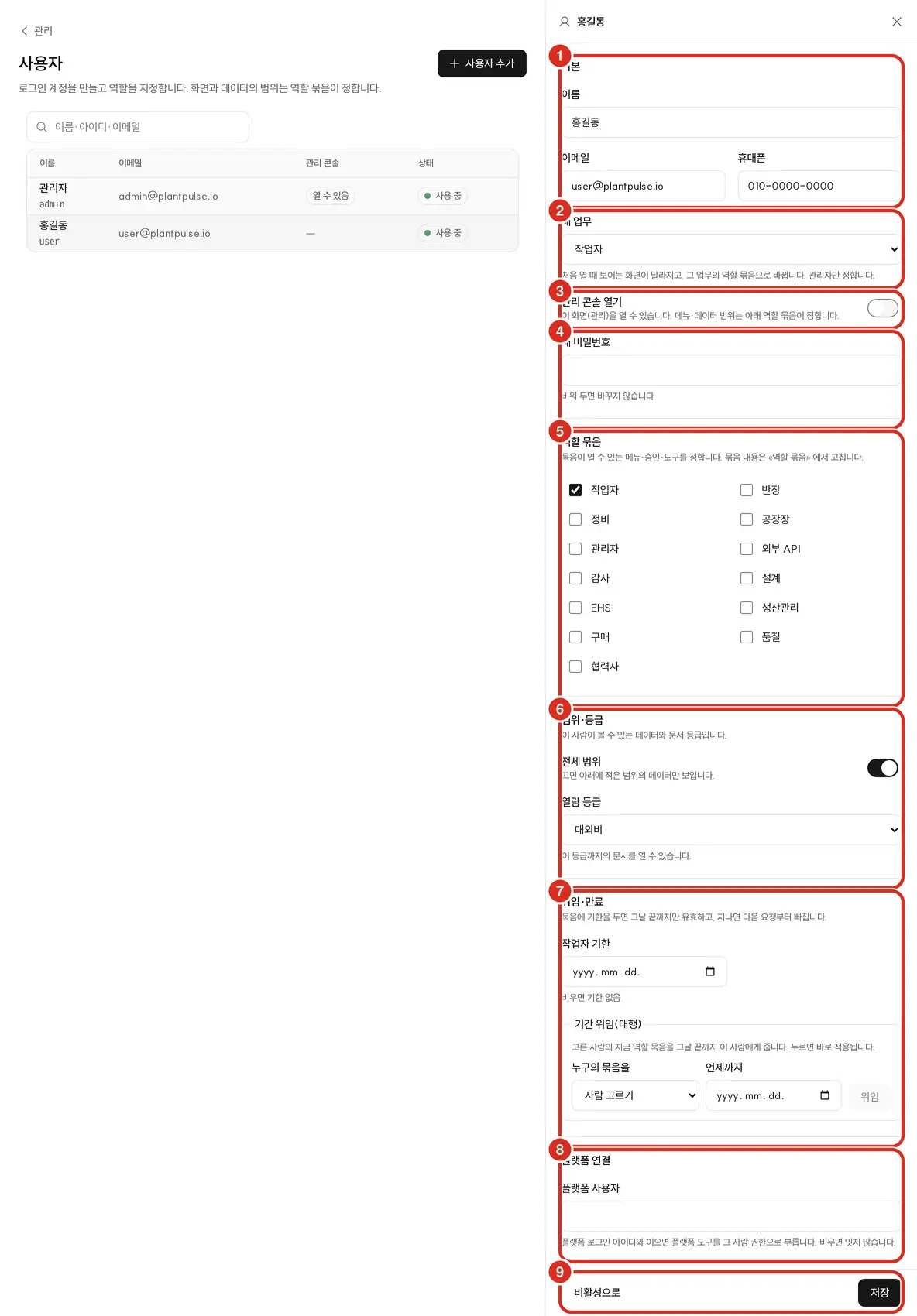
| No. | Field | What it does |
|---|---|---|
| ② | My Job | One of Operator · Shift Lead · Maintenance · Quality · Plant Manager. Choosing it checks that job's bundle in Role Bundle below |
| ③ | Enable Admin Console | Lets this person open the Admin Console. Menu · data scope are unchanged |
| ⑤ | Role Bundle | Check bundles matching this person's job, such as Operator · Shift Lead · Maintenance · Plant Manager. Multiple can be chosen and permissions are their sum. For the remaining fields see Permissions |
| ⑨ | Save | Applies from this person's next request onward |
- Changes are recorded in Admin Console › Audit Log as
access.user:<아이디>(previous value → new value · who changed it). Changes to the job role are recorded asemployee.work_role:<아이디>. - A new person starts as My Job Operator · Operator bundle · Full scope · Clearance level Confidential. For a Shift Lead · Plant Manager to approve, the admin must first change My Job or attach the relevant bundle.
- Individuals can only view their own role and visible scope in the profile bundle under Settings(
/settings) — they cannot change it.
Troubleshooting
| Symptom | Cause · Action |
|---|---|
| The role cards on Home and the "Start Screen" picker from the old version are gone | They don't exist on the new screen. Everyone starts on the Ask Anything first screen, and the same content appears when you ask about it |
| "Incidents to Review" doesn't appear in Proposals | The bundle lacks "Proposals — Incidents to Review." By default, the Operator bundle lacks it; Maintenance and Shift Lead and above have it |
| There's no "Ask" in the sidebar | This is normal. Ask is accessed via New Chat and the first screen. If New Chat is also missing, the bundle lacks "Menu — Ask" |
| Checking a different My Job changed the bundle checks | This is normal — only the one chosen job out of the five job-role bundles remains checked. If other job bundles are also needed, re-check them in Role Bundle before saving |
| As Plant Manager, there's no approve button on the "Material Expedite" action card | Normal if it's a card from a conversation I asked myself(the author can't approve — a different approver must via Proposals). Otherwise the "Plant Manager" bundle isn't attached — ask the admin to attach it |
| As Shift Lead · Maintenance, I can't approve a Maintenance Request draft in Proposal detail | The draft in Proposal detail requires the "Approve — Proposal Card Draft" permission, which by default only Admin holds. Shift Lead · Maintenance · Plant Manager approve via the Maintenance Request card in the Ask answer instead |
Related Documents
- Permissions — Role Bundles, Data Scope, Document Classification
- Copilot Admin Console — Users · Role Bundles · Audit Log
- Copilot Screen Map — Sidebar · Ask Anything first screen · role-based menus
- Proposals — Approval · Action · Result