Making the chatbot answer from our documentation
A tutorial to verify that answers come from your company documentation.
The copilot interface is available now in the public demo, and steps 2–3 onward (uploading and indexing documents) require an installed stack.
- A completed AI stack installation → One-line installation
- Admin console login credentials → Change initial password
- One document file to test with (equipment manual, work standard, etc.)
There is a public demo — https://demo-ai.plantpulse.io (admin / admin123!).
The copilot screenshots below are captured from that demo.
⚠️ The demo has copilot only. The admin console (GPU, LLM, RAG screens) is not included —
for that, see the AI Admin Console documentation.
Step 1 — Check that everything is running in the admin console
First, log in to the admin console. On the summary row at the top of the home page, verify that 중단 is 0.
정상 12 주의 0 중단 0 합계 12
If any light is red, stop here and bring that service up first — all later steps depend on it.
On the GPU rail, if XID is not 0, there is a hardware or driver error. Even if it works now, it will fail soon → Admin Console.
Step 2 — Upload one document
Go to RAG API → Documents on the rail. Upload your document.
First checkpoint — the document must appear in the list and indexing must complete. Also check Sync History to confirm the last run ended successfully.
Once a document is deleted, the chatbot can no longer use it as evidence. Do not delete it unless you have the original file.
Step 3 — Test the search directly
In RAG API → Query Test, search using language a user might actually ask.
If content from the document you just uploaded appears in the results, you have passed the second checkpoint.
If it does not appear, try a different search method — you can choose from hybrid (default) · local · global · naive ·
mix. If still nothing, go back to step 2 and verify that indexing actually completed.
Step 4 — Ask the chatbot
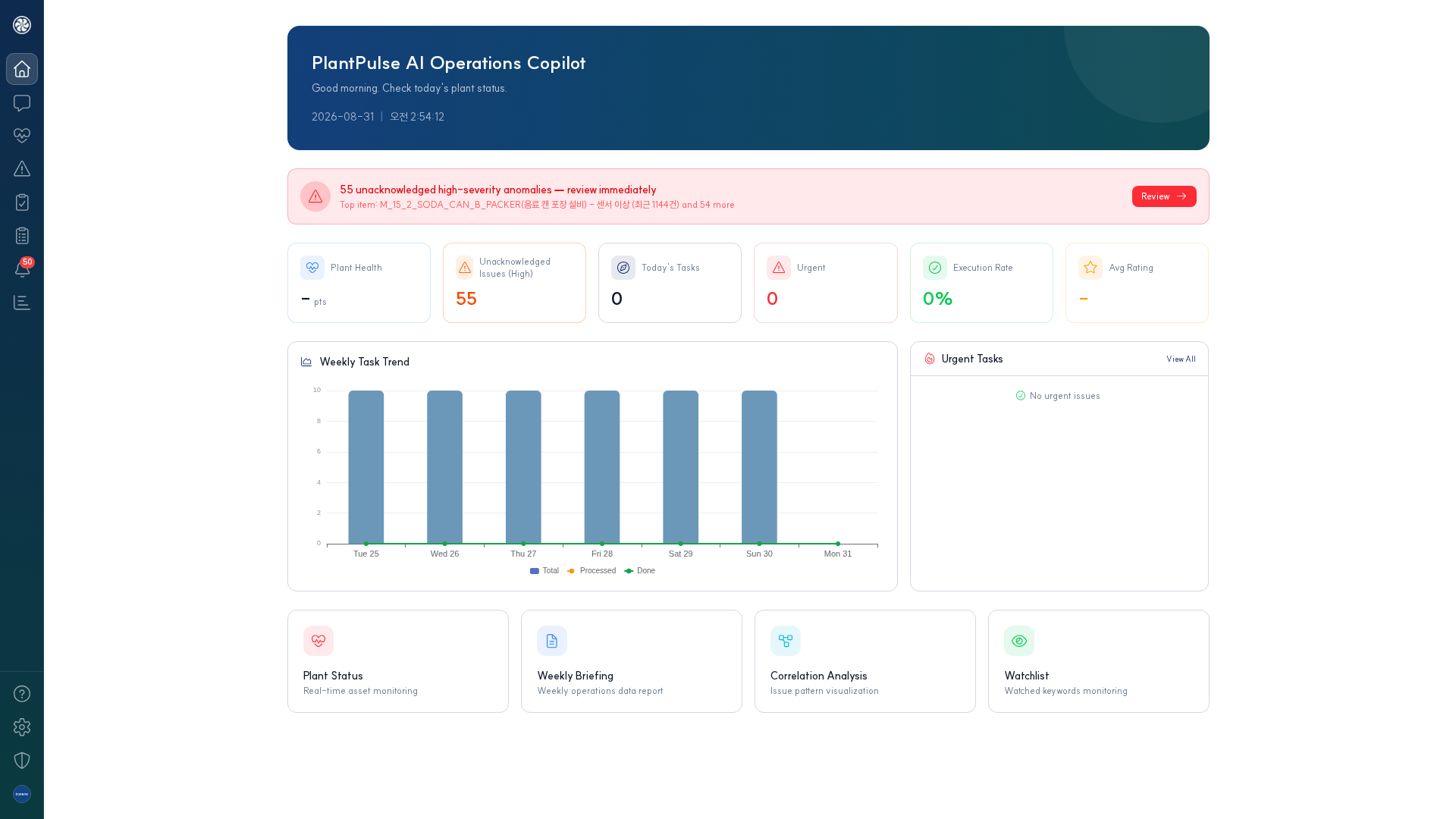
The copilot home starts with factory status today. If there are unreviewed high-severity anomalies, a red banner appears at the top, followed by cards summarizing equipment health, today's work, alerts, and performance rate.
Now ask the same question in AI Chat Web. If the answer is based on the document you just uploaded, you are done → AI Chat Web.
If the search works in the console but the chatbot answer is wrong, the problem is not search but the LLM. Check response time (P95) and status on the LLM rail.
Step 5 — Ask about equipment data too
Besides documents, you can also ask about real-time and historical data. This path goes through the platform's unified MCP → MCP — Real-time Data Gateway.
"What was line 3's uptime yesterday?"
You are done
| Next task | Documentation |
|---|---|
| Detect anomalies automatically | Anomaly Detection & Incident Response |
| See what can be asked | Question Examples |
| Operational inspection habits | AI Admin Console |