Automation — Handing off routine checks to words
Automation is a repeated check handed off in a single sentence, like "every morning at 7, check vibration and temperature on Machine 3, and if anything's off from usual, tell the shift lead." The AI drafts from that sentence, a person checks the result with test run, and then turns it on. The old name was «Agent».
The only things an automation does on its own are read, and send the result to the places decided when it was made.
- It operates within the creator's permissions and equipment scope. Equipment, documents, and tools the creator can't see, the automation can't use either.
- Only read tools can be chosen. Write tools aren't in the list, and even typing the name in won't make it work.
- Writes such as maintenance requests stay in the result card as «pending approval» — a person must approve the proposal before it goes out.
Role-specific examples ready to use are in Use Cases — Automation.
List — /automations
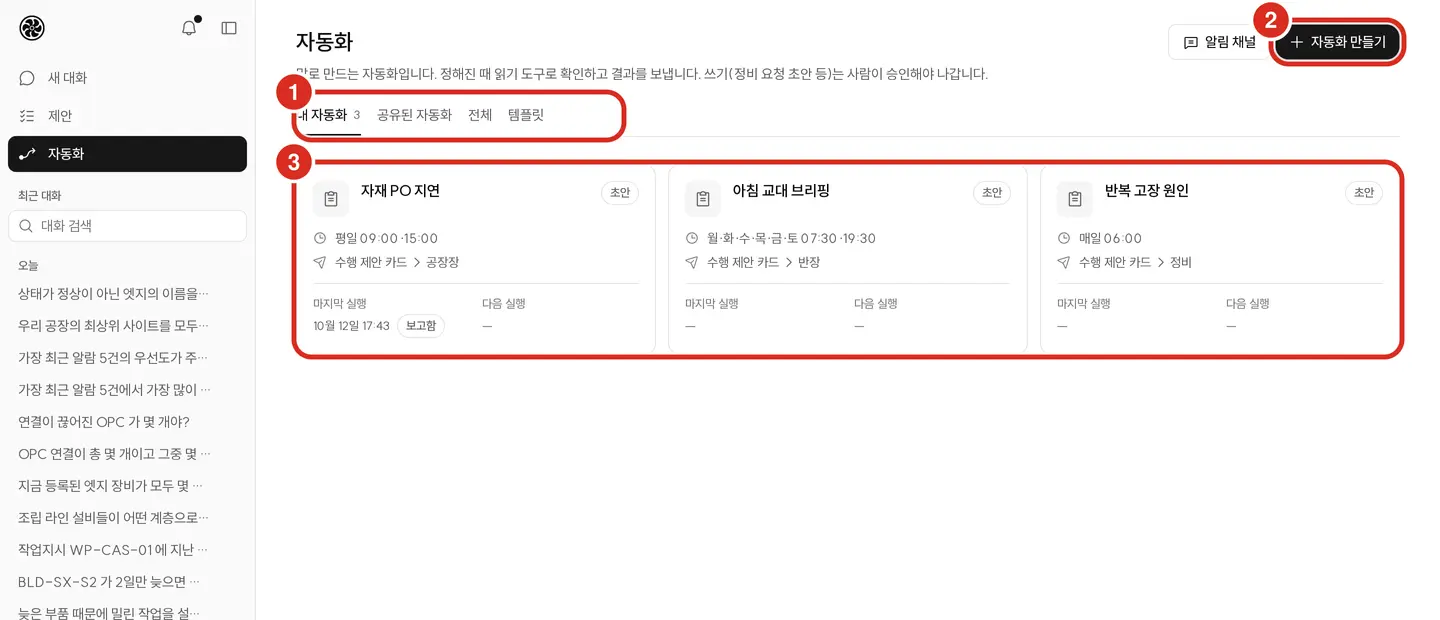
| Tab | Contents |
|---|---|
| My Automations | Ones I made. Status is On · Off · Draft · Stopped |
| Shared Automations | Ones shared with me by role or plant-wide |
| Templates | Default automations ready to use from scratch |
Each card shows name · status · trigger · where results go · last run (that run's status) · next run.
Automations in the sidebar is visible to anyone with "create/manage automations" permission, and is included in every default bundle assigned to people. The My Automations · Shared Automations tabs only show what I made and what's shared with me. Admins additionally see a Notification Channels button in the header (where messenger channels and the allowed mail domain are set).
All tab — Admins · Plant managers
Admins and plant managers see one more tab, All, between Shared Automations and Templates. It lists every automation at this installation, regardless of who made it.
- Each card shows creator · status (On, Off, …) · trigger · last run · next run. If there are none, it reads "No automations created."
- Plant managers can only view. Clicking someone else's card doesn't open it.
- Admins can click to open others' cards, and act on them directly with the Turn off (or Turn on if off) · Delete buttons in the bottom row inside the card. Cards I made have the same buttons. Clicking anywhere else on the card opens the detail; clicking a button does just that action without going to the detail.
| Button | When clicked |
|---|---|
| Turn off · Turn on | If it's mine, it changes right away. If it's someone else's, it asks once with 「Turn off "○○"?」 (「Turn on "○○"?」 for turning on) and "This automation was made by ○○. The change is recorded in the audit log as made by an administrator." |
| Delete | Always goes through a confirmation dialog — "Delete “○○”?" and "Runs and versions are deleted too. Changes stay in the audit log. This cannot be undone." (for someone else's, the audit log sentence above comes first). It is deleted only when you click Delete once more, and "Deleted" appears |
- Even if someone other than an admin · plant manager types
?tab=allinto the address, it's my own automation that opens.
Templates
There are fourteen default templates — condition monitoring, morning briefing, shift handover notes, recurring alarm cleanup, drawing revision alerts, recurring failure causes, immediate incident alerts, overdue incident reminders, upcoming preventive maintenance, weekly equipment report, proposal handling status, AI accuracy check, delivery-risk POs, quality issue tracking. Each use is explained in Use Cases — Automation.
- Template cards show a description, an example "Build in words: «…»", and trigger · where results go badges. Day/time is written in the trigger badge, not the description text. Clicking opens a "New Automation" with that field already filled in.
- Templates' tools are matched to what's usable at this installation, by this person. Templates missing a required tool aren't shown in the list — drawing revision alerts, delivery-risk POs, and quality issue tracking only show up when digital thread tools are present. Templates missing only optional tools get "Starting without N tools not present at this installation."
- Admins see, below the template list, "N templates hidden at this installation" and which template is missing which tool — "Removed from the gallery because a required tool is off or missing. Visible to admins only." Tools are turned on in AI Admin Console › MCP Gateway › Tools → MCP Gateway
- 🔴 All templates open with recipient set to "me." Sending is preset to only app notification (to me), or left empty. Other people, roles, internal mail, attachments, and messenger channels are never pre-selected by a template — the creator adds them under "Where results go" / "Sending" below.
- The shift handover memo's time is filled in 30 minutes before the installation's shift boundaries (config
alert.shift.boundaries, default 06:00 · 14:00 · 22:00).
Creating
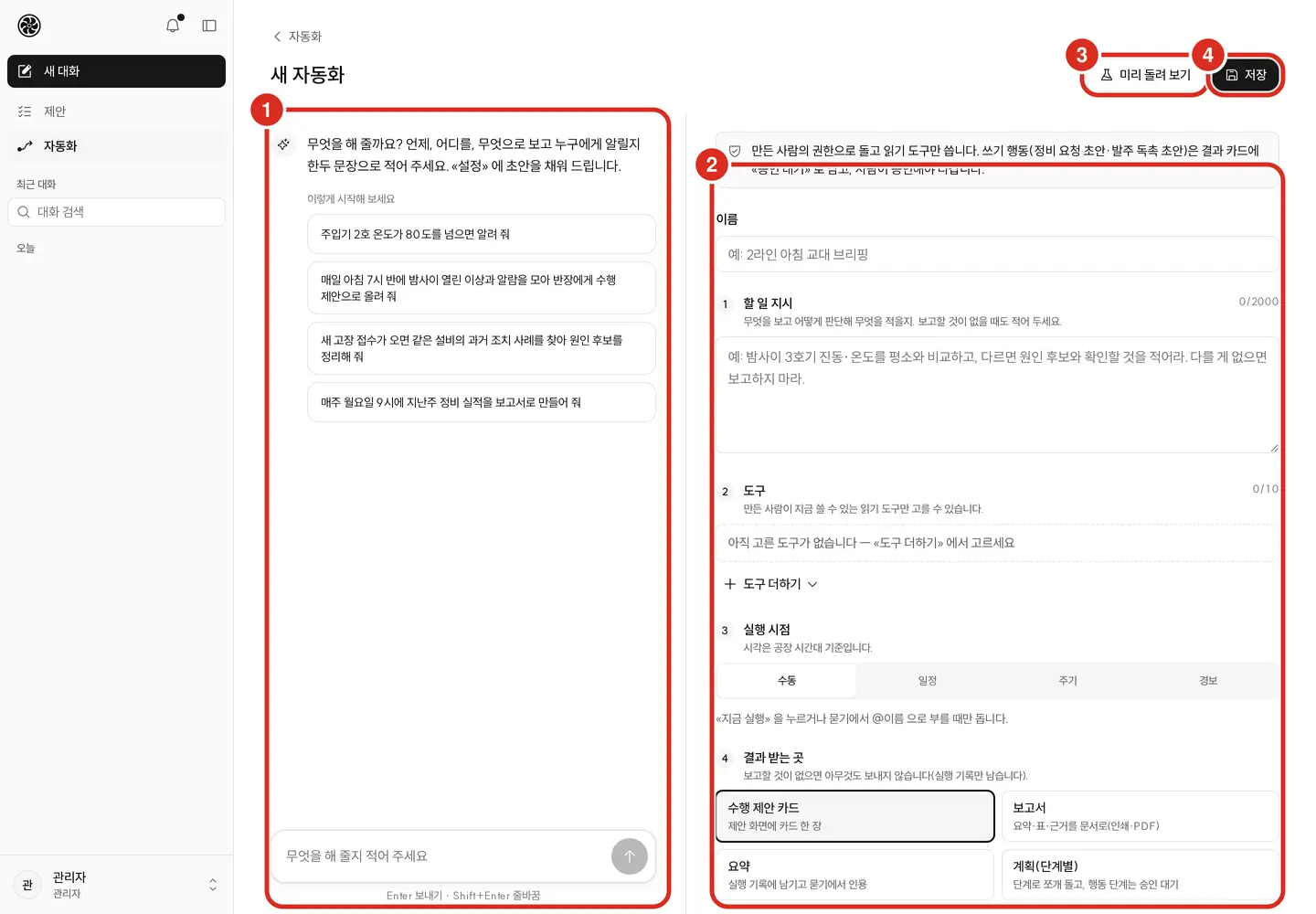
Clicking Create Automation opens Build by Conversation on the left and Settings on the right (as two tabs on narrow screens).
- In Build by Conversation, write in one or two sentences (up to 500 characters) when, what to check, how, and who to notify. The AI fills in the right-hand panel.
- Equipment names in the sentence are matched only against equipment I can see. If not found, it says "Couldn't resolve equipment name to an ID" and doesn't make one up.
- It asks when there's a choice to make. If several pieces of equipment share a name, it says "Multiple matching equipment"; if AM/PM isn't clear, as with "5 o'clock," it asks "Please choose AM or PM"; if there are several candidate tags to monitor, buttons appear under "Multiple matching tags." Clicking one sends that choice back into the conversation and fills the draft. It won't save while a choice is still pending.
- Recipient is filled with a role only if the sentence names who, like "to the shift lead" or "to maintenance" — otherwise it's "me."
- Recipients and channels are only filled from the selectable list. Even if a mail address or URL appears in the sentence, it won't be added to recipients.
- If "mail" appears in the sentence, internal mail is added to the destinations (recipient is still an internal user/role as above).
- If starting from a template and the sentence doesn't mention a trigger, the template's trigger stays as is (manual, if it said "only when I click"). Shift templates get the time computed from this installation's shift boundaries if no time is specified.
- For condition monitoring, if the watch condition/frequency aren't fully filled in, a note and selection buttons appear, and it won't save until all are chosen.
- 🔴 Revising by conversation replaces the entire right-hand panel with a new draft — even manually edited fields get overwritten. Finish fine-tuning by hand only after you're done conversing.
- Check and edit the fields in Settings (table below).
- Test run — actually calls the tools and shows "this is what would go out." It doesn't create saves, notifications, or cards; if destinations are already set, "This is how it will be sent" shows who receives it and who's excluded and why (nothing is actually sent).
- Save — saved while off, with a version number attached ("Saved — remains off"; on edit, "Saved as version N").
- Turn on from the detail view. An automation that hasn't been test-run can't be turned on. If saved exactly as test-run, it can be turned on immediately; if fields were changed after the test run, it shows "Fields changed since the test run — test run again before turning on."
Trying to leave for another screen without saving edited fields asks once: "You have unsaved changes" — "Leaving now will discard your edits." You must click Leave without saving to leave (refresh/tab close is handled by the browser's own prompt).
Settings fields appear in this order from top to bottom.
| Field | What it sets |
|---|---|
| Name | Up to 60 characters |
| ① Task instructions | What to check, how to judge, what to write. Up to 2,000 characters — also note what to do when there's nothing to report |
| Watch condition | Shown only for automations started from the Condition Monitoring template or that already have a condition — tag · comparison · threshold · sustained duration (see "Watch condition" below) |
| ② Tools | Only read tools I can currently use, added via Add Tool, up to 10 |
| ③ Trigger | One of Manual · Schedule · Interval · Alarm (table below). Times are in plant local time |
| ④ Where results go | Result shape (action proposal card · report · summary · plan (step-by-step)), recipients, and sending (app notification · internal mail · messenger channel) |
| Advanced — scope/tool turns | Scope (equipment IDs, comma-separated up to 20 — empty means all equipment I can see) · tool turn cap (default 8, up to 12) |
Watch condition — code measures the value, AI only engages once the condition is met
When the Condition Monitoring template's "Watch condition" fields — tag · comparison · threshold · sustained duration — are set, the server reads the tag value directly and checks the condition on every run.
| Field | What to enter |
|---|---|
| Tag | Search by tag name/description and pick, or type a tag ID directly (search returns up to 20). If nothing is found: "No matching tags found. You can enter a tag ID directly." |
| Comparison | greater than >, at least ≥, less than <, at most ≤ |
| Threshold | A number |
| Sustained duration (min) | 0 means only the current value is checked. 1 or more means the condition must hold continuously for that duration (up to 240 minutes) |
- 🔴 Runs where the condition isn't met don't call the AI model at all. The server just reads the value and ends as "nothing to report," and the execution log keeps the observed value, time, and condition. The AI writes the card text only once the condition is met — "The value is measured by code; the AI only writes the card text once the condition is met."
- Because of this, such automations can run as often as every 5 minutes (see "Trigger" below).
- While the condition persists, there's one card per day. The AI isn't called again — only the value/time in the card summary are updated.
- For code to measure, "② Tools" must include the tag value tool, and if sustained duration is 1 or more, the tag history tool is also required. If missing, the field shows: "A tag value tool is required for code to measure — add «Tag Value» under Tools below. Otherwise the AI will judge from the instructions."
- If no condition is set, the AI judges from the first line of "① Task Instructions" ("Watch condition: …") — the AI is called every run, and the interval must be 30 minutes or more. Clear condition returns to this mode.
- If the tag can't be found or the value isn't numeric, the result is "unable to judge" — not "condition not met."
- When built by conversation, writing something like "tell me if injector 2's temperature goes above 80 degrees" reads the threshold, comparison, and sustained duration from the sentence to fill this field. If the tag isn't uniquely determined, it asks you to choose; if not found, it's left blank.
- The overview in detail view shows a one-line condition like "Tag > 80 (over 10 min)" along with whether code measures it or AI judges it.
Trigger
| Type | When it runs | Rule |
|---|---|---|
| Manual | Only when Run Now is clicked, or called by @name in Ask | — |
| Schedule | Set time(s)/day(s) of week | Up to 6 times per day, at least 30 minutes apart. Days of week are chosen individually Mon–Sun. If the server was down and a time was missed, it runs late only within a 30-minute window |
| Interval | Every N minutes | At least 30 minutes. For condition monitoring where code measures the value via a watch condition, at least 5 minutes |
| Alarm | Once per new incident, for that equipment | Sets a minimum severity (Low+, Normal+, High only) and a same-equipment cooldown (10+ minutes). Up to 20 times/day per automation |
- The shortest interval, 30 minutes, is the default of config
agentdef.min.interval.minutes, and the 5-minute minimum for code-measured condition monitoring is the default ofagentdef.min.interval.code.minutes(neither can go below 5 minutes, and the latter can't exceed the former). - If you try to shorten the interval for condition monitoring without setting a watch condition, it shows: "Interval must be at least 30 minutes — set a watch condition (tag/threshold) to shorten it to as little as 5 minutes" (numbers reflect the installation's values).
- Alarm triggers only run if the incident's equipment is within both the creator's scope and the automation's scope. Incidents raised by an automation don't wake other automations.
- Checks that want "when…" should be instructed to check on an interval/schedule and only produce a result when the condition is met — e.g., "check hourly and only report equipment where the same alarm has fired more than 5 times today." Runs where the condition isn't met are logged only as "nothing to report."
Where results go
| Result shape | Where it ends up |
|---|---|
| Action proposal card | One card on the Proposals screen |
| Report | Summary/table/evidence as a document — "Report" tab in details |
| Summary | Kept in the execution log, cited in Ask |
| Plan (step-by-step) | Split and run as steps; action steps await approval (up to 6 steps) |
Recipient is chosen from me · operator · shift lead · maintenance · plant manager · admin. Sending to a role other than me requires the "Approval — execute incident actions" permission (by default shift lead · maintenance · plant manager · admin); without it the server falls back to "me."
For the Morning Briefing · Weekly Equipment Report templates, the report's table is filled directly by the server from tool results — the detail overview shows "Table columns: …" and "Table is filled from tool results — the AI doesn't write the numbers." Cells where a value couldn't be read show "—"; if there are more rows than shown, it's truncated with "N+." If there's no equipment to list, nothing is sent.
Sending
Choose additional places to notify when results are produced. If none are chosen, results stay only where set above. Runs with nothing to report send nothing.
| Send | Rule |
|---|---|
| App notification | Appears as a line in the recipient's notification list (/alerts) and counts toward unread in the sidebar bell. Devices with push enabled also get a push (push is enabled per-device under Settings › Notifications). Clicking the notification opens whatever that run produced — the report if it's a report, the proposal card if one was raised, otherwise that run's execution record |
| Internal mail | "Who to notify" is chosen as me · role · internal user (searchable by name/ID) — there's no field to type a mail address; the server looks up addresses from the directory. Mail only goes out to addresses whose domain exactly matches the admin-set allowed mail domain. If no mail server is configured or the allowed domain list is empty, it's unselectable: "Internal mail is disabled" |
| Messenger channel (Teams · Slack) | Choose one of the channels an admin registered and enabled under Admin › Notification Channels. Addresses aren't shown in the automation |
- Sending to anyone other than me, a role, or a messenger channel requires the "Approval — execute incident actions" permission. Without it: "Currently you can only send to «me»." Partner/audit-bundle accounts can only send app notifications to "me."
- Up to 20 recipients per destination; if a role has more than 50 people, it won't save — choose individuals instead.
- Scope is re-checked per recipient. Anyone who can't view the equipment the result covers is skipped, logged as "skipped." People without a mail address in the directory, or without an internal address, are also skipped.
- If the result contains unverified numbers from tool output, mail/messenger are blocked and only the app notification goes out.
- Destinations are fixed at creation time. The AI can't change recipients, addresses, or channels during a run. URLs in messenger text are replaced with "[link omitted]";
the only link that goes out is the one the server attaches when the installation's external address (
app.base.url) is configured. - After changing destinations, you must test run again before it actually sends.
Attachments (internal mail only)
| Format | Condition |
|---|---|
| Excel · CSV | Always selectable. Includes the result's table (or item list if none) |
Selectable only when the PDF conversion service is on and currently responding (installation value CO_GOTENBERG_URL). Otherwise the PDF button is disabled: "PDF conversion service is off or unresponsive — PDF isn't selectable right now. Excel/CSV can still be sent." |
- If an automation set to include PDF runs while the conversion service is down or unresponsive, it goes out without the PDF only — body text and Excel/CSV still go out normally.
- Each file is capped at 5MB, total attachments per message at 10MB. Files over the limit are dropped and logged as "attachment failed."
Send caps · no repeat sends for the same issue
| Rule | Default | Config |
|---|---|---|
| Mail from one automation to one person | 6/day | automation.deliver.mail.daily-max |
| Messenger from one automation to one channel | 12/day | automation.deliver.webhook.daily-max |
| Same issue | If the same issue on the same equipment at the same priority was already sent today, it won't be re-sent through that channel | — |
| Send failure | Retried up to 3 times; after 5 consecutive failures, that channel pauses for 15 minutes | — |
The sending result for that run is logged under "Sent to" per person as Sent · Skipped · Failed · Blocked with a reason. "Sent" for app notifications is only marked once it actually reached the person, alongside which paths it reached (notification inbox · active screen · web push). If it couldn't be logged to the inbox, it's recorded as "Could not log to inbox." To send means it is still being sent. When sending finishes, it changes to Sent (or Skipped · Failed) — the same goes for runs of a workflow automation (below). Even a run that stores artifacts keeps its sending result as-is.
Approval actions
There are five writes an automation can attach to a result, up to 3 per run. All must be approved by a person in Proposals before going out.
| Action | Condition | Approval permission (default) |
|---|---|---|
| Maintenance request | When the MES connector issuing that request is enabled on the digital thread | "Approval — MES maintenance request" |
| Order follow-up draft | When the SCM connector issuing the follow-up draft is enabled. Two-person approval | "Approval — SCM follow-up draft" |
| Work order draft | When the MES connector issuing the work order draft is enabled. Two-person approval | "Approval — proposal card draft" (admin) |
| Raise proposal — adds this result to the proposal list of the chosen role | Works without a connection | "Approval — execute incident actions" |
| Raise incident | Works without a connection. If the same automation raises another for the same equipment, only the occurrence count increases | "Approval — execute incident actions" |
- At installations without the connection, that action isn't even offered.
- Values written into an action — equipment, PO number, needed-by date, quantity — must be verbatim values from that run's tool results. Values not present are treated as fabricated and the action is dropped.
- Two-person approval requires approval from two different people. One person can't approve twice. Which actions require it is set in config
access.two_person.tools(default: order follow-up draft and work order draft; maintenance requests need only one approval). Leaving this empty disables two-person approval — however, "the draft's creator can't approve it" and "one person can't approve twice" always apply regardless of this setting. - Test runs don't create write actions.
Save/enable rules
- If scope, tools, instructions, or where results go (including watch condition) were edited and that content has never been test-run, a previously on automation turns off, and "Fields changed — test run again before enabling" is attached. Changing only name/trigger leaves it as is.
- A test run is tied to the content at that time. If you save exactly what was test-run while editing, it won't ask again; for new automations too, if saved after a test run, that test run attaches to the execution log and it can be turned on immediately. Saving content different from what was test-run requires testing again.
- Turning on and Run Now both require a test run of the current content. Without one, it can't turn on, and the Run Now button on My Automations appears disabled — hovering shows "Can run only after a test run — test run from «Edit»." Run with my permissions on a shared automation is unaffected by this rule.
- Each person can keep up to 5 automations turned on (admins are exempt).
Details
| Tab | What's shown |
|---|---|
| Overview | Settings (task instructions · watch condition · tools · trigger and next run · where results go · sharing · scope) · recent runs. Equipment in scope and tags in the watch condition show by name (ID if name unknown) |
| Execution log | Per run: status · what triggered it (Run Now · schedule · alarm · API · called from Ask · test run) · evidence (tool calls and results) · cards created · where sent. Runs where the AI's result couldn't be parsed get a collapsed "Model raw output head (admin only)" visible only to admins |
| Reports | Results of runs sent as "report." Opens for PDF/Excel/CSV download or print/PDF (browser print). PDF download only works when the PDF conversion service is on and responding — otherwise the PDF button is disabled with the reason shown |
| Version history | A version is kept per save (saving without changes doesn't add a version). Compare versions · Revert |
| Sharing | Only me · to a role · plant-wide |
People it's shared with see only Overview and Execution log.
Buttons — On/Off toggle · Edit · Run Now (shared ones show Run with my permissions) · Call by @name in Ask under More ·
Clone as my own · Delete (also deletes execution log and version history, irreversibly. App notifications it sent are also removed from recipients' notification lists).
Typing @ in the Ask input and selecting an automation runs it once with my permissions right there, and the result comes back as an answer (no card is created).
Report titles
The title of a run result is «automation name · run time». The title the AI gives each run moves down below it as the subtitle — reports from the same automation
always start with the same name in lists, and runs are told apart by time. The time is the run's start time in the plant time zone (installation value PP_TZ).
If the AI's title is the same as the automation name, the subtitle is not repeated.
| Where | Title | Subtitle · second line |
|---|---|---|
| Detail › Reports tab list | Name · time | Title the AI wrote |
| Report screen header (the browser tab title is the same) | Name · time | Title the AI wrote · who ran it |
| Detail › Execution log row | Name · time | Title the AI wrote (summary · reason if none), with status · how it started · version below |
| Detail › Overview recent runs | Name · time | Title the AI wrote |
| Downloaded PDF · Excel, mail attachments | Name · time | Title the AI wrote (second row in Excel) |
| Internal mail | Mail subject "[○○ Automation] name · time" (○○ is the product name), the body header is also name · time | The AI title in the body, with "Automation «name» · run #N · time" below it |
| App notification · push | "[Automation] name · time" | The title the AI wrote in the notification body (summary if none) |
| Messenger channel | One line "[Automation] name · time — title the AI wrote" | Summary · items (up to 5) below it |
The shape of the time differs by place.
| Where | Time | Example |
|---|---|---|
| Copilot screens | Date · time in the UI language (24-hour). The year is added if it isn't this year | "Weekly equipment report · Oct 19, 08:00" |
| PDF · Excel · mail · app notification · messenger | year-month-day hour:minute | "Weekly equipment report · 2026-10-19 08:00" |
On screens that don't know the plant time zone, «—» appears in place of the time.
A single report doesn't repeat the same equipment name. If every equipment item covered is in the table cells by name, the «Equipment» chip row below is left out; if only one equipment item is covered or the item text already contains its name, the equipment chip next to the item is left out. With several equipment items, each item gets a chip saying which equipment it is.
Text written by code is in the installation language. Of an automation's text, the title · summary · items the AI wrote are in the AI's own words, and text the server makes
comes out in the installation's default language (installation value PP_LANG) — the same whether you view the screen in English or Korean.
| Text the server makes | Example (English installation) |
|---|---|
| Summaries of condition monitoring · workflow automations · server-filled reports | "Equipment status for the last 7 days, as a table." · "Value 82.4 — condition (value > 80) not met." |
| Run reasons (skipped · could not judge · stopped · why an action was dropped) | "Install daily token budget (…) used up — try again tomorrow (…)" · "3 undetermined runs in a row" |
| Cells of the report table's «reason to check» where the AI couldn't write a reason | "Equipment anomaly finding (severity high, urgent) categories sensor" · "health score 62 (grade C)" |
| PDF section names · Excel sheet names | Summary · Items · Table · sheet «Result» |
| Mail · notification headers | "[Automation]" · "Automation «name» · run #N · time" |
The reason for stopping shown when you hover over the status badge is also text the server wrote, so it is in the installation language. However, «Settings changed — run a preview before turning it on.» is shown in the UI language. In the execution log evidence, the compute steps of a workflow automation appear not as tools but as "Compute step “step name”".
Runs work in the background
Build by conversation · test run · Run Now are accepted immediately on click and run in the background — the button shows "Running…" and the result appears when done.
| Blocking condition | Message shown |
|---|---|
| One of the same kind is already running (1 concurrent per person per kind) | "A previous request is still running — try again once it finishes." |
| Clicked too often — up to 6 build-by-conversation, 3 test runs, 3 Run Now per minute per person | "Too many requests — try again in N seconds." |
| Too many jobs waiting installation-wide (3 concurrent, 20 queued) | "Many jobs are waiting to run now — try again in N seconds." |
| Server restarted mid-run | "Interrupted by a server restart — run it again." |
Execution log statuses
| Status | Meaning |
|---|---|
| Reported | Produced a result |
| Nothing to report | Nothing matched the condition — nothing was sent. For code-measured condition monitoring, the AI isn't called in this case |
| Unable to judge | No tool was called at all, or the result couldn't be parsed — not the same as "nothing wrong" |
| Cut off at cap | Hit the per-run token cap (default 80,000) |
| Skipped · Skipped (temporary fault) | Out of budget or failed validation · platform or tool server briefly disconnected |
| Awaiting approval · Continuing after approval · Plan ended | A "Plan (step-by-step)" result is waiting for human approval or continuing |
| Running | The run is still going |
| Interrupted | The server stopped or restarted while it was running — "The run was interrupted because the server stopped or restarted — it does not resume. Run it again if you need the result". It produces no card · report · artifacts and sends nothing |
| Failed | Error — open the evidence to see the reason |
Numbers in results come only from tool results. Unverified numbers in tool results are shown separately as "Unverified numbers from tool results:"
Interrupted is handled like this.
- If the server stops (restart · upgrade, etc.), a running run cannot finish. If the shutdown cuts the run, it is left as «Interrupted» on the spot; if the server died suddenly, it changes to «Interrupted» within 2 minutes 30 seconds after it comes back up. It does not stay in «Running».
- An interrupted run does not resume. However, Schedule · Alarm runs cut off by a sudden server crash are run once more as a new run by the queue after the server comes back up (up to 3 attempts; a schedule run is skipped if it is too late past its scheduled time). For runs cut off by a normal shutdown, or runs you started yourself, run them again with Run now if you need the result.
- An interrupted run is not logged as «Reported», and there is no report · sending.
- «Interrupted» is not counted as a run that failed to produce a verdict (see «Stopping conditions» below) — a server restart is not the automation's fault. However, if 3 separate restarts in a row happened during runs of the same automation, that automation is stopped and an app notification goes to its creator (see «Stopping conditions» below).
Reproducibility record of a workflow automation — an automation whose steps (tool call · compute · condition · table) are written with «Use a plan» in the Plan field of the edit screen is called a workflow automation
(different from the «Plan (step-by-step)» result shape). Runs that actually ran keep a summary · tables · figures as artifacts, and the execution log's Reproducibility record shows the plan version and artifact links.
If storing artifacts fails, the run gets the warning "The artifacts of this run (summary, table, figures) could not be stored — there is no reproducibility record. The report body and delivery come from the run result and are not affected."
The verdict · report body · sending are unchanged. If the warning keeps appearing, tell an administrator to check the object storage that holds automation artifacts (bucket automation).
Version history · Revert
Every save keeps a version N (up to the last 50). Clicking Save with no changes creates neither a version nor an audit entry. Pick two versions to compare and see changed fields; Revert creates a new version with the old version's fields — history isn't deleted, and the sharing scope stays as it currently is. After reverting, a test run is still required before turning on.
Sharing
| Scope | Who sees it |
|---|---|
| Only me | The creator |
| To a role | People in the chosen role |
| Plant-wide | Everyone at the plant |
- If someone it's shared with runs Run with my permissions, it runs with that person's permissions/scope, and the result is visible only to them. In this case it doesn't send to the preset destinations.
- Schedule/alarm runs always use the creator's permissions. People it's shared with never borrow the creator's permissions.
- Draft and stopped automations aren't visible to others even if shared.
Stopping conditions and limits
| Situation | Behavior |
|---|---|
| Creator's account is inactive, deleted, or a partner account's term has expired | Stopped |
| Creator has lost the permission/scope/tool required, failing validation | Stopped — shows "Stopped: reason" and a Fix and test run button |
| 5 consecutive runs that failed to produce a verdict (unable to judge · failed · cut off at cap) | Stopped |
| 3 separate server restarts in a row happened during runs of this automation | Stopped — an app notification to the creator: "Automation «name» was paused — the server kept stopping during its runs". Several runs cut by one restart count once, and only interruptions since it was last turned on count. Runs made by people it is shared with · runs called from Ask are not counted |
| Temporary faults like platform disconnection or tool server being down | Only that run is skipped. After 6 in a row, only a warning is attached |
| Daily token budget exhausted | "Didn't run — today's token budget is exhausted." — only that run is skipped |
| Destination messenger channel deleted or disabled | Fails validation on the next run and stops |
| Limit | Default | Config |
|---|---|---|
| Automations one person can keep on | 5 (admins exempt) | agentdef.user.max.enabled |
| Automations installation-wide | 50 | — |
| Concurrent scheduled runs | 2 installation-wide, 1 per automation at a time | — |
| Alarm runs | 20/day per automation | agentdef.event.daily.max |
| Minimum gap between interval/schedule times | 30 minutes | agentdef.min.interval.minutes |
| Minimum interval — code-measured condition monitoring | 5 minutes | agentdef.min.interval.code.minutes |
| Per run — tool turns | 8 (up to 12) | per automation, global cap agent.max.tool.turns |
| Per run — time/tokens | 5 min · 80,000 tokens | agentdef.deadline.seconds · agentdef.run.max.tokens |
| Per run — approval actions | 3 | — |
| Plan (step-by-step) | 6 steps. Whole plan: 200,000 tokens · 24 tool calls · 15 min run time (time awaiting approval not counted) | agentdef.plan.max.tokens · agentdef.plan.max.turns · agentdef.plan.deadline.seconds |
| Daily tokens — installation | 2,000,000 | agentdef.daily.max.tokens |
| Daily tokens — per person | Smaller of 1/4 of the installation cap and 500,000 | agentdef.user.daily.max.tokens |
| Instructions/name/tools/scope | 2,000 chars · 60 chars · 10 tools · 20 equipment | — |
| Destinations | 3 send types (one per channel) · 20 recipients · 50 people per role | role headcount is automation.deliver.role.max-members |
| Version history | Last 50 versions | — |
"Config" fields are the server's global config key names, and values shown are defaults. agentdef.* · automation.deliver.* · access.two_person.tools are always visible under
Admin › System Settings with name, description, and default value, and are changed there — values never changed show a "Default" badge, and changed values can be reverted with Reset to default.
The allowed mail domain and messenger channels are set under Admin › Notification Channels → Copilot Admin Console — System Settings
Logging
- Create, edit, turn on, turn off, stop, delete, revert, and send results are all logged in the audit log → Audit Log
- When an admin turns on/off/deletes someone else's automation from the All tab, an extra audit log line records "whose automation an admin changed."
- Runs that were only test-run without saving are deleted after 7 days.
- Execution logs are visible to the creator and admins. For shared automations run by someone else, only that runner and admins see it; for test runs, only the person who clicked and admins see it.
- Reports are visible to the runner, admins, and people in the recipient role. If the equipment the report covers is outside a viewer's scope, it won't open for them.
- Tool calls go out under the creator's permissions (or the runner's permissions, if run via sharing).
Related documents
- Use Cases — Automation
- Proposals — where cards raised by automations get handled
- Permissions
- Copilot Admin Console — notification channels · allowed mail domain · system settings
- MCP Tool Map — tools an automation can choose from