Copilot Screen Map
Copilot does three things — Ask · Proposals · Automations. When you first open it, the Ask home screen appears.
| What it does | Address | What it's for | Details |
|---|---|---|---|
| Ask | /chat | Ask by text, image, or voice and get answers with supporting evidence. The home screen has «Today's tasks» collapsed into a single line | AI Chat |
| Proposals | /tasks | Handle AI-found tasks (planned) and anomalies · incidents (unplanned) in one place, from intake → approval → action → outcome → recurrence verification | Proposals |
| Automations | /automations | Hand off «check this for me every morning» in a single sentence | Automations |
Agents are now called Automations. Each case opened by an alarm or anomaly signal is an incident (incident in code and the API). The old menus «Today · Action Proposals · Anomaly Diagnosis · Resolution · Reports» are gone;
their functions now live on the Ask home screen and in Proposals — see «Old addresses» below.
Sidebar
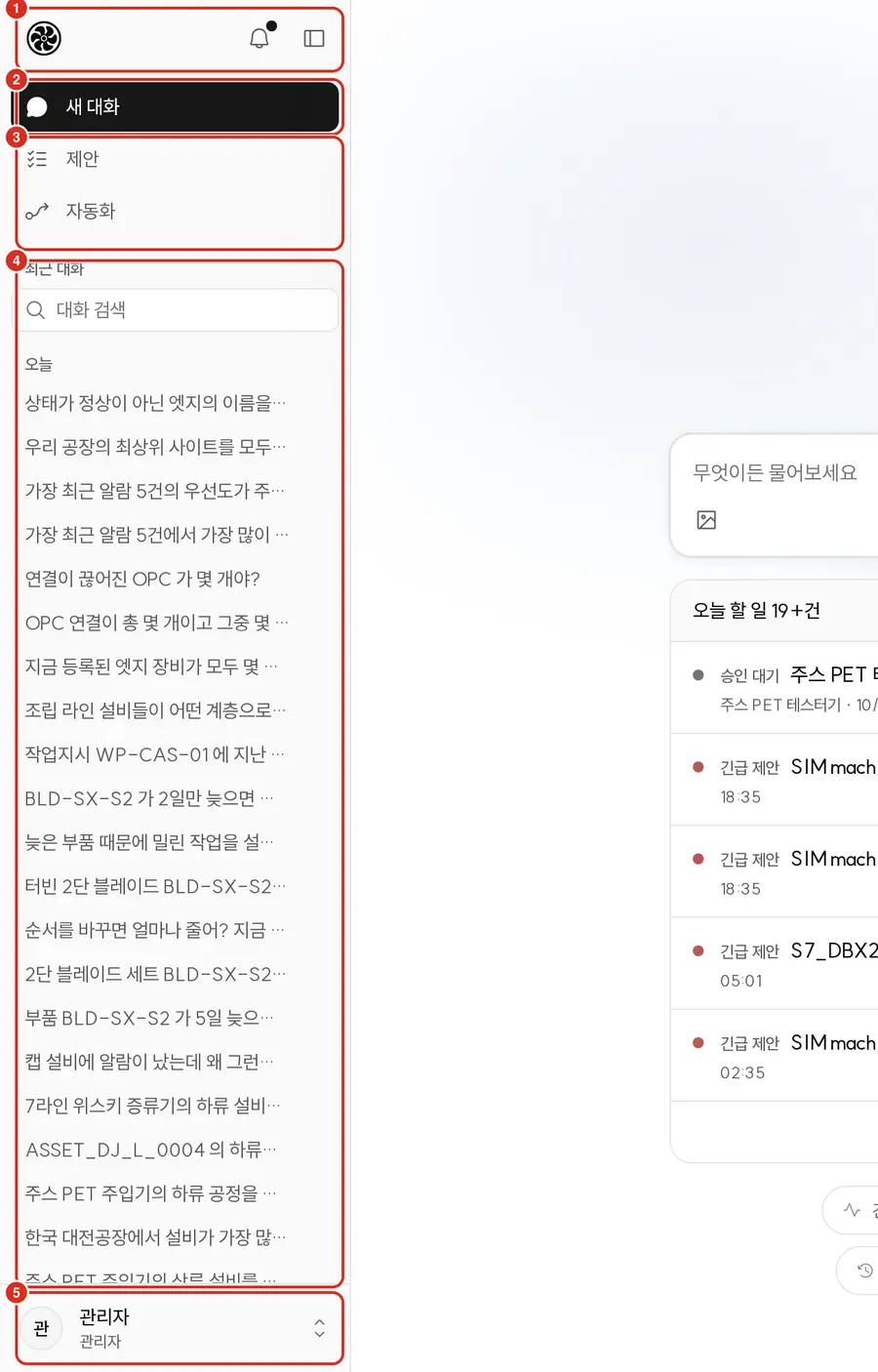
| No. | Location | What it does |
|---|---|---|
| ① | Header | Logo · notification bell · collapse sidebar. If there are unread notifications, a dot appears on the bell; click it to open the notification list (/alerts) |
| ② | New conversation | Opens a fresh Ask home screen |
| ③ | Menu | Proposals · Automations. Ask has no separate row — you enter it via ② New conversation. Menus you lack permission for are not shown — see «Menus by role» below |
| ④ | Recent conversations | A conversation search box plus Today · Yesterday · This week · Earlier groupings (plant time zone). Hover a row for the «…» menu with Rename · Delete conversation |
| ⑤ | Profile row | Name · role. Click to open a menu upward — see the table below |
The sidebar runs top to bottom as New conversation → Proposals → Automations → Recent conversations, with the profile row at the very bottom.
- There is no separate «Ask» row. You enter Ask via New conversation — clicking it opens a fresh Ask home screen no matter which screen you are on. Clicking the logo in the header also takes you to the home screen. Past conversations are opened from Recent conversations.
- The menu has two rows: Proposals · Automations. Items you lack permission for are hidden, and without Ask permission, New conversation and Recent conversations are hidden as well.
- If there are unread notifications, a dot appears on the bell, and hovering it shows "N notifications" (over 99, it shows "99+"). The count is refreshed every minute. It counts anomalies and incidents within your scope together with app notifications sent to you by automations.
- Recent conversations show up to 30 entries; typing in conversation search finds up to 100. With no conversations you see "No conversations yet"; with no matches, "No matching conversations."
- The «…» menu appears on hover and on the currently open conversation (on phones, only on the currently open one). Delete conversation asks once: "Delete this conversation? This cannot be undone." Deleting removes not just the row in the conversation list but the original questions, answers, and tool execution records. Action cards not yet approved by anyone are deleted too; already-approved action cards and audit records (tool calls, document views) remain.
Profile menu — click the profile row to open it upward.
| Item | What it does |
|---|---|
| Header (photo · name · ID · role) | Click to open the Profile group in Settings |
| Settings | My info · password · language · theme · notifications → see «Settings» below |
| Administration | Admin console — visible only to administrators → Copilot Admin Console |
| Audit | Audit records — visible only to non-administrators who have the «View audit records» permission (administrators view them inside the admin console) |
| Help | Explains, in three steps each, whichever of Ask · Proposals · Automations you can open, with Open to go to that screen. Under «Contact» there is a customer documentation link (new tab) |
| Theme — Light · Dark · System | Changes take effect immediately. «System» follows the device setting |
| Log out | Returns to the login screen |
Language is changed in Settings, not in this menu.
Collapsing and phones
- On wide screens, clicking collapse leaves a narrow icon-only rail (same order). Hover and click the collapsed logo to expand it again. The browser remembers the collapsed state.
- On phones (under 640px) an app bar appears at the top (Open menu · conversation title · New conversation), and the sidebar becomes a drawer that opens from the left. When no conversation is open, the logo appears in place of the title. It closes with Esc, an outside click, or a link.
- If the device goes offline, a banner appears at the top of the screen: "Internet connection lost. You can resend once reconnected."
Ask home screen
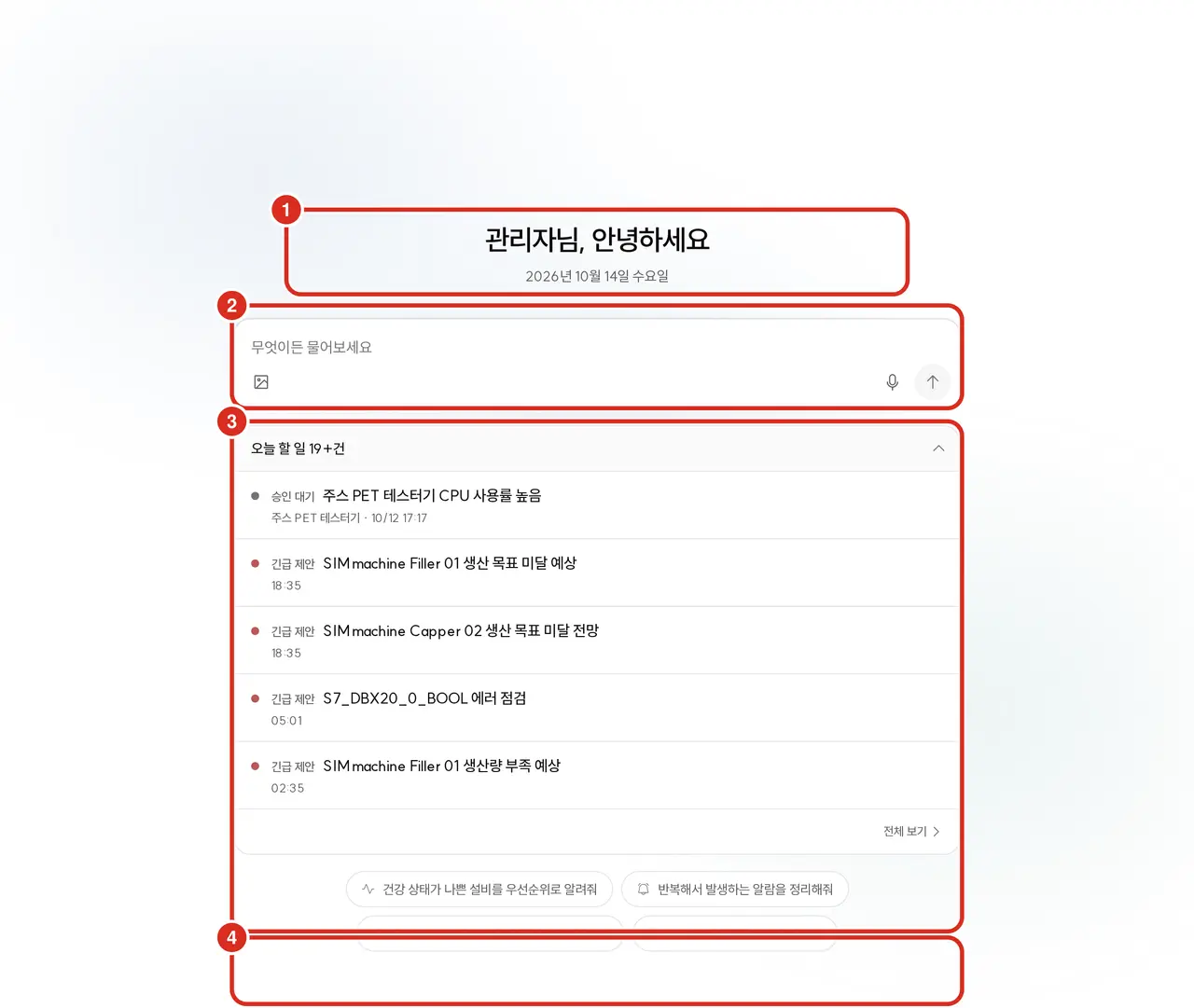
| No. | Location | What it does |
|---|---|---|
| ① | Greeting | "Good morning, ○○" with today's date |
| ② | Input box | Ask and send. Add file (up to 4 photos, document · drawing · video · audio files up to 20 per conversation — drag and drop · paste also work) · Ask by voice (up to 60 seconds) · Send. Type @ to call up and run your own or shared automations |
| ③ | Today's tasks | Normally collapsed to a single "Today's tasks: N" line; click to expand as shown, displaying up to five rows. Click a row to open that proposal; View all goes to the Proposals screen |
| ④ | Question chips | Four frequently asked questions — clicking one only fills the input box; you press Send yourself |
«Today's tasks» starts as a single collapsed line — just "Today's tasks: N" and an expand arrow. Click that line to expand the rows, click again to collapse. This device (browser) remembers whether it was expanded or collapsed.
- When expanded, up to five rows are shown. Each row has a status dot · type · title · equipment and time; clicking it opens that proposal. View all at the bottom goes to the Proposals screen.
- "N" is the number of rows shown here (up to five), not the total count — see everything via View all.
- It is drawn more faintly than the input box so it draws less attention. The greeting and input box appear first; this row may fill in slightly later.
Expanded rows are interleaved in order of urgency.
| Order | Row | Dot |
|---|---|---|
| 1 | Urgent problem (incident) | Red |
| 2 | Awaiting approval | Neutral |
| 3 | Anomaly to check — high | Red |
| 4 | Urgent proposal | Red |
| 5 | Automation proposal | Neutral |
| 6 | Anomaly to check | Orange |
| 7 | Action proposal | Neutral |
- Types you lack view permission for are omitted.
- If there are no tasks, this section is not drawn at all — the absence of an empty box or «0» is normal.
- The screen is neutral-toned; color is used only on status dots — red = urgent, orange = caution, green = normal.
When you send a question, the home screen clears and becomes the conversation screen. Answers, evidence cards, voice, and video scenes are covered in AI Chat.
Right-hand panel
The documents · drawings · video · audio behind evidence cards, the added files of sent questions, and proposal details open in the same right-hand panel without navigating away. The conversation or list stays as it is.
| In the header | What it does |
|---|---|
| Icon · title | What you opened — document name, drawing number · revision, video file name, name of the added file, «Proposal» |
| Back | Appears only when you have opened something further inside the panel. Clicking evidence (document · drawing · video) in a proposal detail opens that source on top of the detail; Back returns the detail exactly where you left it |
| Buttons that differ per item | Document — Open in new tab · Download original / Added file — Download original (also Open in new tab for document PDFs) / Drawing — Open in viewer (new tab) / Proposal — Copy link |
| Close panel | Far right. Esc also closes it — including everything stacked underneath, all at once |
- Drag the left edge or use the ← → keys to change the width (from 320px up to 70% of the screen; the browser remembers it).
- When a PDF original is open in the panel and you have clicked inside it, Esc no longer works (keys go to the PDF viewer). In that case the Close panel button appears highlighted — click it, or click once outside the panel and then press Esc.
- On narrow screens, the panel does not sit beside the main content but opens over it — this happens when less than 480px of width would remain for the main content (e.g., a tablet in portrait). Click the dimmed area outside to close it.
- On phones (under 640px) it covers the entire screen.
What appears in the panel is described in Ask — evidence source panel · Ask with drawings · Ask with video · audio · Proposals.
Notifications — /alerts
Opens when you click the bell in the sidebar header. It shows anomalies to check and incidents raised within your scope over the past 24 hours, interleaved chronologically with app notifications sent to you by automations (up to 50 entries).
- The header shows "Past 24 hours · N unread notifications," with Mark all read on the right. If more than 5 are unread, it asks once: "Mark all N unread notifications as read?" — "Only notifications from the past 24 hours will change. This cannot be undone." When finished, "Marked N notifications as read" appears.
- Filter by All · Unread.
- Each row has a single "Equipment — summary" line, with severity (High · Medium · Low) · time · "N tags" · type (anomaly to check · incident) below it. Unread rows have a leading dot and a bold title.
- Clicking the arrow at the end of a row (View source) expands the original notification text in place.
- Clicking a row marks it read and opens that item in Proposals — if it was escalated to an incident, that incident opens; otherwise the anomaly opens.
- Automation notification rows read "Automation name — one-line summary," with no severity and the type listed as "Automation." Clicking one marks it read and opens what that run produced — the report if it was a report, the proposal card if it produced one, and otherwise the execution record for that run. If you delete an automation, the notifications it sent disappear from the list as well. Results of choosing App notification under an automation's «Send» arrive here → Automations — Send
- Read status is per person. Even after you read one, it remains unread for others.
- With no notifications you see "No new notifications"; when viewing only unread and all are read, "All caught up."
To receive them directly on your phone or browser, turn on notifications in Settings.
Settings — /settings
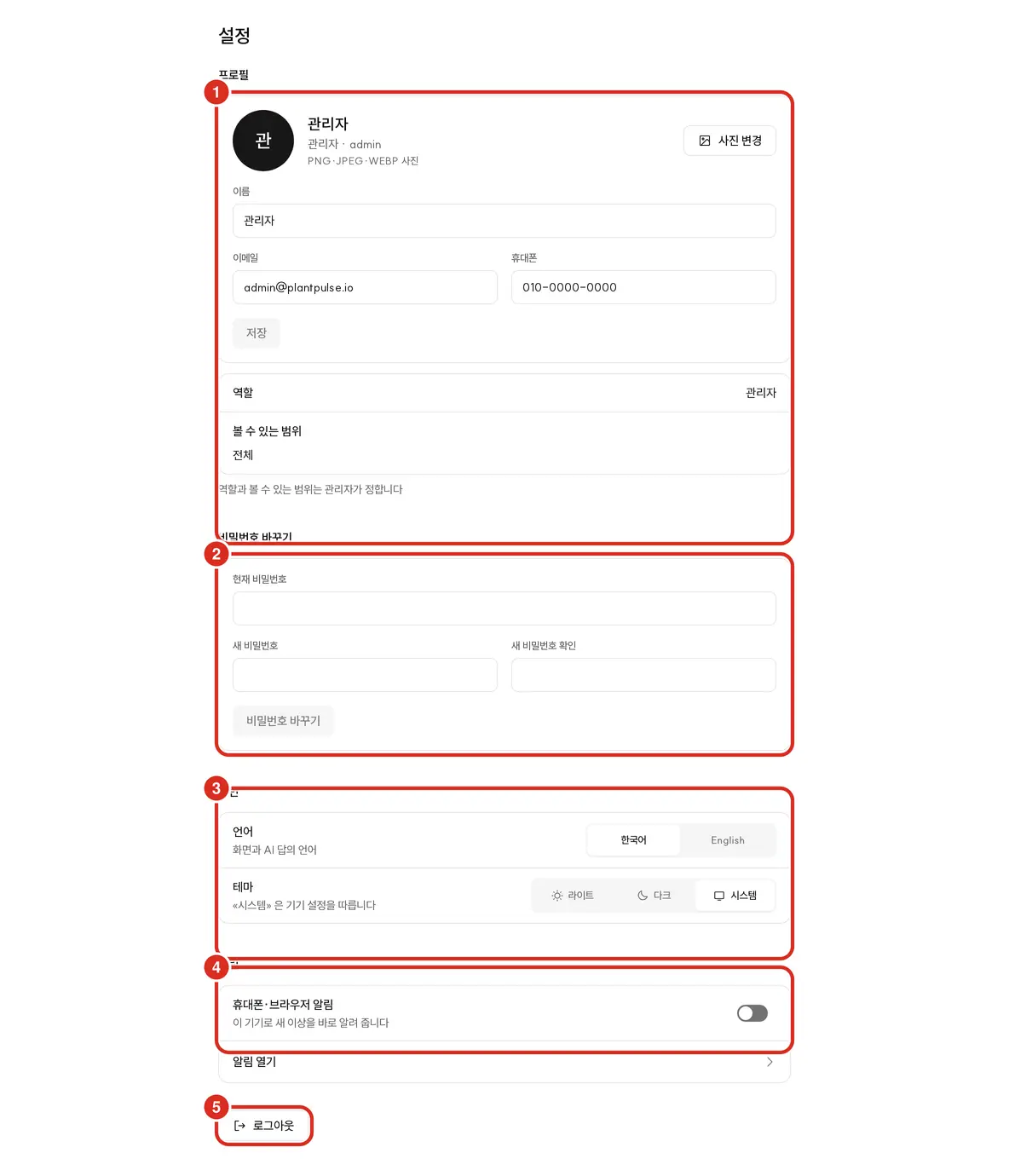
Your information and settings are laid out top to bottom on one screen.
| Group | Fields |
|---|---|
| Profile | Change photo · Remove photo (PNG · JPEG · WEBP — the selected photo is center-cropped to a square, downscaled, and uploaded) · name · email · mobile. Role and visible scope are read-only — "Your role and visible scope are set by an administrator" |
| Change password | Current password · new password · confirm new password |
| Display | Language (한국어 · English — the language of the UI and of AI answers) · Theme (Light · Dark · System) |
| Notifications | Phone/browser notifications — when on, new anomalies are pushed to this device immediately. Enabled per device. Below it, Open notifications goes to the notification list |
| Log out |
- Profile and password require pressing the Save button in each group. Language · theme · notifications are saved the moment you change them (changing the language reloads the screen).
- The profile name is required and limited to 60 characters. Email must be in address format, and mobile accepts only digits,
+,-, and spaces, up to 20 characters. An invalid field shows the reason beneath it (e.g., "Not a valid email address format") and is not saved. - If you try to leave for another screen while editing your profile without saving, it asks once: "You have unsaved changes."
- The theme «System» is remembered only in this browser. Light · Dark are saved to your account and followed on other devices too.
- If you see "Disabled on this installation. Contact an administrator if you need it," push has been turned off on the server.
- If you see "This browser cannot receive notifications," the browser does not support push. Push notifications work only on HTTPS addresses.
- If "You must allow notifications in your browser" appears when enabling, allow notifications in the site settings from the address bar.
- The old address
/profileredirects to the Profile group on this screen.
Menus by role
| Job role | Visible menus |
|---|---|
| Operator | Ask · Proposals (planned · incidents) |
| Maintenance | + Anomalies to check in Proposals |
| Supervisor | + Anomalies to check |
| Plant manager · administrator · quality | Everything |
Automations is visible to anyone with the «Create · manage automations» permission, and it is included in every default group attached to a person.
Permission names and groups are listed in Access control. If there is not a single source visible in Proposals, the Proposals menu is omitted.
- When you log in, the first screen you can open appears — Ask; without Ask permission, Proposals; failing that, Automations; and if none, Settings.
- Opening
/chatby address without Ask permission shows "You do not have permission to open this screen."
Old addresses
The addresses of the old screens (/home · /briefing · /anomaly · /watch · /resolutions · /incidents · /report · /accuracy · /agents · /dashboard · /network · /predict · /thread · mobile edition /m/…)
do not redirect to the new locations. Opening an old link from a bookmark or an older email · push shows "Screen not found" as described in «Opening a nonexistent address» below.
Press Go to start and find it on the new screens.
| Old screen | New location |
|---|---|
| Today · Briefing | Ask home screen |
| Anomaly diagnosis · Watch · notification links | Proposals › Tasks › Unplanned |
| Resolution · Incidents | Proposals (incidents) |
| Reports · AI accuracy | Proposals › Completed |
| Agents | Automations |
| Dashboard · Network · Prediction · Threads | Ask — the same answers come out if you ask in Ask |
| Mobile edition | The same new screens (used as-is on phones) |
- Links in newly sent emails · push · notifications all use the new addresses.
- Only
/profilestill opens, taking you to the Profile group in Settings.
The new screens are used as-is on phones — there is no separate mobile edition. The admin console's old screens are covered in Copilot Admin Console.
Opening a nonexistent address
Opening an old or mistyped address leaves the sidebar in place and shows "Screen not found" with a Go to start button in the main area.
Go to start takes you to the first screen you can open (usually Ask). Nonexistent addresses under the admin console (/admin/…) also show the same message rather than redirecting to the admin home.
When the address is correct but the target does not exist or cannot be viewed, each screen says so in its own words — "This conversation cannot be found" · "This automation cannot be found" · "This report cannot be found" · "This task cannot be found." If you lack view permission, it reads "You do not have permission to view this" — "Request permission from an administrator if you need it." (for conversations, "You do not have permission to view this conversation").
First time you open it — language and login
The UI language is determined in this order.
- The language you picked yourself — 한국어 · English at the bottom of the login screen, or Settings › Display › Language. Once picked, this browser remembers it.
- If you have never picked one, it follows the browser's language settings (whichever of Korean or English comes first).
- If the browser uses neither Korean nor English, it uses the installation's default language (
PP_LANG—koby default).
PP_LANG is not the UI language but the language of text the server writes on its own, such as emails and push → Configuration
You return to the address you opened before logging in. If you open a link from an email · notification or a bookmark while logged out, the login screen appears first, and after logging in the screen you originally wanted opens. The same applies if your login expires mid-use (session expiry) — logging in again returns you to the screen you were viewing.
- Switching the language between 한국어 · English on the login screen still preserves the screen to return to.
- If you log out in one tab, other tabs open in the same browser go to the login screen immediately.