Proposals — Seeing To-dos, Anomalies, and Incidents Through to the End
Proposals is where people decide and finish work that AI has found. A single card flows through the same detail view from start to finish.
감지 · 접수 · 제안 → 승인 → 조치 → 결과 → 재발 검증
| Source | What it contains |
|---|---|
| Plan | Execution proposals — daily to-dos AI raises in advance, cards raised by automation |
| Incident | Anomalies to review (caught by AI anomaly detection) and incidents (raised by a person or escalated from an anomaly) |
There is no separate "Resolve" menu anymore — resolving is simply the later stage of a proposal.
Screen
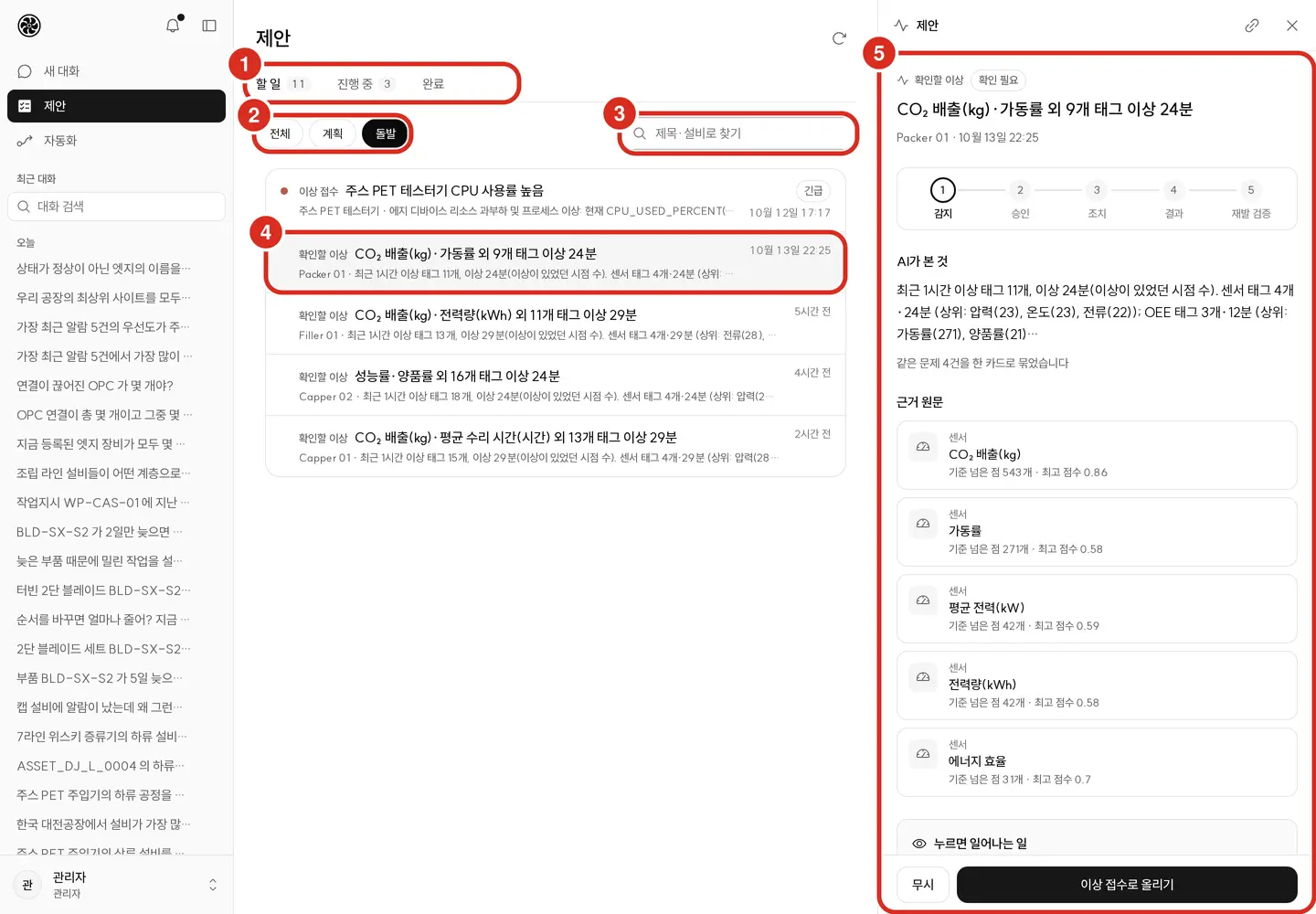
| No. | Location | What it does |
|---|---|---|
| ① | Tabs | To-do · In Progress · Done. The numbers next to To-do · In Progress are totals regardless of filters (rows grouped by the same cause count as one). Move with ← → keys |
| ② | Source | All · Plan · Incident. Shown only when two or more sources are visible |
| ③ | Search | Search by title · equipment |
| ④ | Row | Type (execution proposal · anomaly to review · incident) · title · equipment · summary. Same-cause items are grouped into one row shown as "○○ and N more equipment," expandable via "View N grouped items." Badge and timestamp on the right |
| ⑤ | Detail | Clicking a row opens it in the panel on the right (full screen on mobile). Clicking evidence opens it layered over the same panel and returns via Back. Copy Link lets you hand the address to someone else |
| Tab | What it contains | Order |
|---|---|---|
| To-do | Awaiting a human decision — today's plans not yet started, anomalies not yet reviewed (usually anomalies), incidents not yet accepted | By urgency (severity → oldest) |
| In Progress | After approval — accepted incidents, plans being assigned · executed · verified for recurrence | By urgency |
| Done | History of executed actions and closed plan cards (verified without recurrence, or closed as "Not Applicable"). Period 7 days · 30 days | Most recent first |
40 rows are shown at a time, continued with Load More. Refresh at the top right of the header re-reads the list.
- Search keeps only the currently loaded rows whose title · equipment · summary contains that text. Clear with Esc or ✕ (Clear Search).
- A row in the Done tab is a single executed action — below the title are the action · who executed it · result notes, and clicking it opens that incident's detail. The badge on the right is Recurrence · Execution Failed (red dot) · No Recurrence (green dot) · Executing · Awaiting Result · Writing Result.
- Closed plan cards also appear as a row in the Done tab — clicking opens that card's detail, and the badge on the right is Done (green dot — a result was recorded and the verification period passed without recurrence) or Not Applicable.
Items from the same cause are grouped into one row. Work stemming from the same order or the same material PO appears on a representative row as "○○ and N more equipment," with an Affected Equipment list in the detail — you handle the one underlying cause rather than each piece of equipment separately.
- Right below a grouped row is "View N grouped items." Clicking expands the remaining grouped rows underneath, collapsible again with "Collapse grouped rows." Expanded rows can still be opened individually.
- The number next to the tab counts groups — five rows in one group count as 1.
- If a row shows "N incidents, same issue," it means N anomalies identified as the same issue have been grouped into one card. Raising or dismissing it applies to all grouped anomalies together.
Badges — on the To-do tab, badges appear only for urgent items (Urgent red dot, Recommended · High orange dot). On the In Progress tab, badges show stage — Not Started · Assigned · In Action · Verifying Recurrence · Recurrence (red) · Diagnosing · Awaiting Approval · Awaiting Action · Actioned · Awaiting Verification · Not Applicable.
Summary line at the top of the Done tab — Actions N · Handling Time (median, 30 days) · Verification Pass Rate % · Recurrence N · Awaiting Result N. Columns with no value are omitted.
Detail — From Start to Finish in One View
Clicking a row opens the detail in the right-hand panel while keeping the list in place (full screen on mobile). The address changes to point to that item, so Copy Link lets you hand it off exactly as-is.
Above the detail is a five-stage indicator with the current stage highlighted. Below that differs by type.
| What | What's in the detail |
|---|---|
| Execution proposal (Plan) | What AI Found · Evidence · action result · AI Proposal Decision · the draft created on approval · action proposed by automation |
| Anomaly to review | What AI Found (summary and "N incidents of the same issue grouped into one card") · Original Evidence (Related Tags if none) |
| Incident | Diagnosis · Action Plan (step by step, "Next" for the next step. If a person edited the plan, "Plan edited by ○○ · time" and Show the AI Plan) · Original Evidence · Timeline (detected · action plan proposed · accepted · plan revised · plan rejected · action executed · confirmed · recurred · closed …) |
Evidence — Opens in the Panel, Returns via "Back"
Clicking an evidence row opens the original content layered over the detail in the same panel. A Back button appears in the header, and clicking it returns the detail exactly where you left it. No new tab opens, and the detail doesn't close. Close Panel or Esc closes both the evidence and the detail at once.
| Evidence | Shown on the row | On click |
|---|---|---|
| Sensor | A small trend line and the last value. If normal value · limits are stored, "Normal N" · "Upper N" · "Lower N" and limit lines (dashed) are also shown. Values on a plan card are "Yesterday N" and today's value. The evidence tag for an anomaly reads "Anomaly N min · Peak Score X." Pieces with no value aren't drawn | (does not open) |
| Document | Document name — manual · work standard. Procedure links read "Open Related Procedure" | Original content in the panel. Header has Open in New Tab · Download Original → Ask — Right Panel |
| Drawing | The drawing for that equipment · part | A preview of that page in the panel. A small button at the end of the row is Open in Viewer (new tab) → Asking with Drawings |
| Video | Related maintenance video | Plays that segment in the panel → Asking with Video · Audio |
| Past case | A past anomaly with a similar waveform — equipment · time · the diagnosis text from then, and whether that diagnosis was correct ("Diagnosis was correct" · "Diagnosis was wrong") | (does not open) |
Clicking Continue in Ask at the bottom of the detail opens Ask with this item's title already filled into the input field.
Buttons
The detail always has exactly one primary button, pointing to the action for the current stage. It's fixed to the bottom bar of the panel.
| What | Stage | Primary button |
|---|---|---|
| Anomaly to review | — | Raise as Incident |
| Incident | Diagnosing | (awaiting AI diagnosis) |
| Incident | Action plan ready | Approve Action Plan — next to it Edit and Approve · Reject → Action Plan Review |
| Incident | Approved | Execute Action — when the user has execution authority and the next action is something the system can execute → Execute Action — Recipients |
| Incident | Actioned | Record Action Complete in the Action Result field in the body |
| Incident | Awaiting Verification | Confirm Verification and Close |
| Plan | Not Started | Approve and Start |
| Plan | Assigned | Start Execution |
| Plan | In Action | Record Action Complete in the Action Result field in the body |
| Plan | Verifying Recurrence | (monitoring) |
| Plan | Recurrence | Re-execute |
| Plan | Closed — verified without recurrence, or closed as "Not Applicable" | (none — found in the Done tab) |
Secondary buttons are Re-diagnose (AI starts over) · Close (incident — a reason is optional) · Dismiss (anomaly to review).
- Clicking a button first shows "Proceed with this?" describing what will happen — ending with either "This can be undone later" or "This cannot be undone." The same content is already visible in the "What happens when you click" field below the detail before you click.
- Raise as Incident — "An incident will be created and AI diagnosis will begin." If an incident for the same issue is already open, no new one is created; it's merged into that incident ("Merged into an already-open incident"). After raising, the panel switches to that incident's detail. Reopening an anomaly already raised shows "Already raised as an incident" and an Open Incident button.
- Dismiss requires choosing a reason — setup/changeover in progress · equipment stopped/idle · under maintenance · sensor issue · other. Anomalies grouped into the same card are marked as false alarms together, and that marking feeds into AI accuracy.
- The Action Result field asks "How did it end?" — choose Completed · Not Applicable and write a one-line note, then click Record Action Complete.
- Re-diagnose asks once: "AI will diagnose this from scratch. The current diagnosis text will be replaced."
- After a result, the system watches for recurrence of the same issue during the recurrence verification period — "Watching whether the same issue recurs · until ○." If it recurs, it returns to Recurrence status along with "The same issue has recurred."
- If someone else handles the item before you after you've opened the screen, "Someone else already handled this" appears and the list and detail refresh automatically — your saved state is unaffected. The same applies to Start Execution · Record Action Complete on a plan card (you cannot click "Start Execution" twice on the same card). For any other stage that can't currently be acted on, it shows "This was already handled by someone else, or this stage isn't currently actionable."
Action Plan Review — Approve · Edit and Approve · Reject
When AI produces an action plan, the incident is awaiting approval. The bottom bar has three buttons.
| Button | What it does |
|---|---|
| Approve Action Plan | Accepts the AI plan as-is and moves the incident to In Progress |
| Edit and Approve | Edit the plan, then click Approve Edited Plan. Accepts the incident with the edited plan and moves it to In Progress |
| Reject | Pick a reason and click Reject and Close. Closes the incident and records the reason |
- Edit and Approve — for each step, turn off Keep This Step or change the order with Move Up · Move Down, and edit the Step Name and Reason (Optional). You can also write Why You Changed It (Optional). The kind of step (acknowledge alarm · notify owner · on-site inspection · look into data) does not change. You must keep at least one step and give it a name.
- Even after editing, the AI plan stays on record — expand Show the AI Plan above the action plan to see it, and "Plan revised" is left in the timeline.
- The reason for rejecting is one of six. Depending on the reason, different follow-up fields are asked.
| Reason for rejecting | What else is asked |
|---|---|
| Diagnosis is wrong | Actual cause (optional) — the diagnosis verdict is recorded as «wrong» |
| Actions do not fit · Already done · Cannot do it now (people, schedule) | Was the diagnosis right? (optional) · Actual cause (optional) |
| Not an anomaly (false alarm) | Why it was a false alarm (required) — setup or changeover · equipment idle · under maintenance · sensor problem · other |
| Other | Write the reason (required) |
- Rejecting asks once: "Reject this plan?" — "Closes this incident and records the reason. This cannot be undone."
- Rejection reasons and diagnosis verdicts feed AI accuracy → AI Findings and Accuracy — Judgment Left by People
- All three exist only while awaiting approval. If the plan turns out wrong after approval, wrap it up with Record Result (diagnosis verdict · actual cause) and Close. Once even one action has run, the plan can no longer be edited ("An action of this plan already ran, so the plan can no longer be edited").
- There is no «postpone» button. An unapproved incident simply stays in To-do, and if it stays quiet without recurrence it closes itself after a set time → Untouched incidents close themselves
Execute Action — Recipients · Actions Unavailable on This Installation
Notify Owner and On-site Inspection run only once a recipient is determined. Recipients come from the Contacts list in the admin console.
- If exactly one contact has a notify role matching the action plan's role (maintenance · operations · safety) and a scope (sites · assets) covering this incident, that person receives it. The action row shows "To: name (contact)", and the run confirmation carries the same line.
- If there is no such person, or several, the action row shows "You pick the recipient when you run it." Clicking Execute Action opens the Recipient list; pick one and click again. If the list is empty, it reads "The contact list is empty. Add people in Admin › Contacts."
- If no mail server (SMTP) is set up on this installation, Notify Owner cannot run. The reason is written on that action row, and it skips to the next action. If all remaining actions are blocked this way, Close takes the place of the primary button. An administrator sets SMTP in Admin › System Settings.
- How to set notify roles · scopes → Copilot Admin Console — Contacts
AI Proposal Decision
On an AI-generated proposal card, Reject and Approve and Start sit side by side in the bottom bar. Approve and Start records the proposal as "Accepted" and begins execution. Cards with nothing to start show only Reject · Accept, and here Accept only records the decision ("The system makes no changes").
- Reject requires choosing a reason — already done · not needed · proposal was wrong · other. "Rejecting only records the decision; this card remains as-is."
- After a decision, the detail's AI Proposal Decision field shows who accepted or rejected it and when.
- After accepting, you record "Did it work?" as Effective · Not Effective · Not Yet Known with a note via Save — this is used by AI to choose future proposals.
Draft Created on Approval
If a card proposes something that will persist in another system (MES Maintenance Request, SCM Order Expediting), the Draft Created on Approval field is shown — a line stating which system and what will be created, followed by equipment · priority · title · due date · assignee · content, and View Raw Payload.
- Write an Approval Reason (required) and click Approve and Create Draft. You must confirm "Proceed with this?" to continue.
- A draft is created in that system and "Request No. …" appears. "Only a draft is created. Sending it is done by a person in that system."
The badge at the top right of the field shows current status — Pending · First Approval · Awaiting Other Approver · Draft Created · Draft Already Exists · Rejected · Failed · Error.
- 🔴 Some actions require two-person approval to execute (set at installation) — the field reads "Requires two-person approval to execute." After the first approval, "○○ approved first. Awaiting another approver" appears, and the first approver cannot give the second approval ("The first approver cannot give the second approval").
- Someone who created an action card in Ask also cannot approve their own card — a different approver must approve it here → Ask — Action Cards
- If there's no connection to send a draft to, it reads "No connected system; a draft cannot be created" → Digital Thread
- If you lack approval authority, the field is still visible but the reason field and buttons are absent → Access Control
Cards Raised by Automation
Cards raised by Automation come in as plan cards. If there's a Proposed Action by Automation, each row has Approve and Execute or Reject, requiring a reason (required). Approval prompts once more with "Proceed with this?" plus "This cannot be undone." A handled row shows its status (Draft Created · Rejected · Failed …) or "Already handled." Cards from automations set to "Only Me" are visible only to their creator.
Who Sees What
| What can be seen | Required permission (menu · approval authority) |
|---|---|
| To-do › Plan | Proposals — Plan (menu:work) |
| To-do › Incident — Anomaly to review | Proposals — Anomaly to Review (menu:floor) |
| To-do › Incident — Incident · In Progress · Done | Proposals — Incident · In Progress · Done (menu:resolve) |
| Approve Action Plan · Edit and Approve · Reject | Proposals — Incident · In Progress · Done (menu:resolve) — no separate approval permission needed |
| Execute Action | + Approval — Execute Incident Action (approve:incident_action) |
| Approve and Create Draft | + Approval — Proposal Card Draft (approve:proposal) |
- The In Progress · Done tabs require incident permission (
menu:resolve) to open. - If only one of Plan · Incident is a visible source, the All · Plan · Incident filter is not shown. If none are visible, the Proposals menu is removed from the sidebar.
- Execute Action permission is granted by default to Team Leads · Maintenance · Plant Managers · Admins. Operators · Quality can view the action plan but have no execute button.
With default roles, Operators see Plan · Incident, Maintenance · Team Leads additionally see Anomaly to Review, and Plant Managers · Admins · Quality see everything. All cards are limited to items within my equipment scope. Outside that scope, you'll see "This item cannot be found" → Access Control
Empty States · Errors
| What's shown | Meaning |
|---|---|
| "No to-dos right now" | Nothing is awaiting a decision — this is normal |
| "No items in progress" · "No actions executed in this period" | The In Progress · Done tabs are empty |
| "No items match your criteria" | Empty due to filters · search. Clear Filters |
| "You don't have permission to view this source" | You opened a source via URL that you can't view |
| "Failed to load list" | Couldn't reach the server — Retry |
| "This item cannot be found" — "It may have already been resolved, or the address may be incorrect." | The item was already resolved, is outside your scope, or the address is wrong |
| "You don't have permission to view this" — "Contact your admin if you need access." | You lack permission to view this type of item |
| "You don't have permission to perform this action" | You clicked a button but lack permission for that action |
| "Action execution failed. The record has been saved" | The execution system rejected it. Check the reason in the timeline |
| "No mail server (SMTP) is set up, so the notify action cannot run. Set SMTP in Admin › System settings" | This installation has no mail server. It stays the same however many times you click — ask an administrator to set up SMTP |
| "Pick who receives this — no single contact matches the role and scope of this action" | The recipient was not determined automatically. Pick one from the list |
| "An action of this plan already ran, so the plan can no longer be edited" | Once even one action has run, the plan can no longer be edited |
| "Write a reason when you pick «Other»" · "Pick why it was a false alarm" | A required field attached to the rejection reason is empty |