Asking with Video · Audio
Chat doesn't only find documents and drawings. If the admin has turned on video · audio, it brings the exact scene in a maintenance · training video as grounding for an answer, and you can also ask by voice (microphone) in the input box. This page covers what you can ask about video in "Ask", and how the video · audio source card below an answer behaves.
Video · audio is off by default. At install time it's turned on with a single switch line PI_MEDIA_ENABLED=true in the host env — this one line starts up the transcription service and turns on both RAG's video · audio collection and chat's voice questions together. The steps to turn it on are in Installation and Configuration.
If it's off, no video card appears, and asking by voice shows "Voice input is not available right now." Video · audio added to chat cannot be transcribed either.
Add a video · audio file with Add file in the Ask input box (up to 1GB · 60 minutes). A video added this way is used only in that conversation, and only the owner of that conversation can play it — it does not appear in document search or in this page's scene card search, and it does not wait for the processing window → AI Chat — Adding video · audio files
Where does video come from
| Path | What |
|---|---|
| Upload Video in Admin Console › RAG › Indexing › Videos | The admin uploads directly. Video mp4 · mov · mkv · webm, audio m4a · mp3 · wav, side captions srt · vtt |
| Auto-sync | Video · audio files attached to equipment in the platform also come in periodically, just like documents |
An uploaded video has its speech transcribed, and if there's an embedded subtitle track · side captions, those are read too, indexing it all as text with timestamps. Whether on-screen captions · text on screen are also read is an admin setting → Configuration
Transcription shares server resources with chat, so it only starts during a scheduled window. If the admin leaves the window blank, it's nightly 20:00–06:00 (plant time zone PP_TZ) — a video uploaded during the day is processed that night. If the admin opens always, it starts anytime. The window only applies to the start of processing; once started, processing runs to completion even if the window closes.
Processing status (waiting · transcribing · indexed · no sound · failed …) and the current processing window are shown at the top of the Videos screen in the admin console → Admin Console
What to ask
Questions about procedures work well. The answer's grounding takes you straight to that moment in the video.
- "What do I need to check before press-fitting when replacing a bearing?"
- "How do I secure the reaction arm on the hydraulic torque wrench?"
- "(Work) Find me the work procedure document or video"
Scene card
Among the Sources cards below an answer, a video · audio card looks like this.
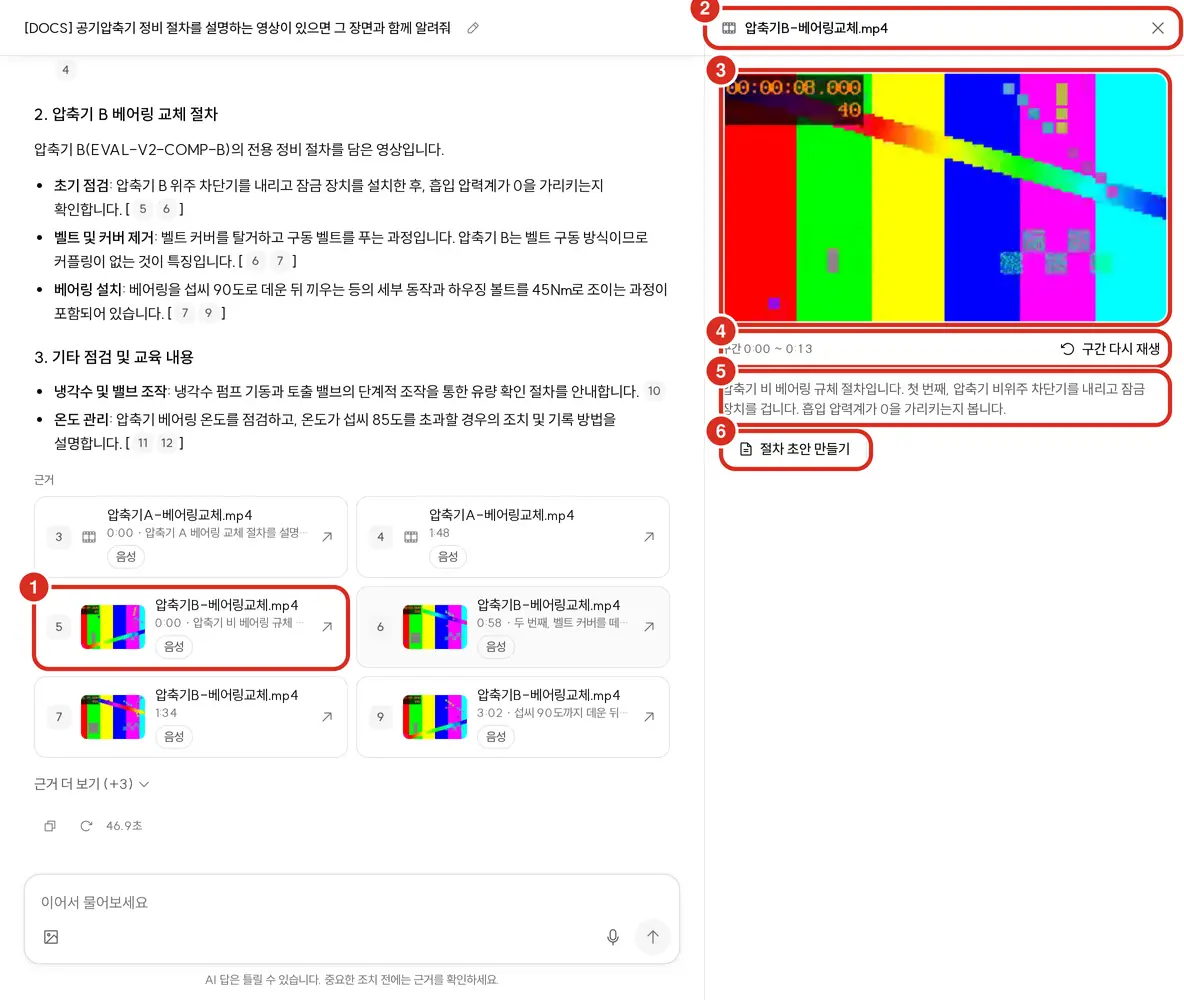
| What you see | What it means |
|---|---|
| Number | Same number as [번호] in the body text |
| Thumbnail or icon | A still of the matching scene — only shown for videos where document search stored a scene thumbnail. Otherwise a video · audio icon |
| Title | The video · audio file name |
| Subline 3:12 · … | The time of the matching scene (min:sec) and one line of text from that segment. Playback also starts at this time |
| Badge caption · screen · speech | Where that segment's text came from — subtitles, on-screen text, or speech. Audio files don't get a "speech" badge |
Clicking the card opens a player in the right panel without leaving the conversation. It's the same panel that opens for document originals · drawings — closing · resizing · behavior on narrow screens is covered in Copilot Screen Map — Right Panel.
- It auto-plays from the time of the matching scene shown on the card, and stops at the end of the segment — "Stopped at end of segment." The matching scene is where the sentence that search judged to match the question appears. If that spot is unknown or outside the segment, it plays from the start of the segment.
- Below the player is the whole segment, such as "Segment 3:10 ~ 3:47", and Replay Segment. Clicking it replays from the start of the segment — use it to see the context before the matching scene.
- After stopping at the segment end, pressing play yourself continues past it. Rewinding back into the segment stops at the segment end again.
- Below that is the text for that segment, and for videos, Create Procedure Draft → see Creating a Work Procedure from Video below
- Clicking another card switches the panel to that video. Close with Close Panel or Esc.
- Audio files (
m4a·mp3·wav) show only a playback bar, no video. - Videos attached to sources in Proposals open in the same player — it opens above the detail view, and Back returns to it.
- Anyone logged in can play (same rule as documents). The original video stays on the customer's own servers only.
Which videos get attached as cards
Document search decides which video segments become cards — it looks at what the search answer actually relied on.
- Only video segments the search answer cites become cards. Even if a video matched the search, it's not attached unless the search answer relied on it.
- If the search answer opens by saying "that information isn't in the materials," no video card is attached — even if a similar video is cited afterward.
- If the search answer cites nothing, up to 3 segments with matching sentences are attached, leading with the best match.
- Video · audio cards chosen this way stay even if the body of the chat answer does not cite their number — search already picked them as «the segments its own answer relied on».
Uncited cards are just shown dimmed. They are dropped only in these cases.
- If the answer names a video · audio file name, only the card with that name stays.
- If the answer cites results other than document search (sensor · chart · digital thread) or draws a chart, uncited video cards are dropped — the answer's evidence lies there.
- In an answer where video cards stay, the document · drawing cards from the same search stay only if the body cites them. Uncited document cards do not come back as «uncited» evidence → Ask — Source Cards and Citations
- The first question in a new conversation runs document search once, exactly as the user typed it. If that search returns no video segments, videos that come up in a later search where the AI rephrases the query are not attached as cards. Follow-up questions use a query the AI revises based on the prior conversation.
How accurate is it
Figures measured on an internal evaluation set (v2, 83 questions × 3 runs, direct search path). These numbers don't guarantee performance on customer data · questions.
| Metric | Result |
|---|---|
| Correct video ranked #1 | 90% |
| Correct video in top 5 | 97% |
| Scene timestamp error (median) | 7.6 sec |
| Correctly answers "I don't know" for questions not in the materials | 95% |
Creating a Work Procedure from Video
From an answer backed by a maintenance video, open the right panel by clicking the video card, then click Create Procedure Draft — the panel switches to Work Procedure and shows a draft of steps and a checklist extracted from that video's speech · captions · on-screen text.
- While generating, "Extracting steps from the transcript" appears — "This may take about a minute depending on video length. You may close the panel."
- If a procedure already exists, it opens that instead of creating a new one ("A procedure already exists for this video, so it was opened."). Next to it is Regenerate.
| What's shown in the panel | What it means |
|---|---|
| Status badge | Draft · Published v«version» · Edited draft · published v«version» (edited again after publishing) |
| Step N | Extracted steps. Each step has the items in the table below attached |
| Checklist N | Items to check before/after the job |
| Discarded item N | "Removed from the draft because it had no grounding line or had numbers not in the grounding." — Steps · checks the AI produced but couldn't back with grounding |
| Procedures for this equipment | List of other procedures for the same equipment |
| What's shown per step | What it means |
|---|---|
| Caution · tools·parts | What's mentioned in the video |
| Grounding | Whether it came from speech · subtitles · burned-in captions · on-screen text, and a replay of that segment |
| Confidence High · Medium · Low | How confident the AI is in that step — for Low, always verify against the video |
| Reviewer edit | A step edited by a human. If grounding is still attached it shows "See grounding segment"; if grounding was detached it shows "No video grounding" |
- Edit lets you change the title · action · cautions · tools·parts, add steps · checklist items (Add Step · Add Checklist Item), reorder (Up · Down), and remove (Remove). Editing grounded text turns that step into a Reviewer edit. Detach Grounding turns it into a "Reviewer-written — no video grounding" step. You must Save for changes to stick; Stop Editing asks "Discard your changes?"
- Regenerate extracts steps from the video again from scratch — "Only one copy of the current title/body will remain, and the published version will keep being used for search until the next publish."
- 🔴 If there's a number not found in the grounding (torque · temperature · time, etc.), a banner reads "Fix the flagged issues before you can publish — correct the number to match the grounding or detach the grounding," and publishing is blocked. You also can't publish with zero steps ("Can't publish yet — there are no steps or flagged issues remain").
- Clicking Publish shows "Publish this procedure?" with the equipment · document name · grading ("same grading as the source video") and step/check counts; confirming turns it into an equipment document that chat will cite as grounding going forward.
- Only people with procedure-publishing permission (
publish:procedure) can publish — by default, team leads · maintenance · plant manager · admin. Anyone using Ask can create a draft, but only the creator and people with publish permission can edit someone else's draft.
| Message | Meaning |
|---|---|
| "Couldn't create draft — no transcript available, or the model isn't responding" | Either the video hasn't been transcribed yet, or the AI model isn't responding |
| "Can't open this — the video's grading is higher than your access grading" | Check your access grading with the admin |
| "Couldn't verify the video's grading — the document server isn't responding. Try again shortly" | Couldn't reach the document search server |
| "You don't have permission to do this — only the creator or someone with publish permission can" | Tried to edit someone else's draft or publish without permission |
| "Couldn't find the video or procedure — it was deleted or is outside your scope" | The video was deleted, or is outside your equipment scope |
Limitations
| Case | Behavior |
|---|---|
| A video just uploaded | The processing window (default 20:00–06:00) must open before transcription starts. It may not be searchable yet during the day it was uploaded |
| Videos transcribed before the 2026.10 Re-release 4 | Where speech starts after silence · noise, the first sentence may be missing, or the scene timestamp may be pulled earlier than it should. Re-release 4 fixed this, but already-transcribed videos aren't redone automatically — the admin can re-transcribe, and it will be re-transcribed in the next processing window (default 20:00–06:00) |
| Question and video speech are in different languages (e.g. asking in English about a Korean video) | Matching sentences can't be picked. For long segments, it may open earlier than the scene you wanted |
| Codecs the browser can't open (e.g. H.265 mp4) | It's searchable and the card is attached, but it won't play in the panel |
| Videos exceeding the length cap (default 120 min) | The whole video is skipped, not just processed up to the limit |
| Videos with no speech and no captions | Nothing to search since there's no text (shown in the admin console as "no sound" · "no speech") |
Asking by Voice — the microphone button
You can ask by voice using Ask by Voice (microphone — same size as the send button, with a touch target sized for gloved fingers on phones) to the right of the input box. Only works on installations with video · audio turned on.
- Click once to start, click again (Stop Recording) to stop.
- While recording, the input box area shows "Listening" · a volume bar · elapsed time · "Max 60 seconds." Clicking ✕ (Cancel) discards the recording. Max 60 seconds — it stops automatically at 60 seconds.
- On stopping, it goes through "Transcribing" and then puts the transcribed text into the input box (appended after any text you already typed). Review, edit, and send.
- Audio is not stored. Only the transcribed question stays in the conversation.
- The microphone only opens on HTTPS addresses. Opening it on an internal
http://IP address means the browser won't grant mic access, showing "This browser doesn't support recording." - The mic button is locked while an answer is streaming.
| Message | Meaning · What to do |
|---|---|
| "Voice input is not available right now (the transcription service is off or busy). Please type instead." | Either the installation has video · audio off, or the transcription service isn't responding. Type your question, and notify the admin if this continues |
| "Microphone unavailable. Allow microphone access in your browser" | Go to site settings in the address bar → allow microphone, then click again |
| "This browser doesn't support recording" | Either it's a http:// address or the browser can't record. Open it at a https:// address |
| "Couldn't make out what you said. Move closer to the mic and try again" | Move closer to the mic and speak again |
| "Too short. Speak a bit longer" | Recordings shorter than 0.6 seconds are discarded |
| "Couldn't transcribe it. Please try again" | Transcription failed. Press the button again |
| "Recording is too long (max 60 seconds)." | Split your question into parts |
Related Documents
- Ask — AI Chat — source cards · citations · right panel
- Asking with Drawings — drawing cards · revision comparison
- RAG — search engine and indexing
- Safety · Training Use Cases — finding procedures from training videos
- Configuration — turning on video · audio · processing window