External Program Integration
Equipment unsupported by the Edge can still enter the Edge's data model.
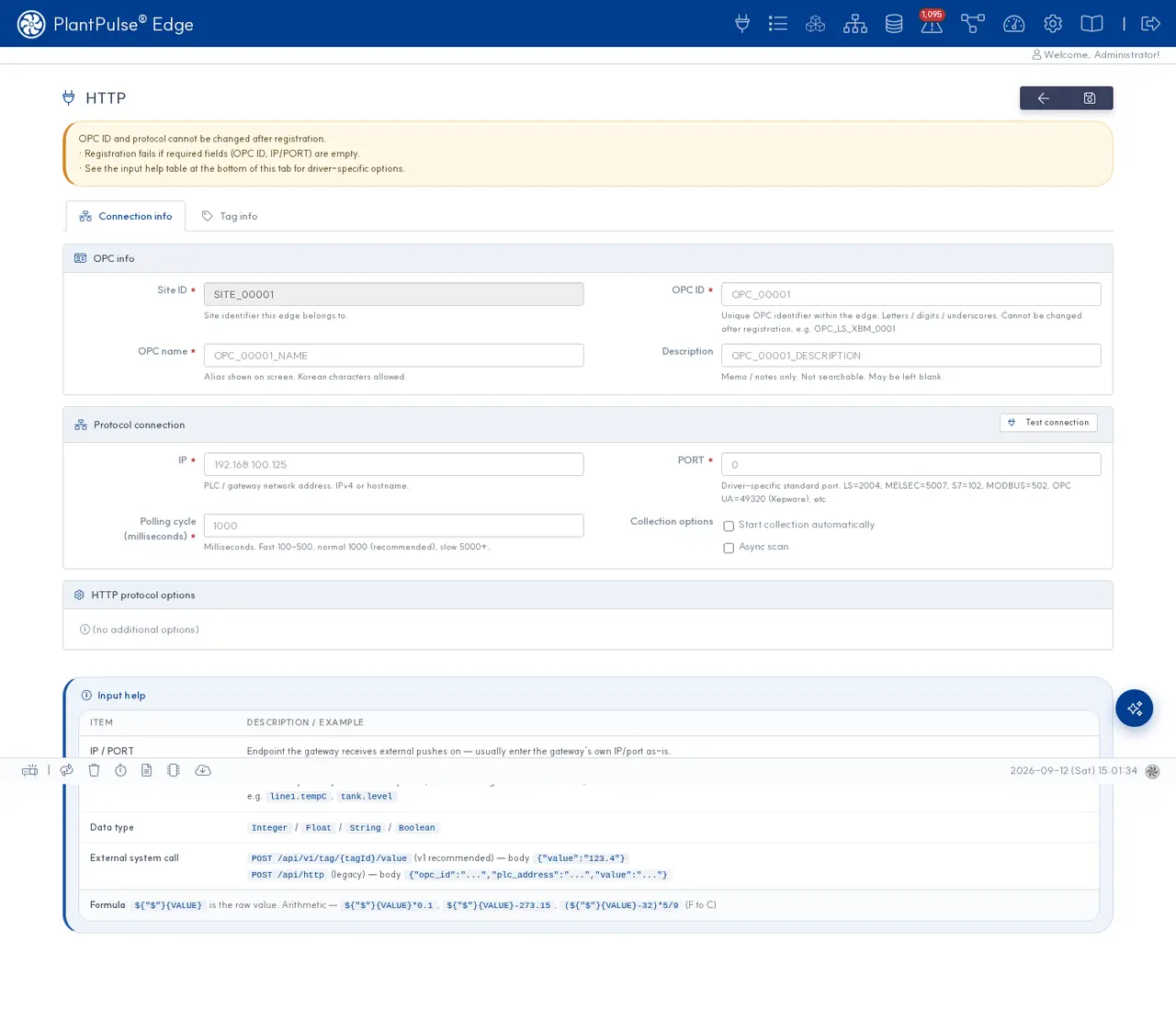
When an external program reads values and pushes them via HTTP, those values are treated exactly like tags collected directly by the Edge. Platform transmission, history, alarms, and flows all work as usual. No new driver is needed.
- Equipment with protocols that have no Edge driver
- Existing systems that already read values (MES · SCADA · custom collectors)
- When you want to upload values that have been processed or transformed
How it works
An HTTP connection does not collect data. It is a cache that holds received values.
외부 프로그램 ──HTTP──▶ 엣지의 값 캐시 ──timecycle 주기로 샘플링──▶ 태그 이력 · 플랫폼
Why do pushed values disappear?
Because while the outside is push-based, the inside of the Edge is still polling.
For other drivers, the Edge polls the equipment directly. With HTTP, a cache sits in the place of that «equipment», and the side that reads the cache still uses polling. So if the push side and the read side are out of sync, values can become misaligned.
| Outside → Edge | Edge → History | |
|---|---|---|
| Method | Push (whenever the external system wants) | Polling (at timecycle intervals) |
| If missed | — | Only the last value between intervals is kept |
Drivers that receive messages all share the same structure. They overwrite a «last value» with messages from the broker, and the collection scheduler reads it at the defined interval.
| Driver | Where the value comes from |
|---|---|
| HTTP | Requests from external programs |
| MQTT Client | Subscribed topics |
| Kafka | Records received by the consumer |
| WebSocket | Incoming frames |
So “collected counts are far fewer than published counts to the broker” is normal. If the broker's LAG is 0, the Edge is receiving everything — but only one value per interval is recorded in history. There have been cases where this was mistaken for data loss and caused lengthy troubleshooting (Field casebook).
This structure introduces certain characteristics. Understand them before you begin.
| Characteristic | Meaning |
|---|---|
| Pushed values are not saved immediately | Sampled at the connection's timecycle interval |
| Pushing faster than the interval drops intermediate values | Only the last value remains |
| Pushing slower than the interval results in repeated saving of the same value | The cached value continues to be read |
To get faster reflection, reduce timecycle. This value is essentially the reflection delay.
At 1000 (1 second), a value is saved within at most 1 second. Reduce it to 200, and it is saved within at most 0.2 seconds. The minimum value is 100 (0.1 seconds).
| What you want | timecycle |
|---|---|
| Nearly immediate reflection | 100 ~ 200 |
| General real-time monitoring | 1000 |
| Slowly changing values (temperature, level) | 5000 or higher |
Reducing the interval lowers the delay, but the property of reading only the last value remains. If a value changes three times within an interval, only the last one is kept.
If you need to capture every single event without exception, this approach is not suitable. Even with a very tight interval, this is still the case.
All tags on that connection are read at that interval. Dropping the interval of a connection with many tags to 100 significantly increases load. Create a separate HTTP connection only for tags that need to be fast and lower the interval for that specific connection.
Step 1 — Create an HTTP connection
From the screen, go to Connection → Add → HTTP.
https://<엣지 주소>/ui/connect/http
An HTTP connection has no driver options whatsoever. There is an IP and port field, but the driver doesn't read them — they're just formal inputs, so any value can be entered without affecting operation.
You can also create it via REST. All eight fields are required.
curl -X POST https://<엣지 주소>/api/v1/opc \
  -H 'X-API-Key: <API 키>' \
  -H 'Content-Type: application/json' \
  -d '{
    "opc_id":        "OPC_EXTERNAL_01",
    "opc_name":      "외부 수집기",
    "opc_type":      "HTTP",
    "site_id":       "SITE_00001",
    "opc_agent_ip":  "127.0.0.1",
    "opc_agent_port": 80,
    "timecycle":     1000,
    "async":         false
  }'
| Field | Rule |
|---|---|
opc_id | Start with OPC_, 1-60 characters of uppercase letters, numbers, and underscores |
site_id | Start with SITE_ |
opc_type | Must be exactly HTTP. Otherwise, value push is rejected |
opc_agent_port | 1-65535 |
timecycle | 100 or greater (milliseconds). This value is the sampling interval |
When creating via the UI, the screen fills in missing values. So only with REST creation can a connection be created with missing fields and then fail to work.
Step 2 — Register tags and obtain tag_id
Create tags under that connection. One value corresponds to one tag.
Choose the data type to match the value's nature. Even if values arrive as strings, as long as the declared type matches, they will be parsed correctly. Conversely, an incorrect type will cause an exception at the storage stage.
| Value | Type |
|---|---|
| Current · Temperature · Voltage · Weight · Speed · Coordinates | Double |
| Battery · Error code · Counter | Integer |
| Alarm · Status · Zone · Direction · Color | String |
The tag_id used for pushing values can be found on the tag list screen or via the tag query API.
Step 3 — Push values
curl -X POST https://<엣지 주소>/api/v1/tag/<tag_id>/value \
  -H 'X-API-Key: <API 키>' \
  -H 'Content-Type: application/json' \
  -d '{"value":"1500"}'
Values can be sent as strings. They are parsed according to the type declared on the tag.
Authentication
Everything under /api/ requires authentication. Without a key, access is blocked — even if a key is missing from the configuration, it won't work.
| Method | Form |
|---|---|
| Header (Recommended) | X-API-Key: <key> |
| Header | Authorization: Bearer <key> |
| Browser session | Passes without a key if logged in |
?api_key=… was removed in v1. Using it results in 401. Don't migrate old examples as-is.
Use HTTPS
The default is HTTPS-only. Calling via http:// returns 403.
When values don't come in
Narrow down the issue in order.
- Is the connection running? — If stopped, it refuses to receive values. Start that connection from the screen.
- Is
opc_typeset toHTTP? — You can't push values to a connection of a different type. - Did you call via HTTPS? —
http://returns 403. - Did you send the key in a header? — Query parameters return 401.
- Is
tag_idcorrect? — Double-check from the tag list. - Did you wait for the interval? — Pushed values aren't saved immediately. Wait for
timecycleand then check the history.
Things to know
One at a time. There is no endpoint to push multiple tags in a single request. Call each tag separately.
It works in redundant configurations too. Even an Edge without write permission continues to receive values pushed via HTTP. This is intentionally designed so that external integrations aren't interrupted during redundancy failover.
There is an old endpoint. POST /api/http is the previous method that specifies the target with opc_id and plc_address. It will be removed on December 31, 2026. It doesn't have rate limits or duplicate prevention, so for new integrations, use the /api/v1/tag/{tag_id}/value described above.
Related Documents
- Add Tag — Tags and data types
- Connection List — Starting and stopping connections
- PLC Address Reference — Address notation for other protocols
- Field Casebook — When type exceptions or empty values occur