Assistant
This is the operational assistant within the management console. Its value is contained in a single sentence: what the problem is now, why it is happening, and what should be done. When asked about this node in natural language, it reads from the APIs already provided by the console to answer, and if there is a task to perform, it presents an approval card. Nothing is executed until a human approves the card.
| Item | Value |
|---|---|
| Access | Assistant icon on the rail — Address: https://<server-ip>:4950/assistant/ |
| Requirements | One OpenAI-compatible LLM gateway. Since it is not included in the console, connect it manually — Gateway Settings |
| Answer Materials | 14 read tools for this node's console API |
| Execution | Only via approval cards for 7 permitted actions |
| Scope | Only the single node where the console is open |
Screen Layout
The Conversation is on the left, and three sections are placed in the right column from top to bottom.
| Position | Name | Function |
|---|---|---|
| Left | Conversation | Write questions and read answers. Enter is [Ask], Shift+Enter is a line break. Approval cards generated from answers also appear here |
| Top Right | Gateway | Normally collapsed into a one-line summary. It expands automatically if an unusable state is detected |
| Middle Right | Open Proposals | All cards awaiting a decision. Whether they originated from a conversation or an alarm, they are collected here and reread every 10 seconds |
| Bottom Right | Read by this Answer | Shows the API calls made by the last answer in sequential order |
What is the problem now?
Ask in natural language about the node's status, version, alarms, and backups. The assistant rereads for every question before answering — previous answers are considered stale and are not used as evidence. Regarding what is WARN or FAIL, it conveys the console's judgment exactly and does not apply its own criteria to raw values. If something could not be measured, it states that it was not measured.
Ask as follows:
- Are there any components with anomalies right now?
- What alarms are currently active, and are any of them muted?
- Are all workers joined to the ring?
- What is the status of the WAL and replication slots?
- Are there any lagging Kafka consumer groups?
- What has happened on this node in the last hour?
- When did the last backup end, and is there a backup currently running?
- Who recently restarted what?
- What are the version and uptime of this node?
- What is the Kafka version included in this release?
The system tool reads the identity, version, and uptime of this node, while the component_versions tool reads the component table shipped with this release. The latter is not a measured value of what is currently running on the node.
All measurement results are sent in the next round trip. Specifying a component or screen name is faster than asking to «check everything» and increases the likelihood that the answer will be completed.
Why is it happening?
When asked for a reason, the assistant reads the health, alarms, recent tasks, and log lists together, and answers in this order: what is wrong (console judgment) → why (starting with the most likely candidate, citing the fields read) → what to do (card or specific next steps).
The server attaches two pieces of information to the judgment: tasks within the last 30 minutes and currently running tasks — because «someone just restarted it» is often the reason. It also provides the actual log file name for the problematic line.
- Why is cassandra red?
- Give me the candidate causes for this alarm.
- kafka is FAIL; what should I check first?
Unless the console documentation explicitly states the cause, the assistant does not conclude a single cause as fact. If nothing in the read data points to a cause, it answers that the cause is unknown. Answers are materials for judgment, not diagnostic results. Cross-check them using Read by this Answer below.
Log bodies cannot be read. The log tool only answers which files exist and when they were last written. Therefore, the assistant cannot state what is written in the logs; instead, it specifies the file name and directs the user to the logs screen.
Cross-checking the answer — Read by this Answer
Answers come with evidence. The Read by this Answer section on the right lists the API calls made by the last answer in order, and the [Open Screen] button on each line goes to the screen where the same fact can be viewed manually. The server determines which screen to open.
The Tool Call Round N at the head of the answer indicates the number of round trips. If tasks or log lists were read to be attached to the judgment, they remain as lines in the panel if the content was actually attached. If the panel shows «The last answer called nothing — it is an answer written based only on the question», then that answer was not based on measurements of this node.
Server verifies the answer
Before being sent, the model's answer is compared against what actually happened during the current question. If there is a discrepancy, it is sent back once to be rewritten; if it still disagrees, that sentence is deleted and a mark is placed below the answer.
| Mark below answer | What was blocked | Action |
|---|---|---|
| «This answer has no read evidence — nothing was read from this node, so do not read this as a measured value. …» | Answers that read nothing. If content looks like a measured value, the entire answer is deleted | Specify what to read and ask again |
| «Failed to create card. The assistant wrote that it proposed a card, but no such card exists, so the sentence was deleted. …» | Claims of creating non-existent cards | Request again or use the corresponding screen |
| «Deleted version/date from the answer that was not found in the current read. …» | Values not read this time — versions, dates, numbers with 3+ digits, FAIL, WARN | Verify in the evidence panel screen |
| «Read the following items but could not write a conclusion. …» | Answers without a conclusion even after using all round trips | Open that screen or specify one component and ask |
The Assistant's Judgment on the card undergoes the same verification. However, this verification checks the form, not the meaning. The absence of a mark does not mean the answer is correct.
14 Read Tools
The following is the complete list of what the assistant can read. All are GET and do not change anything; it cannot reach any endpoint not listed here with any arguments.
| Tool | Read Location | What | Evidence Link Destination |
|---|---|---|---|
health | /api/health | Judgment by component | Status & Info |
services | /api/services | Service list · Startup status · Port | Status & Info |
alarms | /api/alarms | Active alarms · Consecutive failure count · Mute · Reason for not notifying | Alarms |
workers | /api/workers | Worker ring join status and capacity | Workers |
jobs | /api/jobs | Recent tasks (restart · render · backup · diagnosis) — who ran what, when, and completion status, currently running tasks | Tasks |
storage | /api/storage | Volume · WAL · Replication slot · Storage size | Storage |
backup | /api/backup | Backup history — engine · type · status · end time · size, currently running backups | Backups |
events | /api/events | Event timeline of this node | Events |
flow | /api/flow | Lag by Kafka consumer group | Topology |
logs | /api/logs | Log file list and last recorded time — not the body | Logs |
doctor | /api/doctor | Diagnosis results — pass · fail · not measured | Diagnosis |
system | /api/system | Identity · version · uptime · heap of this node | Status & Info |
component_versions | /api/component-versions | Release component table — official version · internal version · port · license · origin | Status & Info |
service_impact | /api/services/{name}/impact | What else stops if this service is stopped | Status & Info |
Intentionally excluded — secrets, rendered configurations, log bodies, search, and streams. The first two contain credentials, and log bodies are free text most likely to contain credentials.
Tool responses are not sent raw. Health, alarm, task, backup, log, diagnosis, service, and version documents are filtered to necessary fields, placing the problematic line first and expanding the time, then sent to the model. Every tool is cut at 4,000 characters per tool. If cut, the model is informed, and if the answer depends on that, it is instructed to state so and point to the screen.
What to do — Approval Cards
If there is an action that can be taken, the assistant does not execute it but proposes a card. If a human needs to view a screen, the assistant answers which screen to view without a card. You may also request them directly.
- Give me a card to run a diagnosis.
- Give me a card for a full cassandra backup.
- Give me a card to mute this alarm.
7 Permitted Actions
Only these seven actions can be called by a card. Any action outside this list is rejected at the time of card creation and does not appear on the screen.
| Action | Calling Location | Target | Server Measurement before Card |
|---|---|---|---|
Render Config (CONFIG_RENDER) | POST /api/config/render | None | Not measured — console does not track which service reads the rendered file |
Restart Service (SERVICE_RESTART) | POST /api/services/{name}/restart | One service | What stops together |
Render Config + Restart (CONFIG_RENDER_RESTART) | Above two in sequence | One service | What stops together, whether tasks are running |
Run Backup (BACKUP_RUN) | POST /api/backup/run | One of postgres-full · postgres-diff · cassandra-full · cassandra-diff | Whether a backup is running |
Run Diagnosis (DOCTOR_RUN) | POST /api/doctor/run | None | None — read-only |
Mute Alarm (ALARM_MUTE) | POST /api/alarms/{name}/mute | One alarm component | Whether that alarm is active and sounding |
Unmute Alarm (ALARM_UNMUTE) | POST /api/alarms/{name}/unmute | One alarm component | Whether that alarm is active and muted |
All of these are endpoints already called by buttons on those screens. There is no execution path exclusive to the assistant, so no new capabilities are granted by approval; task locks, history, and audit logs are identical to those of the button press.
Card Path
- Server measures. When the assistant selects an action, the console directly reads the prerequisites in the table above. The scope of impact is not written by the model — it is read from the service's declared startup order. If the required measurement cannot be performed, the card is not created.
- Human approves. Read the card and press [Approve] or [Reject]. Nothing happens until a button is pressed.
- Remeasure upon approval. For actions requiring measurement, the server rereads. If the impact scope has changed from the card, execution is rejected, and both the then-current and now-current states are shown. The same applies if prerequisites are broken.
- Expires in 30 minutes. Judgments are for a specific moment. Cards that have timed out have no approval button. Ask again for a new card if needed.
- Executed only once. A decided card cannot be approved again. Pressing the same card twice will not run it twice.
CONFIG_RENDER and DOCTOR_RUN have no measurements before the card, so there is no remeasurement in step 3.
How to Read a Card
The card header contains the source (From Conversation / From Alarm), the time it was proposed, and the Assistant's Judgment. The judgment is model-generated text and may be wrong. Sentences containing values not read this time are deleted by the server. Below that, the order is fixed:
| Order | Card Title | Content |
|---|---|---|
| 1 | What stops together | Measured by console — not model-written text. For render config cards, «Not measured» appears instead of a measured value. For mute cards, which alarm becomes quiet; for unmute cards, which alarm sounds again |
| 2 | Reversibility | Guidance per action |
| 3 | Exactly what is called | Method and path to be called. For render + restart, two steps appear in sequence |
| 4 | What is «NOT» done | What that action does not touch |
| 5 | Before pressing approval · [Approve] · [Reject] | Appears only on cards that can be approved |
For cards originating from conversations, read materials are also displayed. These are the read tools that actually responded before the card was created, each linking to its respective screen.
«Did not find what stops together» and «Not measured — no one checked» are different statements. If the server cannot measure the required impact, it does not create the card at all. If «Not measured» appears on a card, do not approve it.
«Not measured» on a render config card is different. This step stops nothing, and running services read the changed file at the next startup. However, no one has measured what the subsequent restart will change.
If rendering fails, it will not restart. If rendering completes but restart fails, the new config is on the node, but the service is still running with the old config. The progress is recorded in the card's Server Message. Since this action waits for the render to complete, it may take several minutes after approval. If the console stops waiting first, check the card status and Tasks screen before pressing again.
Card Status
| Screen Text | Meaning |
|---|---|
| Awaiting decision | Located in Open Proposals |
| Approved and executed | Request accepted; no task to follow. Execution result is attached to Server Message |
| Approved and started. Task is still running | Action that launches a task. This is the start, not the result. The card tracks the task every 3 seconds |
| Approved and task completed successfully | Task succeeded |
| Approved but task failed — see task screen | Call was accepted, but the task failed |
| Approved and started. Result not read — see task screen | Started, but result is unknown. Do not read as a failure |
| Approved but execution failed | Approval granted, but the call failed. Reason is attached to Server Message |
| Rejected | Nothing was called |
| Expired without decision | 30 minutes have passed |
For cards that cannot be approved, «Nothing to decide here:» appears with the status above instead of dimmed buttons.
When cards are not created or execution is rejected
Server rejections are not hidden. In conversations, the assistant conveys the reason; for rejections during approval, the server's English sentence is attached exactly as is after Not executed.
| Situation | When | Action |
|---|---|---|
| Impact not read | Before card · Upon approval | Check service name and Status & Info screen |
Impact scope changed (has CHANGED) | Upon approval | Ask again for a new card |
| Backup or recovery running | Before card · Upon approval | Ask again after completion |
| Other task running (Render + Restart) | Before card · Upon approval | Ask again after completion |
| Alarm absent · Already muted · Not muted | Before card · Upon approval | Check status in Alarms screen |
| Target is the console itself | Before card · Upon approval | Console cannot restart itself. Use pd on host |
| Approving/Rejecting already decided or running card | Upon approval/rejection | Rejection only possible for cards awaiting decision. Check card status |
| Proposal storage missing on this node | Before card | Cards that cannot be recorded are not created as they could be approved twice |
If «This node cannot execute approvals — nothing here will run even if approved» appears in Open Proposals, it means the storage for this node is not ready.
Cards from Alarms
Cards can be proposed even if no one asks. The moment an alarm is raised, the console asks the gateway once, and if there is a task, a card is placed in Open Proposals. The source is marked From Alarm. Since there is no person responding in this path, only the alarm and service list are sent without tool round trips.
- The only selectable actions are Restart Service and Render Config. Backup, diagnosis, mute, and render + restart only appear in conversations.
- The title and judgment for this path are written in English because the timeline is in English.
- The restart target is determined by the console, not the model. It finds the service running that alarm component in the health document.
- Alarm screen rules apply exactly — it will not ask if the rule is off, the minimum severity is not met, or it is within a suppression window.
- A new card is not created if a card with the same action and target is already open.
- When an alarm is cleared, the card is withdrawn. If the console restarts, it cannot be withdrawn and will expire in 30 minutes.
- Open Proposals only contains cards awaiting decision, so approved cards are removed from the list. Results for approved alarm cards are viewed in the Tasks screen.
- What happened is recorded in the Event timeline — card raised, nothing to propose, gateway unreachable, card rejected.
The gateway must be on, the proposal storage must be ready, and PP_DATALAKE_ADMIN_API_KEY must be configured — this key is the identity the console uses to read its own API when no one is logged in. If any are missing, the reason is recorded once in the logs. Alarms and notifications continue to operate regardless of this.
What cannot be done
The following will not appear as cards. Since they are not on the permitted list, they are rejected even if the model requests them.
| Prohibited Action | Where to perform |
|---|---|
| Recovery | Backups screen — the procedure for specifying the target is there |
| Data deletion | Cannot be done via assistant |
| Secret lookup · Change | Assistant cannot read credentials. Use Credentials card in component details |
| Node removal | Command shown in Workers screen on the host |
| Backup schedule change · Scheduled execution | Cannot be done via assistant. Schedule editing is in Backups screen |
| Task cancellation | Cannot be done via assistant |
| Service start · stop | Only restart appears in cards. Stopping mid-way can leave the node in a worse state |
| Upgrade | Upgrade screen |
Where is the conversation stored?
Conversations exist only in the sessionStorage of that browser tab. The screen explicitly states: «This transcript exists only within this browser tab. It remains after a refresh but disappears if the tab is closed or you log out. The node does not store a single line, so copy anything you wish to keep.»
- It remains after a refresh. It disappears if the tab is closed or you log out. It is not visible in other tabs.
- The tab keeps only the 40 most recent items. It can be manually emptied via [Clear].
- When asking, the tab sends the previous conversation, and the server reads the most recent 20 messages. This is used for context only, not as evidence.
- Cards are not part of the conversation. Cards are not copied to the tab and are always read from the server. Title, judgment, impact, decision-maker, and results remain in the node's PostgreSQL for 7 days (cleaned at startup). Calls executed via approval remain in the Audit screen.
While the node does not store conversations, it sends the question, previous conversation, and filtered tool responses to the gateway to generate answers. For alarm cards, it sends the alarm, alarm list, and service list. This means node status information reaches the gateway; connect a gateway that complies with internal company policies.
Permissions
This console has one account and no roles. Anyone with a login session can ask questions, approve cards, and configure the gateway.
| Action | Requirement |
|---|---|
| Question | Login session |
| Approve · Reject | Login session |
| Gateway save · Verify | Login session |
| Read proposal list · Gateway settings | Login session or Console API key |
- The person asking and the person approving can be different or the same. There is no two-person approval process. While tab conversations are private to that tab, cards are owned by the node, so Open Proposals are visible to anyone logged in.
- Questions cannot be asked or approved via API key. These actions require a session.
- Assistant measurements and approved calls are made using that person's session. There is no path that increases privileges.
- The session login name is recorded for the card decision-maker and in audit logs. If accounts are shared, individuals cannot be distinguished.
Gateway Settings
The assistant calls an OpenAI-compatible gateway (GET /v1/models, POST /v1/chat/completions). The console has no default address — manually enter the address reachable within the field network. Settings are saved on the screen and stored in the node's PostgreSQL; there are no environment variables for this.
Click [Expand Gateway Settings] at the top of the right column. Since there is only one gateway, there is no name to select; there are four fields.
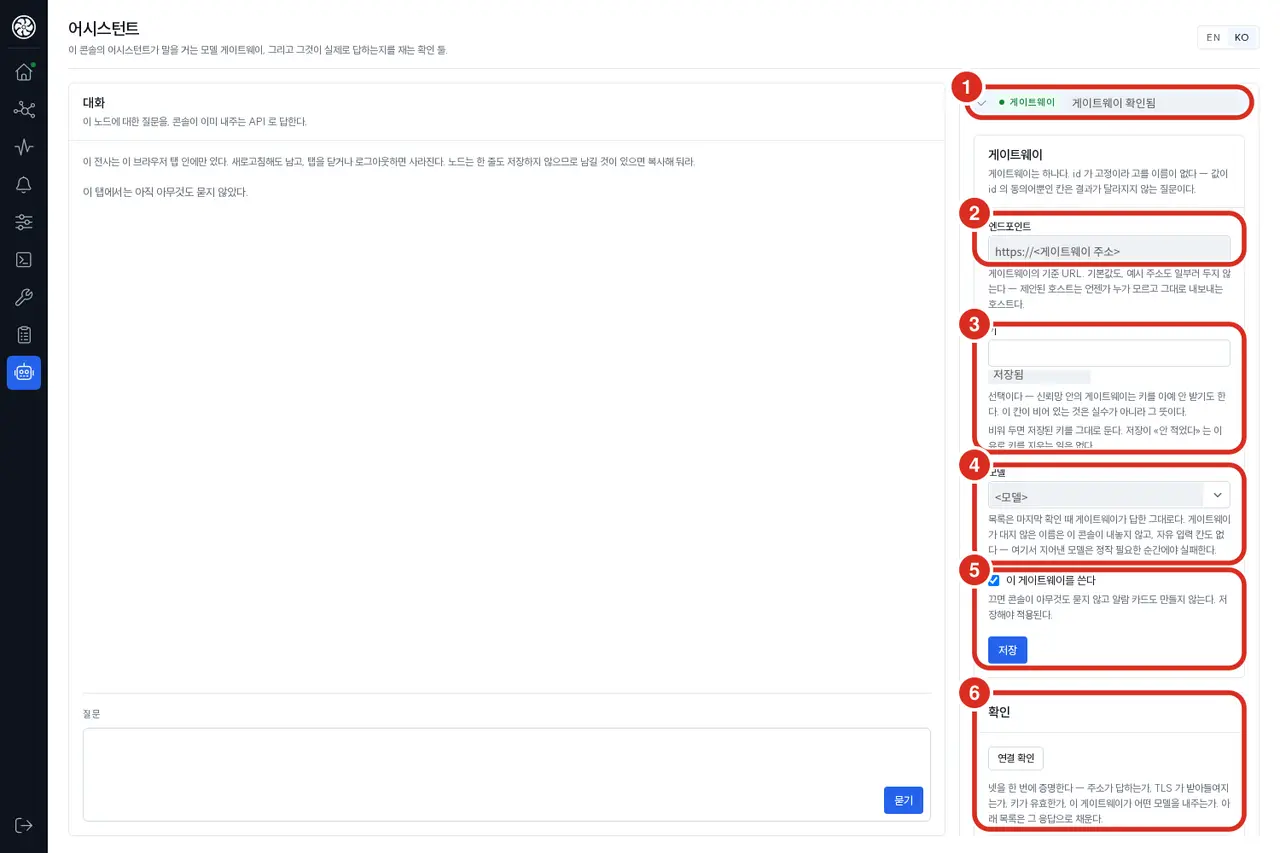
| Number | Position | Function |
|---|---|---|
| ① | Top Right | Collapsed one-line summary — expands when clicked |
| ② | Endpoint | Base URL for the gateway |
| ③ | Key | Only storage status and last four digits are visible |
| ④ | Model | Select from the list provided by the gateway |
| ⑤ | Use this gateway · [Save] | Must be saved to apply |
| ⑥ | Verification | [Verify Connection] — See Below |
| Field | Input |
|---|---|
| Endpoint | Base URL of the gateway. Required. Must start with http:// or https://; it doesn't matter if it ends with /v1 |
| Key | Optional. Gateways on a trusted network may not require a key. If left blank, the saved key remains. Only storage status and last four digits are displayed |
| Model | Select from the list. Only names provided by the gateway appear; there is no free-text input |
| Use this gateway | If off, the console asks nothing and creates no alarm cards. Must be saved to apply |
The initial connection sequence:
- Enter the Endpoint and Key and click [Save]. Verification connects using the saved values, not the values currently typed.
- Click [Verify Connection]. This checks the address, TLS, key, and model list simultaneously.
- Select the Model and click [Save] again. The conversation will open.
- Run the [Test Tool Call] once. This verifies that the model actually calls tools rather than just describing them. If this fails, you can still ask questions, but the model will not be able to read evidence or create cards.
If the gateway and model are saved, [Verify Connection] is automatically run by the console every time the screen is opened. Therefore, «Verifying this gateway» appears briefly after opening the screen, and the conversation opens upon success. [Test Tool Call] is an actual model call and is not run automatically.
When not configured
If the conversation does not open, No input fields available yet and the reason will appear where the input box should be. There are no dimmed input boxes.
| Right Summary | Meaning | Action |
|---|---|---|
| No saved gateway | Endpoint is not saved | Enter endpoint and save |
| No model selected | Gateway exists, but no model is selected | Verify connection → Select model → Save |
| Gateway is off | Saved settings are disabled | Enable Use this gateway and save |
| Unsaved changes in form | Questions go to the saved gateway | Save |
| Saved but not verified in this tab | Cannot determine if console is responding | Verify connection |
| Verifying this gateway | Auto-verification is running | Wait a moment |
| Last verification failed - Reason | See judgments below | Action by judgment |
| Gateway verified - Model name | Normal | Conversation is open |
«This node cannot save assistant settings» means the node cannot reach the DataLake PostgreSQL; in this case, [Save] cannot be pressed.
How to read verification results
Even if the address and key are correct, failures can occur. Read the judgment before re-typing the address. The Gateway Message below is the raw, untranslated response from the gateway. The same judgments appear in the conversation answer area.
| Judgment | Meaning | Action |
|---|---|---|
| Pass | Gateway responded and model list was received (for tool test, the model called the tool) | — |
| Nothing to verify | No endpoint is saved. Neither pass nor fail | Enter endpoint and save |
| Gateway No Response | Gateway did not respond at the address. Not a console problem; key was not tested | Check endpoint and whether this container can reach that host/port. Firewalls and timeouts appear this way |
| Key Rejected | Address is correct, but the key was rejected | Enter new key and save. Leaving blank keeps the rejected key |
| Model Not Supported | Endpoint and key are normal. The selected model does not process this request | Select another model from the list |
| Upstream Limit Exhausted | Endpoint and key are normal. The upstream account limit of the gateway is exhausted | Nothing to fix on this screen. Pass when limit resets |
| Tool Not Called | Model answered in text only | Select a model that supports tool calls |
| Could Not Read Gateway Response | Does not fit any classification | Read Gateway Message |
Waiting and truncated answers
It is normal for answers to be delayed as multiple tools may be called for a single question. A timer increments while waiting, and you can stop it with [Stop Waiting]. Up to 8 round trips are allowed per question; if exhausted, the assistant must conclude based on what has been read so far.
| Screen Text | Meaning | Action |
|---|---|---|
| «Stopped this question after N seconds.» | Manually stopped. Nothing changed | Ask again |
| «This answer was truncated» | The answer did not reach completion. Do not read as a finished answer | Narrow the scope and ask again |
| «Console stopped waiting after 200 seconds.» | Not a failure of the node or gateway. The console stopped waiting | Narrow the scope and ask again |
| «Console could not reach its own server and could not ask anything.» | Problem with the console server, not the gateway | Check Status & Info screen or host |
Related Documents
- Management Console — Access · Login · Screen Layout
pdCLI — Source of what the console displays- Web Login Accounts