Frontline Tablet App Overview
Frontline is the PlantPulse Platform interface used on tablets located next to equipment. It appears as «PlantPulse Frontline» on the app screen and browser tabs. Operators, foremen, maintenance personnel, and managers use it to record downtime reasons instantly, log inspection defects, call for maintenance, select and start work orders, and view shift OEE and reports. As a core component of the Platform, it is always deployed whenever the Platform is installed.
Demo: demo-frontline.plantpulse.io — The first screen on a new browser is Tablet Registration (registration is stored per browser). Access via Administrator Login by entering employee ID admin and PIN 0000; a new PIN is set upon the first login. Operator accounts are created in the «Employees» section of the Platform console.
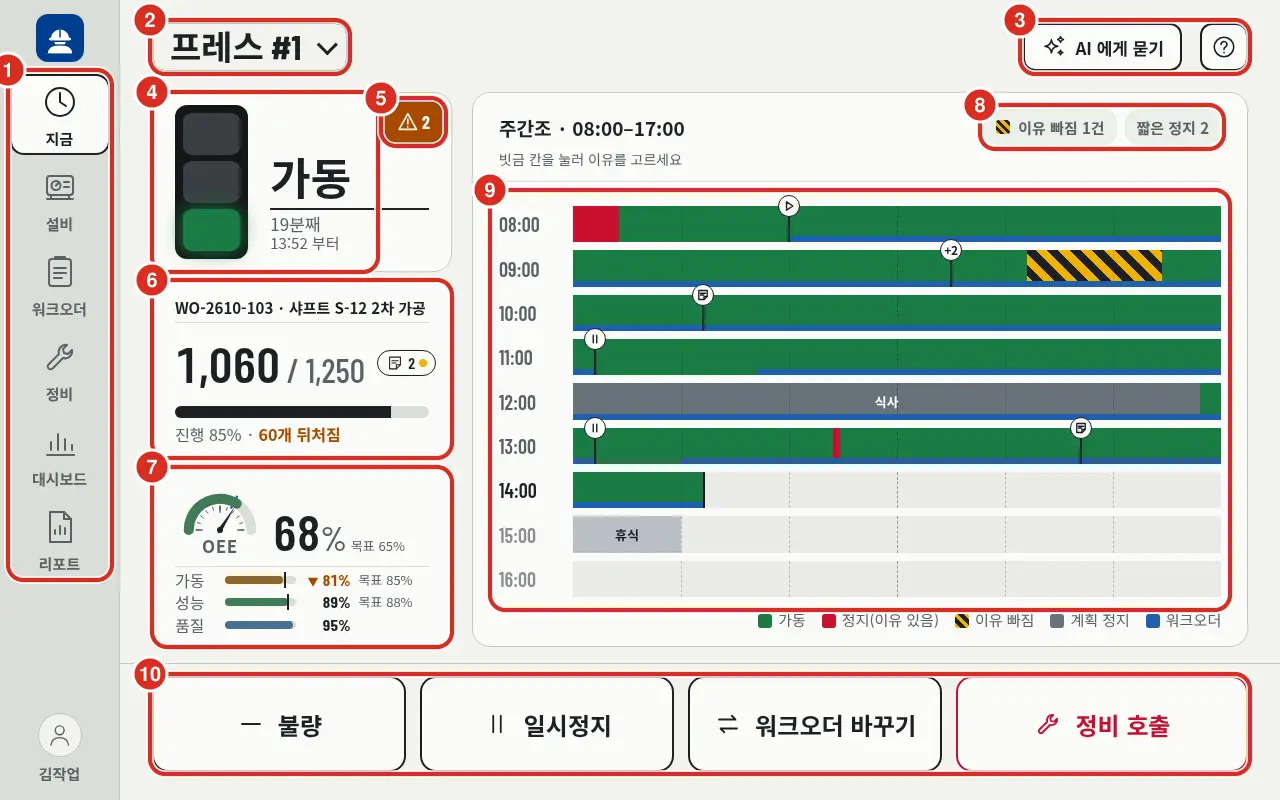
The app does not calculate OEE, downtime, or quantities independently. All figures and graphs on the screen are values provided by the Platform V5 API. Values not provided by the Platform are left as blanks or «No Data» — they are not filled with 0. Therefore, the OEE on the tablet and the OEE on the Platform web screen are identical.
Roles and Permissions
The role determines the initial screen and menu, while the assigned scope for each person determines the equipment and lines they can view.
| Role | Primary Device | Initial Screen | Visible Menus |
|---|---|---|---|
| Operator | Fixed tablet next to equipment | Now | Now · Equipment · Work Order · Maintenance · Dashboard · Report |
| Foreman | Line tablet | Work Order («Entire Line») | Same as Operator |
| Maintenance | Handheld tablet | Maintenance | Now · Equipment · Maintenance · Dashboard · Report |
| Manager | Any device | Now | All Menus + Settings |
- The Maintenance role always starts on the «Maintenance» screen.
- If a manager has set the initial screen of a device to something other than «Now», it will start on that screen, provided it is a screen accessible to that role (Device Management).
- Upon logging out, the next user starts from their own initial screen.
Operator accounts (login ID, PIN, role, assigned scope) are managed in the Platform. Users logging into tablets must be registered as employees in the Platform, and managers create accounts in the «Frontline Login» field of the «Employees» section in the Platform console (Operator Accounts).
The assigned scope is defined by the manager for each person by site, area, line, or equipment unit (Assigned Scope).
- For each scope, either Work (up to input) or View (view-only) permission is granted. Assigning a line automatically includes all equipment under that line.
- Tablets also have a scope. Upon login, the visible area is the intersection of the person's assigned scope and the tablet's scope (Assigned Scope ∩ Tablet Scope). The tablet does not expand the user's scope. If there is no overlap, only the screen «No scope viewable on this tablet» is displayed (Scope Visible After Login).
- Users without an assigned scope cannot see anything. Upon login, only the «Scope Not Assigned» screen is displayed.
- The Manager role can view everything from any tablet, even without a specific scope assignment.
- Maintenance calls can be made even for equipment with «View» only permission, as anyone who observes a problem should be able to request maintenance.
Current Capabilities
| Screen | Function | Details |
|---|---|---|
| Now (Equipment) | Displays status and duration, active work order, work order OEE (gauge and availability/performance/quality — color relative to target if set), current shift timeline (including work order bars, work order/maintenance call/memo markers), active alarms (grade icon and count), maintenance call status, missing reasons, and short stop counts. Single-tap buttons for defects, pause/resume, completion rate, changing work orders, and maintenance calls. If no shift schedule exists, it shows the last 9 hours (12 hours selectable). | Now — Equipment Screen |
| Now (Line) | Equipment cards for the line only — status and duration, missing reasons, product and good/planned count of active work orders, OEE, and number of active alarms per equipment. | Now — Line Screen |
| Stop Reason | A window automatically appears to ask for the reason when equipment stops. Recorded with a single tap. Can be entered later, and functions even during connection loss. Short stops are not prompted. | Recording Stop Reasons |
| Missing Reason Stops · Quantity Correction | The list of stops with missing reasons is opened via the «Missing Reason» chip on the «Now» timeline; quantity correction and defect lists are opened in work order details. | Missing Reason Stops and Quantity Correction |
| Defect | Record defects found during inspection by quantity, disposition, and cause; cancel incorrectly entered records. | Defect Recording |
| Maintenance | Call → Received → Repair Start → Complete; cancel pending calls. Maintenance personnel view open calls in order of longest wait time. | Maintenance Call |
| Alarm | Alarm indicator on «Now» status cards (grade icon and active count), list of active and today's cleared alarms with acknowledgment, and alarm counts on line cards. | Alarm |
| Equipment | Deep dive into a single piece of equipment — Overview (key values, today's work orders, recent alarms), Timeline, Alarm, Tag, and Document tabs. If enabled by the manager, the «Command» tab is visible (execution currently in preparation). | Equipment |
| Work Order | «My Work Orders» · «All», search orders for equipment/entire line by date (up to today), completed orders for 7/30 days, start · pause · resume · end · abort (works during connection loss), memos for successors, change history, and completion rate reports based on time. | Work Order |
| Dashboard | Daily OEE trends for the last 7, 14, or 30 days and loss Pareto by stop reason; failure count · MTBF · MTTR trends and failure cause Pareto. | Dashboard |
| Report | Shift, daily, and weekly reports by equipment, line, or site. Includes OEE, production, completed orders, versus plan, defect causes, and maintenance summaries. A4 printable. | Report |
| Ask AI · ? | When PlantPulse AI is connected, users can ask questions verbally about the equipment currently being viewed and receive answers based on data within their assigned scope. The ? button opens this manual in a new tab. | Ask AI |
| Connection Loss | Even if the Platform restarts, the screen retains the last value; inputs (stop reasons, order transitions, maintenance calls, defects, completion rates) are stored on the tablet and sent automatically upon reconnection. | During Connection Loss |
| Language · Theme · PIN | Tapping the name at the bottom of the left menu opens «My Profile». Users can choose between Korean · English and Light · Dark themes. Returns to tablet defaults upon logout. PIN can be changed via Change PIN in «My Profile». | My Profile — Language, Theme, PIN |
| QR Label | Scanning an equipment QR label and clicking «Open in Frontline» on the public page leads to the «Now» screen for that equipment after login. Assigned scope rules still apply. | Opening Equipment via QR Label |
| Settings (Admin) | Operator view (read-only — accounts managed in console «Employees»), device registration, stop reason list, kiosk (short stop threshold, maintenance call sound, login allowance period during platform downtime, «Command» tab visibility, logo), AI, and audit logs. | Installation and Management |
Not Yet Implemented
The following features are not yet available in the app and do not have designated screen areas:
- Weekly trends and comparison with previous periods (daily trends are available)
- Energy (EMS) metrics and reports
- Line-level loss by stop reason (available when selecting individual equipment)
- Hourly performance / target
- Shift loss waterfall (Plan → Stop → Speed → Defect → Good)
- Manual stop registration (Start · End · Reason)
- Quantity input by time slot
For equipment without PLC counters, the number of good and defective units for an order is entered directly in Quantity Correction with the reason «Manual Count» (Quantity Correction). Defects found during inspection are logged via Defect Recording. Manual stop registration and time-slot quantity input are not yet available.
Pages in this Section
- Field Usage — Login and assigned scope, my profile, now, stop reasons and short stops, missing reason stops and quantity correction, defects, maintenance calls, alarms, equipment, QR labels, work orders, dashboards, reports, ask AI, offline
- Installation and Management — Access URL, initial administrator, tablet registration, operator accounts (Platform console «Employees») and assigned scope, stop reason list, kiosk, audit logs
- Architecture and Boundaries — Web app · BFF · app data, boundaries with Platform V5, scope validation, environment variables
Related Documents
- KPI FAQ — OEE calculation, planned stops and failures, cause dictionary
- Production Management — Platform web work order and shift schedule screens
- Work Order API