Installation and Administration
This guide explains how to open the field tablet app for the first time, register tablets, and define worker accounts, assigned scopes, and downtime reason lists. The app's settings screen is visible only to the Administrator role. Worker accounts (login ID, PIN, role, assigned scope) are managed in the «Employees» section of the Platform console, not within the app — Worker Accounts.
Installation
The field tablet app is a mandatory component of the Platform. It is always deployed when the Platform is installed, and there is no separate switch to turn it on or off.
There are no values for the operator to select or enter during installation. The Platform installer configures the following:
- Container
plantpulse-frontline-webis a default service in the Platform compose. It starts afterserver-webbecomes healthy. - Ports
9700and9701are registered in the firewall by the installer. - Platform authentication and DB access use the existing Platform values — see Platform Authentication and the «Storage» row in the table below.
- The operator's only task is to install the Root Certificate on each tablet.
| Item | Value |
|---|---|
| Access Address | https://<플랫폼 호스트>:9701/ |
| Port | 9701 (HTTPS, Screen and API) · 9700 (HTTP, Health Check only) |
| Storage | Schema pf of Platform database pp (table names start with fl_). Uses Platform DB accounts (PP_PG_USER · PP_PG_PASSWORD) — stores devices, settings, equipment-specific downtime reason lists, shift notes, audit logs, and login cache for Platform downtime |
| Worker Accounts | Platform table pp.mm_app_account (assigned scope in pp.mm_app_account_scope). Master record for login ID, PIN, role, assigned scope, screen language, and screen theme — Worker Accounts |
| Platform Data | Status, OEE, downtime, orders, alarms, maintenance orders, and defect records are read/written via Platform V5 API. No copies are kept in the app DB |
- The app's schema name has changed from
frontlinetopf. The app renames it once upon startup before updating the DB (Flyway). Tables, data, Flyway history, and settings (including AI address and key) are migrated without copying. Subsequent restarts do not trigger this action (idempotent). - Workers in the app (
fl_operator·fl_operator_scope) are migrated to the Platform once after startup. Since PINs are migrated as hashes, users can log in with their existing PINs. Logins not linked to an employee will result in the creation of a Platform employeeEMP_FL_<로그인 번호>. If the same login ID already exists in the Platform, the Platform record is preserved. - After upgrading, all tablets must log in again once (old login sessions will be cleared).
The V5 APIs for reading maintenance calls, defect records, order suspensions, completion rate reports, change history, shift windows, and short downtime criteria are located in the Platform server-web. If the Platform is an older version lacking these APIs, the corresponding screens will not function — for example, the maintenance screen will display «Maintenance record API not yet available in Platform». Please upgrade the Platform simultaneously.
Platform Authentication
The app accesses Platform V5 using a single key. Individual Platform accounts are not required for each worker.
- The key used is the Platform Master API Key
PP_MASTER_API_KEY— the same as used byserver-web,batch-web, andwarehouse-web(Environment Variables). - Operators do not need to issue tokens or enter values manually.
- If the master key is changed, restart all four: server-web, batch-web, warehouse-web, and frontline-web. Failure to restart any one will result in rejected requests using the old key.
- Although only one key is used, every write request sent to the Platform includes the employee ID of the logged-in user. This ensures that the person responsible is recorded in the Platform logs (Audit Logs).
Installing Root Certificates on Tablets
The Progressive Web App (PWA) feature, which allows the app screen to be saved on the tablet, only activates over trusted HTTPS. Since the Platform's HTTPS certificate is signed by the Platform CA, the Platform Root Certificate must be installed on each tablet.
- File:
/etc/kopens/ca/root.crton the Platform host - Installation: Deploy via MDM or manually install via «Install Certificate» in tablet settings.
Without the certificate, the browser cannot cache the app screen on the tablet. While input collection continues during Platform restarts, the screen will not load if the app is opened or refreshed while the tablet is disconnected from the network. In this case, the app displays «Offline functionality cannot be enabled for this address (Trusted HTTPS required — install root certificate on tablet)» on the screen.
First Administrator
Immediately after installation, only one administrator exists.
| Employee ID | PIN | Role |
|---|---|---|
admin | 0000 | Administrator |
You must set a new PIN during the first login to access other screens. This administrator is also a Platform account — registered as a Frontline login for Platform employee EMP_FL_ADMIN. It is recommended to create and use a real administrator's Frontline Login in the Platform console «Employees» section. Since at least one administrator must remain, the last administrator cannot change their role, disable it, or delete it.
Tablet Registration
Opening the app address on an unregistered tablet will bring up the Tablet Registration screen.
Upon registration, the tablet server issues a device token, which the app stores in the browser's local storage (localStorage). Therefore, a «Registered Tablet» is technically a «Registered Browser». Even on the same tablet, a different browser, an incognito/private window, or a browser with cleared site data will be treated as unregistered and will return to the registration screen. If you have policies that clear browser data via kiosk apps or MDM, exclude this site from those policies. Since login sessions are kept only in that tab (sessionStorage), the user remains logged in upon refresh, but the session ends when the tab is closed.
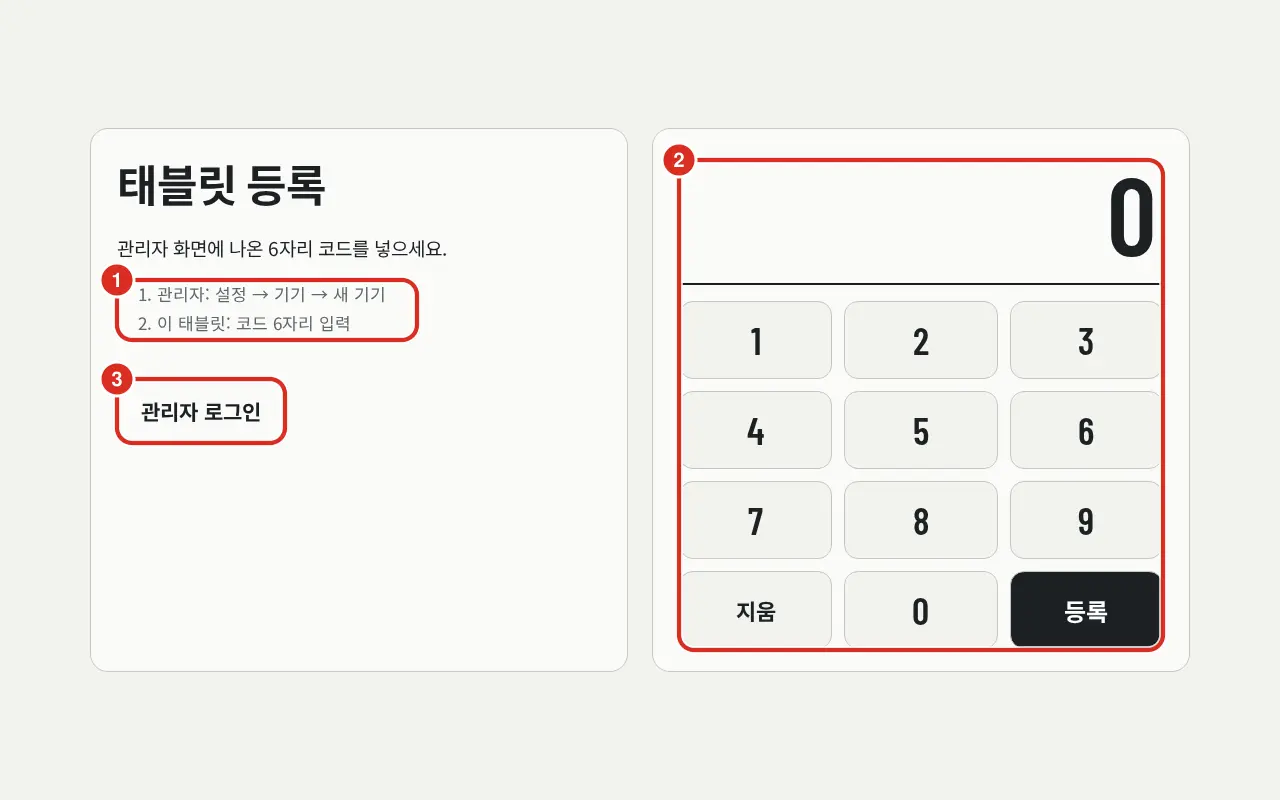
| No. | Position | Function |
|---|---|---|
| ① | Sequence | Admin: Settings → Devices → New Device / This Tablet: Enter 6-digit code |
| ② | Code Pad | Enter the 6-digit code displayed on the admin screen and click Register. Each digit fills one of the six slots |
| ③ | Admin Login | Only administrators can enter from an unregistered device. Used when an admin registers directly on this tablet |
There are two ways to register:
- Create code on another device — The administrator goes to Settings → Devices → New Device, defines the «Device Name» and «Default Scope», and clicks Create Code («Set name and scope and create code. Code is valid for 10 minutes, single use»). Enter that code on the tablet.
- Register this device — The administrator logs in directly via Admin Login on the tablet to be registered and clicks Settings → Devices → Register This Device. This button is only visible in browsers that are not yet registered.
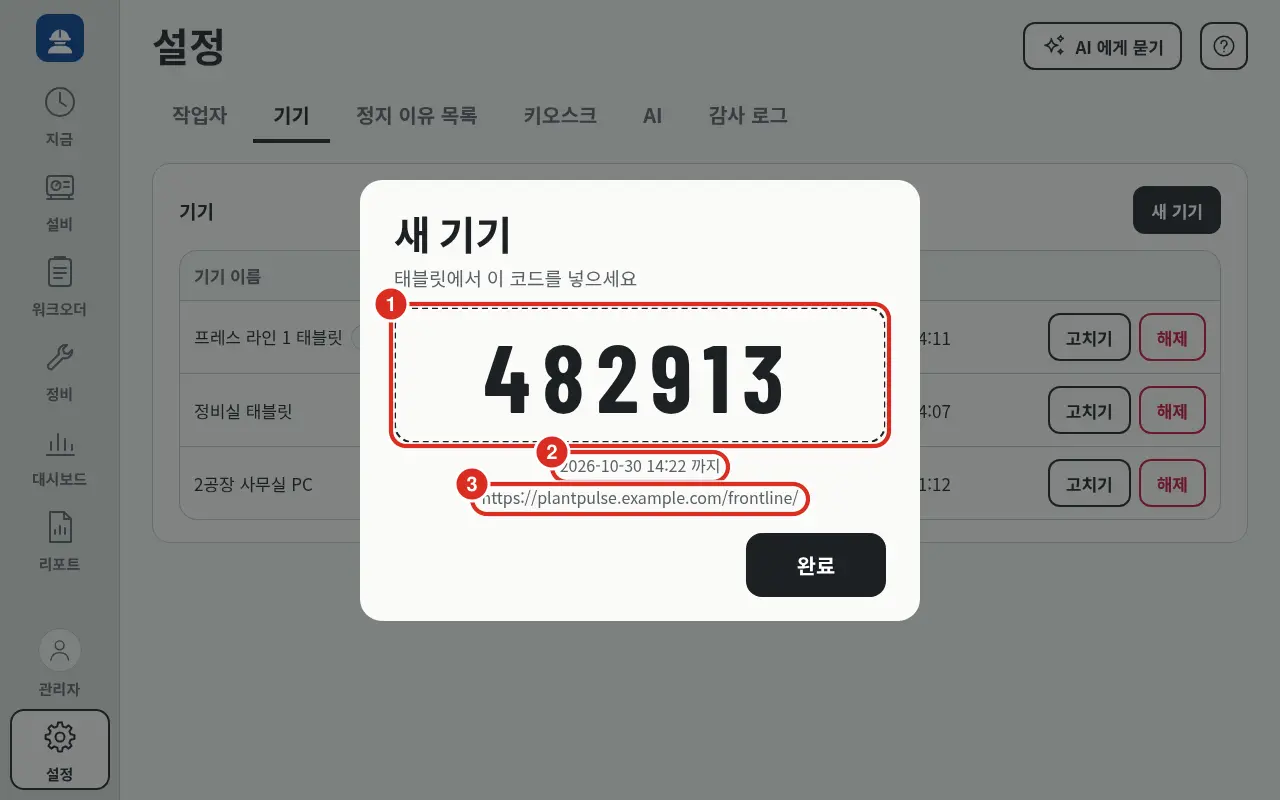
| No. | Position | Function |
|---|---|---|
| ① | Code | «Enter this code on the tablet» — 6-digit one-time code. Valid for 10 minutes, single use only |
| ② | Expiry Time | «Until...». Once this time passes, «Code has expired» will appear. Create a new one |
| ③ | App Address | The app address to open on the tablet. Open this address using the browser of the tablet to be registered |
Device Registration and Management
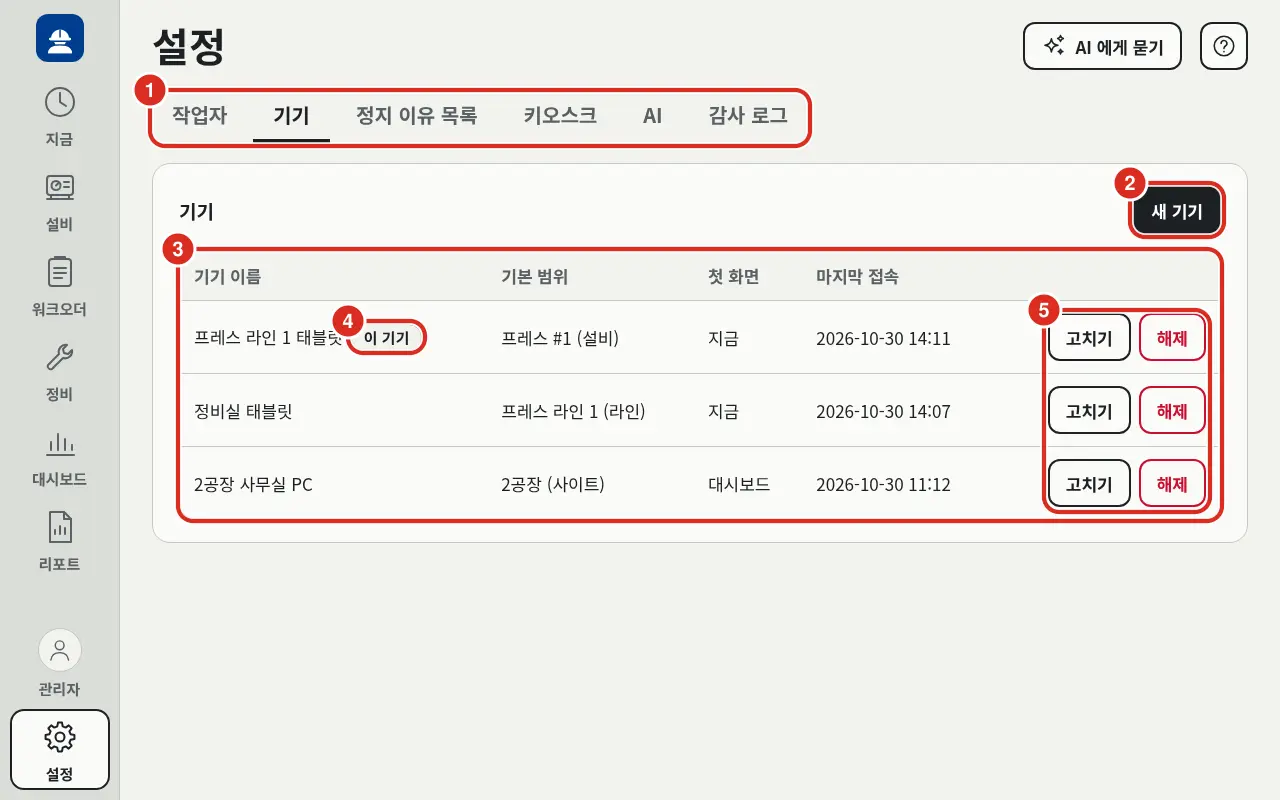
| No. | Position | Function |
|---|---|---|
| ① | Settings Tab | Worker · Device · Downtime Reason List · Kiosk · AI · Audit Log |
| ② | New Device | Define name and scope and create a one-time code. Register This Device is also visible in unregistered browsers |
| ③ | Device List | «Device Name», «Default Scope» (name and level, e.g., «Press #1 (Equipment)» · «Press Line 1 (Line)» · «Plant 2 (Site)»), «First Screen», «Last Access» |
| ④ | This Device | Attached to the row of the currently used tablet |
| ⑤ | Edit · Unregister | Change name, scope, first screen, default language, and screen theme, or unregister the device |
- Default Scope is the boundary the tablet is tied to. You can choose any level: Site, Area, Line, or Equipment. In the selection window, navigate Site › Area › Line › Equipment and stop at the desired level. Records left on an equipment tablet are automatically tagged with that equipment and the logged-in employee ID — the worker does not need to select the equipment separately. Line tablets record data for the equipment selected on the card. Site or area tablets start with the first line visible within that scope.
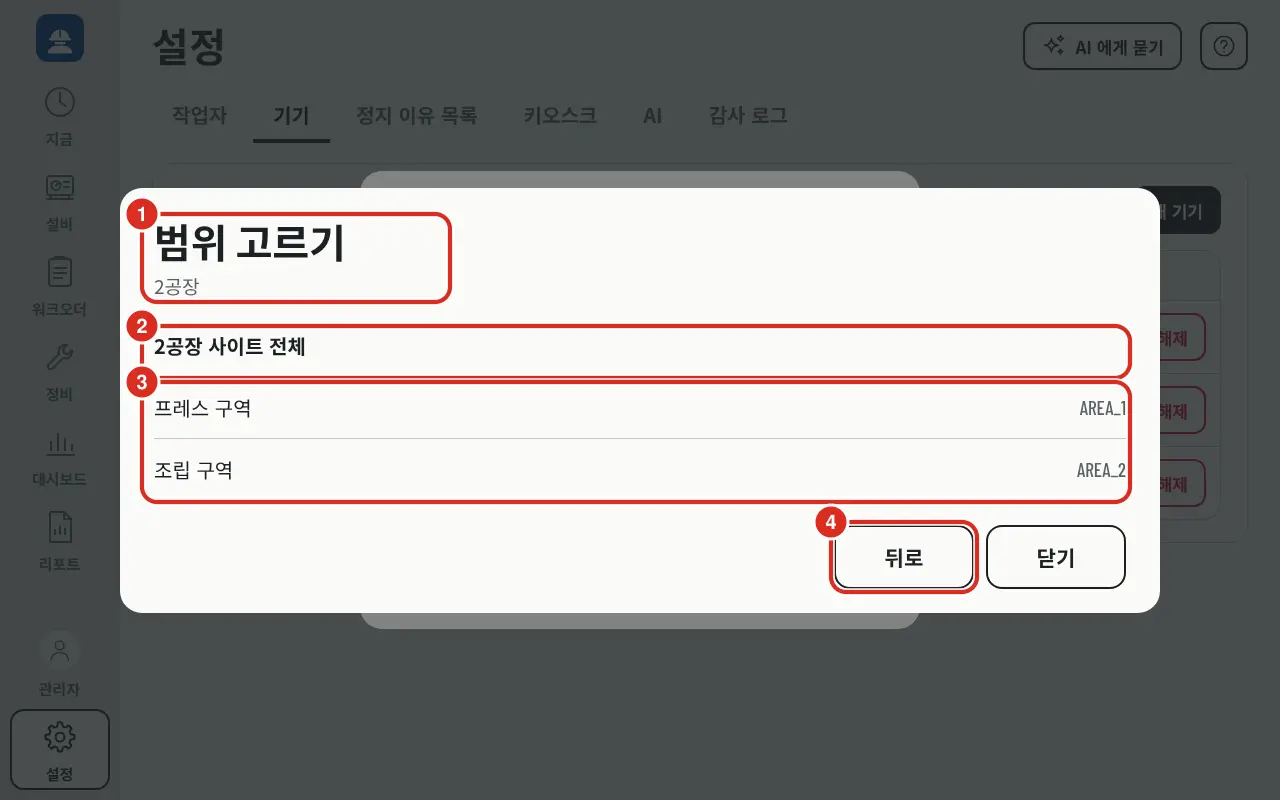
| No. | Position | Function |
|---|---|---|
| ① | Title · Location | «Select Scope» and the path selected so far («Plant 2», if one step deeper «Plant 2 / Press Area»). Initially shows «Please select a site» |
| ② | Entire Level | Select the current level as the scope (e.g., «All of Plant 2 Site») and close the window. In area level, «All of Press Area»; in line level, «All of ... Line» |
| ③ | Lower Level | List of areas (followed by lines, equipment). Clicking descends one level |
| ④ | Back | Ascends one level. Close closes the window without selecting |
- The default scope restricts the area a logged-in user can see. The visible area is the intersection of the user's Assigned Scope and the tablet's scope (Assigned Scope ∩ Tablet Scope). The tablet cannot expand the scope or change «View» to «Work». The Administrator role is not restricted, and tablets without a default scope also do not restrict access.
- For users who cannot see the device's default scope, the first assigned equipment or line opens instead. If there is no overlap, the screen «No scope available on this tablet» and a logout button are displayed.
- Tablets with «View «Now» without PIN» enabled in Kiosk read only their default scope as «View» while not logged in.
- First Screen is chosen from Now, Records, Work Order, Maintenance, or Dashboard. Since the «Records» menu has been removed, devices set to «Records» will start on «Now». If the role cannot access the chosen screen, it starts with the role's default. Maintenance roles always start on «Maintenance»; on devices where the first screen is «Now» (default), a foreman starts on «Work Order».
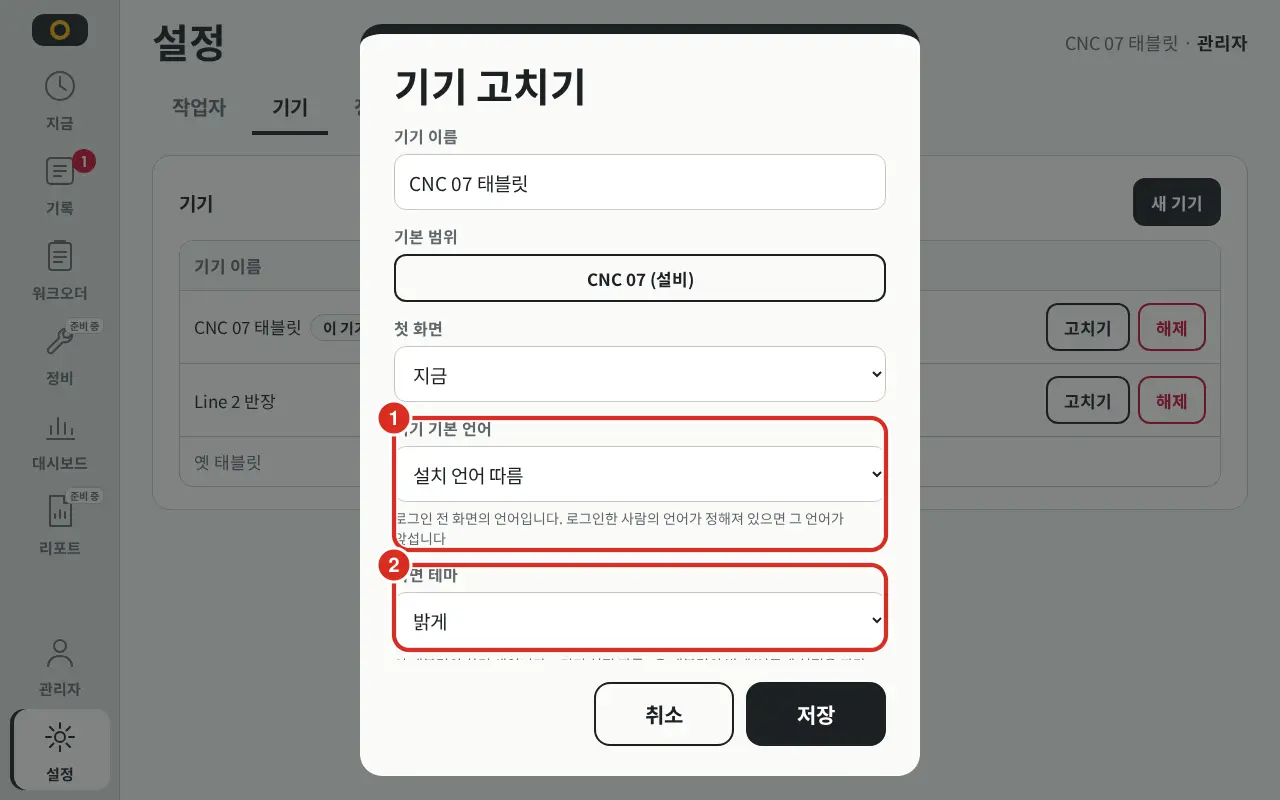
| No. | Position | Function |
|---|---|---|
| ① | Device Default Language | Follow Installation Language · Korean · English |
| ② | Screen Theme | Light · Dark · Follow Device Settings |
- Default Language is the language of the screen before login (Korean, English, or Follow Installation Language). If a language is specified for the logged-in user, it takes precedence — Screen Language and Theme.
- Screen Theme is chosen from Light (default), Dark, or Follow Device Settings. «Follow Device Settings» changes according to the tablet's own light/dark mode. This is the tablet's default theme — if a user has selected Light or Dark in «My Profile», that theme takes precedence while they are logged in and reverts to the tablet default upon logout (Screen Language and Theme).
- Which equipment a person can see is determined per person, not per device — Assigned Scope.
- Unregistering blocks the tablet from subsequent requests and returns it to the registration screen. If there are unsent inputs, they are not discarded; instead, «This device has been unregistered · N unsent inputs» is displayed.
Worker Accounts
The master record for worker accounts is in the Platform (table pp.mm_app_account). Everyone logging into the tablet must be registered as an employee in the Platform, and each employee has exactly one Frontline login. Accounts are created and modified in the «Frontline Login» field within the registration/edit screen of the Platform console «Employees» section. This field is visible only to Platform ADMINS.
| Field · Button | Function |
|---|---|
| Allow Frontline Login | Whether this employee can log into the tablet. If disabled, login fails even with the correct PIN |
| Login ID | The number entered on the tablet keypad (1~64 characters, no spaces). Must be unique to one person within Frontline. Can differ from employee ID |
| Frontline Role | Worker · Foreman · Maintenance · Administrator — Roles |
| Temporary PIN | 4~6 digit number. The user changes this to a new PIN upon first login. If left empty, login is impossible until PIN Reset |
| Status | No Login · Login Available · Login Disabled · PIN Reset Required · Temporary PIN — Change on first login · «Locked until...» · «PIN failed N times» |
| Save Login | Saves the above values |
| PIN Reset | Sets a new temporary PIN. The user must change it at next login; locks are also cleared |
| Unlock | Immediately clears locks caused by multiple incorrect PIN entries |
| Delete Login | Deletes only the Frontline login for this employee. Employee information remains |
| Assigned Scope | All Plants or Selected Only. For each selected location, choose Work (including input) or View Only — Assigned Scope. Save using Save Scope |
| PIN History | Records of PIN failure, locking, user PIN change, PIN reset, and unlocking |
- Retired or On Leave employees cannot log in even with the correct PIN. You only need to change the employee's employment status; you do not need to separately disable the login.
- Deleting an employee also deletes their Frontline login.
- CSV bulk registration in the app has been removed. Enter users individually in the console «Employees» section, or use the V5 API
PUT /api/v5/app-accounts/frontline/{employee_id}for each person to perform bulk imports (Worker Account V5).
«Workers» Tab in App — Read Only
The Settings → Workers tab in the app only shows who can log into this tablet. A notice is always visible: «Worker accounts (login ID, PIN, role, scope) are managed in the Platform console «Employees» screen. New workers, PIN resets, and unlocking are also handled in the console.»
| Column | Display |
|---|---|
| Employee ID | Login ID |
| Name | Employee Name and Employee ID |
| Role | Worker · Foreman · Maintenance · Administrator |
| Language | The screen language chosen by the user (default if not specified) |
| Status | In Use · Disabled · Reset Required · PIN Change Pending · Retired — Login 불가 · On Leave — Login 불가. «· Locked» is appended if locked |
| Assigned Scope | «All», «All (Admin Role)» for administrators, or assigned equipment/line names. «No scope assigned — Nothing visible» in red for users with no scope |
- This tab does not have Add, Edit, PIN Reset, Unlock, Delete, CSV bulk registration, or Employee linking. All these actions are performed in the console «Employees».
- If the Platform is unreachable, «Cannot reach Platform; showing last synchronized copy (lock status excluded)» is displayed, and the list is shown using the copy cached by the tablet server.
Roles
Roles determine menus, the first screen, and certain operations. Which equipment is visible is determined by the Assigned Scope, not the role.
| Role | API Value | Visible Menus | First Screen | Role-Specific Actions |
|---|---|---|---|---|
| Worker | OPERATOR | Now · Equipment · Work Order · Maintenance · Dashboard · Report | Now (follows device first screen) | — |
| Foreman | LEADER | Same as Worker | Work Order (if device first screen is not «Now») | Suspend Work Order |
| Maintenance | MAINTENANCE | Now · Equipment · Maintenance · Dashboard · Report | Always Maintenance | Receive · Start · Complete Maintenance Call |
| Administrator | ADMIN | All Menus + Settings | Now (follows device first screen) | Suspend Work Order, Maintenance Steps, all Settings. Views All regardless of assigned scope |
- Maintenance calls, canceling one's own call, and defect records are performed by all roles. Order start, pause, resume, end, completion rate report, downtime reason, and quantity correction are not restricted by role — they are restricted by the «View» permission in the assigned scope (Work and View).
- Actions restricted by role remain restricted even if «Work» permission is granted in the assigned scope.
- At least one administrator must remain. The role of the last administrator cannot be changed, disabled, or deleted.
- Frontline roles are independent of Platform console login permissions. Being a Frontline administrator does not grant access to the Platform console.
Assigned Scope
Defines the equipment and lines a person can view and input for. While the role determines the menu, the assigned scope determines the data visible within those menus. This is set in the Assigned Scope section under «Frontline Login» in the console «Employees» section. The scope is not viewed in its entirety — only the part that falls within the logged-in tablet's default scope is visible (Device Registration and Management).
- If All Plants is selected, all are visible. If Selected Only, add locations (site, area, line, equipment) one by one via Add to Scope. For each, choose Work or View Only, then click Save Scope. Up to 200 locations can be added.
- Adding a node includes all children. Adding a site includes all lines and equipment in that site; adding a line includes all equipment in that line. If the same equipment is assigned both «Work» and «View», «Work» takes precedence.
- If no scope is assigned, nothing is visible. If «Selected Only» is chosen but no locations are added, «No locations selected — nothing is visible» is displayed.
- The Administrator role views everything regardless of scope.
- Nodes are read from the Platform equipment configuration. Nodes deleted from the Platform will not open any screens and will appear as «non-existent equipment» in the app. Configuration changes in the Platform are reflected within minutes.
- The Platform records a change history every time an account is changed. The tablet server retrieves this history every 60 seconds to sync the login cache.
The difference between «Work» and «View» is as follows:
| Action | Work | View |
|---|---|---|
| View Now · Equipment · Work Order · Dashboard · Report | Yes | Yes |
| Maintenance Call | Yes | Yes |
| Cancel own Maintenance Call | Yes | Yes |
| Downtime Reason · Defect Record · Quantity Correction | Yes | No |
| Order Start · Pause · Resume · End · Suspend · Change Work Order · Completion Rate Report · Work Order Note | Yes | No |
Equipment outside the assigned scope cannot be viewed at all. Actions restricted by role (e.g., Order Suspension for Foreman/Admin, Maintenance Steps for Maintenance/Admin) remain restricted even with «Work» permission.
Assigned scope only determines «what this person can see on the tablet». It does not handle qualifications, shift scheduling, individual performance, or headcount tallying.
Login and Platform Downtime
| Platform | PIN Verification | Locking |
|---|---|---|
| Reachable | Verified by Platform | If the same user enters the wrong PIN 5 times, they are locked for 5 minutes. Administrators can immediately unlock via Unlock or PIN Reset in the console. Retired/On Leave employees are rejected even with the correct PIN |
| Unreachable | Verified by Tablet Server using the account copy synced every 60s | Incorrect PINs are counted by the tablet server (5 times for 5 minutes). Not sent to Platform |
- Login via copy is only possible within the «Login Allowance Period during Platform Downtime» since the last sync (Kiosk, default 7 days). If exceeded, login is rejected with «Cannot reach Platform and account copy is too old. Please log in once Platform returns».
- When logging in via copy, «Cannot reach Platform; logged in using account remaining on tablet» is displayed.
- PIN changes are only possible when the Platform is reachable. Account editing, PIN resets, and unlocking are also performed only on the Platform (console).
- If a PIN is entered incorrectly 20 times on a single tablet, that tablet is locked for 15 minutes. This is counted per tablet, regardless of the Platform.
Screen Language and Theme
A single tablet can be used by people speaking different languages (e.g., Korean and English) on the same line. The screen language follows the first available setting in this order:
| Order | Setting | Where to define |
|---|---|---|
| 1 | Logged-in user's language | User selects in «My Profile» in the app. Saved to Platform account and follows the user across tablets |
| 2 | Kor | EN button in the screen corner (pre-login) | Anyone can press. Applies only to that screen and is not saved to the tablet; reset upon logout |
| 3 | Tablet default language | «Default Language» in Device Edit |
| 4 | Installation language | PP_LANG set during Platform installation |
Users also choose their own screen theme. In «My Profile» → Screen Theme, they choose from Follow Tablet Default (default), Light, or Dark. Upon login, the user's theme is applied; upon logout, it reverts to the tablet's default theme (Device Edit).
- Language and theme can only be changed when the Platform is reachable.
- Only Korean and English are supported. Downtime reason names are displayed exactly as registered in the Platform's reason dictionary.
Opening via QR Labels
To allow users to enter the app for a specific piece of equipment by scanning a QR Label, enter the app address (a human-readable address like https://<플랫폼 호스트>:9701) into PP_UI_FRONTLINE_URL in the Platform console settings screen. If left blank, the «Open in Frontline» button will not appear on the public page. No separate setting is required in the app.
Public pages are disabled by default for each site. The button only appears on the equipment information screen of sites where public access is enabled.
Downtime Reason List
Determine which buttons to display in the «Please select the reason for the stop» window for each piece of equipment.
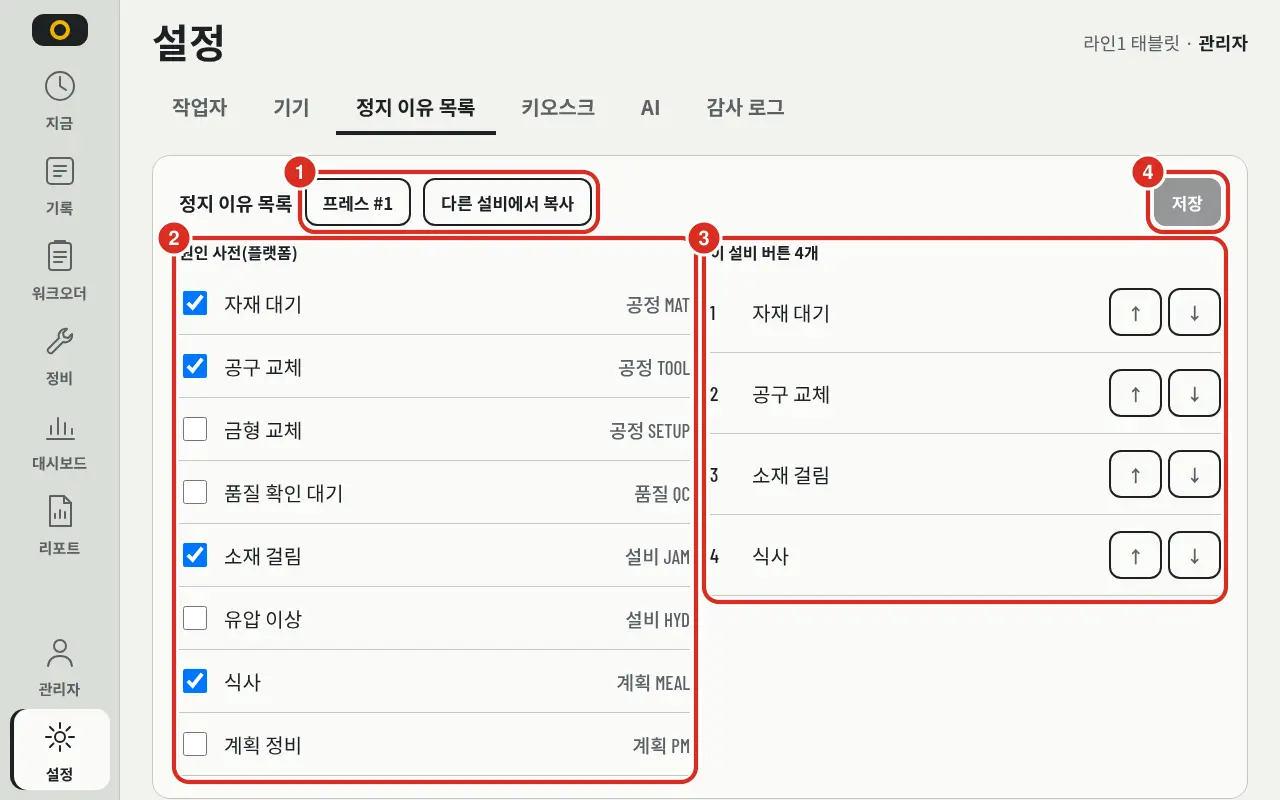
| No. | Position | Function |
|---|---|---|
| ① | Equipment · Copy | Select the equipment for the list. Use Copy from other equipment to import a list from similar equipment |
| ② | Reason Dictionary (Platform) | Reasons from the Platform reason dictionary. Categories (Process, Quality, Equipment, Material, Worker, External, Planned) and codes are shown on the right. Checked items become buttons |
| ③ | This Equipment Buttons | Selected reasons and their order. Use ↑ ↓ to change the order |
| ④ | Save | Changes are reflected on the tablet only after saving |
- 6 to 8 buttons are recommended. Too many buttons make it difficult for operators to choose in the field.
- The reasons themselves (code, name, category) are managed in the Platform reason dictionary. The app only determines which ones to display (Reason Dictionary FAQ).
- If the list is left blank, the tablet displays the most frequently used reasons for that equipment in the last 30 days.
- Reasons that have been removed from the dictionary but remain in the list are marked as «Not in Dictionary». Delete these.
- Defect causes and maintenance call symptom lists are not set here; they are derived from Platform master data.
Planned Downtime and Stop Reasons
The Platform determines whether the tablet should ask for a reason for a stop. The administrator defines two things: the Platform's work schedule and the downtime reason buttons above.
| Stop Type | On Tablet | Where to define |
|---|---|---|
| Planned Downtime (Meal, Break, Planned Stop) | Does not ask. Appears on the timeline in gray with the category name (e.g., «Meal»). Clicking shows «Stop defined in work plan. No reason selection required» and the category/time. On days with a schedule, planned downtime until the end of the shift is pre-drawn in light gray | Platform Console Work Schedule → Equipment Work Schedule work patterns (break slots) and exceptions |
| Short Downtime | Does not ask. Counted only as chips | Platform Setting PP_STOP_MICRO_STOP_SECONDS — Kiosk |
| Other Downtimes | Reason window automatically pops up. If closed without selection, it remains as a yellow hatch on the timeline for later selection | Buttons are set in this equipment's Downtime Reason List; reasons are from the Platform reason dictionary |
The flow is as follows:
- Register work patterns for each piece of equipment in the Platform console — shift times, breaks (meals, rests), cycle, and applicable equipment. Use exceptions for one-off date changes. V5 API is
/api/v5/calendar/shift-pattern. - Select 6–8 buttons for each piece of equipment in the app's Downtime Reason List.
- When equipment stops, the Platform determines if the stop is planned, short, or requires a reason, and the tablet asks (or does not ask) according to that determination.
- The reason chosen by the worker is saved as a Platform downtime reason, and the logged-in employee's ID is recorded (Audit Logs). The input screen is Recording Stop Reasons.
Equipment without a registered work pattern is marked as «No Work Schedule». It shows the last 9 hours instead of shifts, and since meals/breaks cannot be identified as planned downtime, reasons are requested for those stops. Old site-level work schedules are not used for this determination — upgraded installations must first register equipment-specific work patterns. When logged in as an admin, «Define work schedule to view by shift» is displayed for equipment without a schedule.
Kiosk
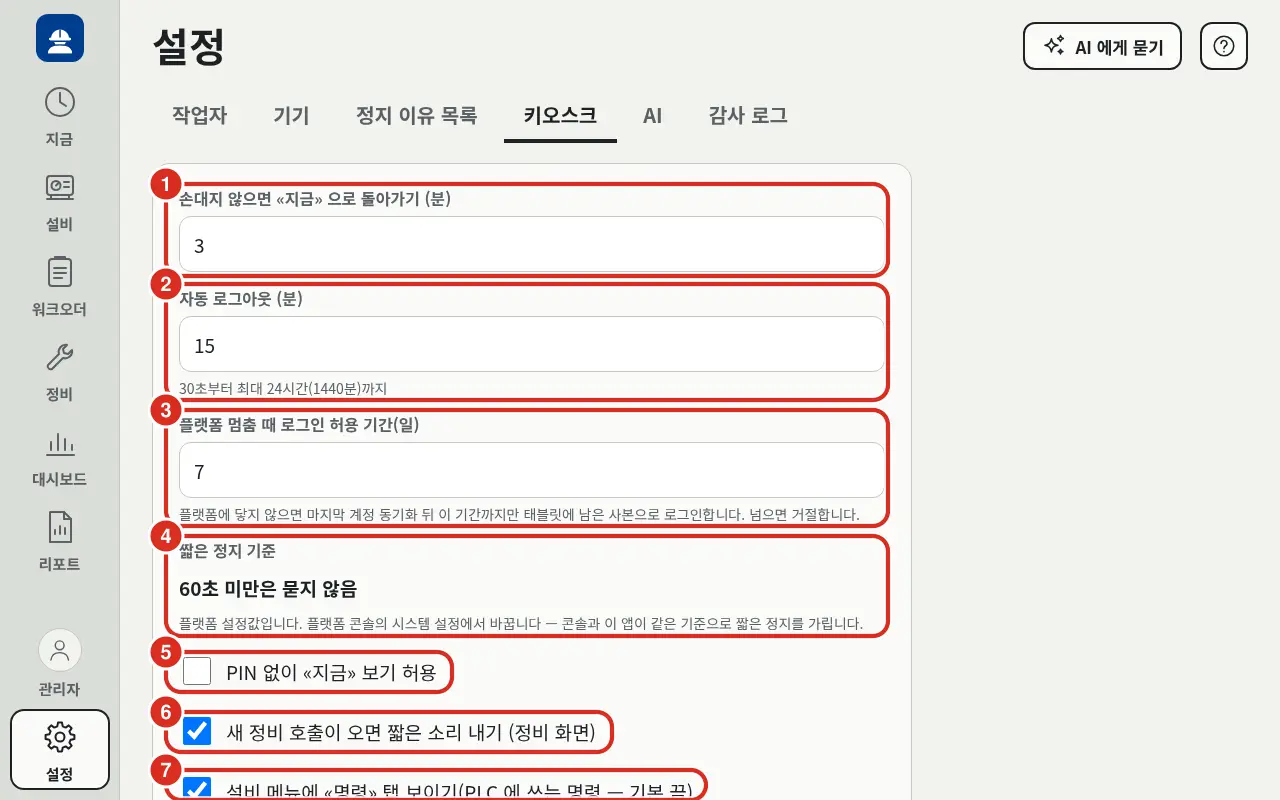
| No. | Position | Default | Function |
|---|---|---|---|
| ① | Return to «Now» if idle (min) | 3 min | Returns to the «Now» screen even if left on another page |
| ② | Auto Logout (min) | 15 min | Logs out after this period of inactivity. Range: «30 seconds to 24 hours (1440 min)» |
| ③ | Login Allowance Period during Platform Downtime (days) | 7 days | 1~30 days. «If Platform is unreachable, login using the last synced account copy is allowed for this period. Otherwise, it is rejected.» — Login and Platform Downtime |
| ④ | Short Downtime Criteria | 60 sec | Read-only. Shows current value (e.g., «Under 60s: Do not ask»). «This is a Platform setting. Change it in Platform Console System Settings — Console and App use the same criteria to filter short downtimes.» — below |
| ⑤ | Allow «Now» view without PIN | Off | If enabled, «Now» can be viewed without logging in. Only the tablet's default scope is visible as «View». Users must tap and log in to perform inputs |
| ⑥ | Beep on new maintenance call (Maintenance screen) | On | Plays a sound when a new call arrives on the maintenance screen |
| ⑦ | Show «Command» tab in equipment menu (Commands written to PLC — Off by default) | Off | Commands write to the PLC, so this must be enabled to create the «Command» tab. Who can execute which command is defined in the Platform. Currently, the tab shows «Command execution is being prepared in Platform» |
Click Save to apply changes. There is a separate Logo section below the same tab.
- Logo — Upload a customer logo PNG for the left menu, login screen, browser icon, and home screen icon. Must be square, 512×512 or larger, and 512KB or smaller («PNG, square, 512×512 or larger, 512KB or smaller. Recommended: white logo on company CI colored background»). Separate «Light Version» and «Dark Version (Optional)» can be uploaded via Upload PNG; if the dark version is missing, the light version is used. Use Reset to Default to return to the default logo.
- Home screen icons for already installed apps change when the browser re-reads app information. Reinstall the app for immediate changes.
Short Downtime Criteria is a Platform setting PP_STOP_MICRO_STOP_SECONDS, not an app setting. Downtimes shorter than this criteria will not be questioned by the tablet (Short Downtime).
- Change this in the Platform console System Settings. Range is 0–1800 seconds; default is 60 seconds; 0 asks for all downtimes. The console and app use the same criteria to filter short downtimes.
- The app remembers this value for 1 minute, so changes are reflected on the tablet within 1 minute.
- If the value cannot be read from the Platform, «Could not read from Platform» is displayed.
AI Connection
Connecting PlantPulse AI in the Settings → AI tab adds an Ask AI button to the tablet. If not connected, the button is hidden and other functions are unaffected.
| Field | Description |
|---|---|
| AI Address | Address of PlantPulse AI. Example: https://ai.example:8443. If left blank, the chat button will not appear |
| AI API Key | Key issued from API Key Management in the PlantPulse AI admin screen (8–256 characters, no spaces). Saved keys are not displayed. If saved blank, the current key is used; use Delete Key to remove |
| Connection Status | Read-only. Upon saving, the app queries the AI and displays one of the following |
| Connection Status | Meaning |
|---|---|
| Available — Chat button appears on worker screen | Normal |
| Not Configured — Enter address and key | Address or key is blank |
| This AI does not support field chat (Newer version required) | AI is an older version without field chat support |
| Cannot connect to AI | Address is incorrect or AI is offline |
| AI did not recognize key | Key is incorrect or has been revoked in AI |
- Keys are stored only on the app server and are not sent to the tablet. Tablet queries go through the app server to the AI.
- The AI receives the logged-in user's employee ID and assigned scope, providing answers only within that scope.
- These two values are stored as app DB settings
ai.url·ai.api_key, not as environment variables. Changes are made on this screen and take effect from the next query (no restart required).ai.api_keyis write-only — the value is not displayed in screens, responses, or logs; the screen only knows if it is «Set». - If using the same AI across multiple installations, it is recommended to issue a dedicated key for this app. If the key is revoked, the connection status changes to «AI did not recognize key».
Photo Storage
The feature to send photos to AI appears only when both PlantPulse AI and the field app are on versions that support photo attachments. Support status, number of photos, and size limits are determined by the app querying the AI, so there is no switch for the administrator. The storage policy for this feature is as follows:
| Item | Policy |
|---|---|
| Storage Location | Sent photos are stored on the PlantPulse AI side (Platform S3 of that installation). They are not stored in the field app DB |
| Retention | Permanent storage. Even if a conversation is deleted, photos and their records (who, when, which equipment, question and answer) remain |
| External Access | The model reading the photos is an internal AI within the installation and does not send data to external services |
| Deletion Requests | Requests from workers or privacy officers to delete photos are forwarded to the PlantPulse AI administrator. The field app has no function to delete photos. The AI administrator can delete a single photo or all photos sent by one person; the deletion event is recorded in the AI audit log |
| Worker Notification | Photos may capture human faces. The app notifies on the attachment screen: «Uploaded photos are stored by the company». It is recommended to include the same notice in field operating regulations |
Audit Logs
Records who did what, when, and on which tablet. This is read-only.
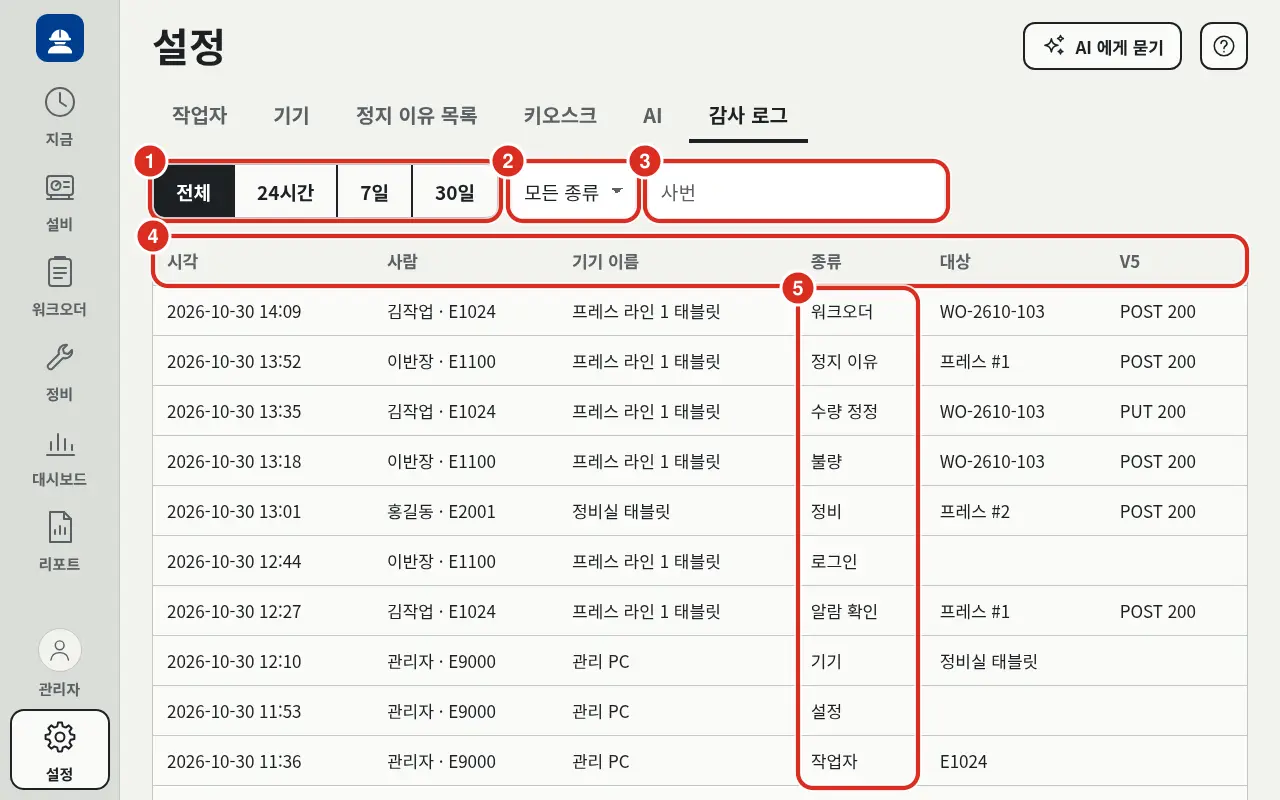
| No. | Position | Function |
|---|---|---|
| ① | Period | «All» · «24 Hours» · «7 Days» · «30 Days» |
| ② | Type | «All Types» or filter by a specific type from the table below |
| ③ | Employee ID | Filter by employee ID |
| ④ | Column | «Time», «Person» (Name · Employee ID), «Device Name», «Type», «Target» (Equipment · Line name or Order number), «V5» (Request sent to Platform and response code, e.g., «POST 200») |
| ⑤ | Type | Group of actions. Tapping or hovering shows the action code from the table below |
- The most recent 50 entries are shown; use View More to load more. «N entries displayed» is shown at the bottom. If no matching records are found, «No records match the criteria» is displayed.
| Type | Action Code |
|---|---|
| Login | SIGN_IN · SIGN_OUT · CHANGE_PIN (User PIN Change) |
| Worker | OPERATOR_… — Records from previous versions where worker accounts were managed in-app |
| Device | PAIRING_CODE · PAIR · PAIR_DIRECT · DEVICE_UPDATE · DEVICE_REVOKE · DEVICE_UNLOCK |
| Settings | REASON_LIST · SETTINGS · BRAND_LOGO_SET · BRAND_LOGO_RESET |
| Work Order | ORDER_START · ORDER_PAUSE · ORDER_RESUME · ORDER_END · ORDER_ABORT · ORDER_PROGRESS (Completion Rate Report) · ORDER_SWITCH_PAUSE · ORDER_SWITCH_END (Start while changing) · ORDER_NOTE (Note) |
| Downtime Reason | STOP_REASON |
| Quantity Correction | QUANTITY |
| Defect | DEFECT · DEFECT_CANCELLED |
| Maintenance | MAINT_CALL · MAINT_ACCEPTED · MAINT_IN_PROGRESS · MAINT_COMPLETED · MAINT_CANCELLED · MAINT_CHECKLIST (Inspection Item) |
| Key Value | KEY_VALUE_ADD · KEY_VALUE_REMOVE |
| Alarm Acknowledge | ALARM_ACK |
Actions that do not fit into any group are displayed as «Other».
The logged-in worker's employee ID is included in Platform records (downtime reasons, quantity corrections, order status, maintenance orders, defect records). The app includes this ID in every write request sent to the Platform, and the Platform records it as «one person (performed_by)». Inputs saved on the tablet and sent later are also recorded with the ID of the person who entered them. This value identifies the person in order change histories, completion rate reports, and defect lists; the app replaces the ID with the name found in the cached account copy (if the ID is missing, the ID itself is shown). Account-level changes (PIN failure, locking, change, reset, unlock) are recorded in the console «Employees» PIN History, not in the app. The app's audit log remains, so check here to see which tablet was used and the corresponding Platform responses.
Locking Rules
| Subject | When | Duration | How to Unlock |
|---|---|---|---|
| Worker | PIN entered incorrectly 5 consecutive times | 5 min | Wait, or Admin uses Unlock · PIN Reset in console «Employees». Locks set by tablet server during Platform downtime must be waited out |
| Tablet | PIN entered incorrectly 20 consecutive times on that tablet | 15 min | Wait |
| Device Reg Code | 10 minutes after creation or after single use | — | Create a new code |