Process
This screen is for registering which processes a product goes through and in what order, which equipment belongs to those processes, and how materials flow from one piece of equipment to another (공정).
While the hierarchy tree (Company → Site → Area → Line → Equipment) describes "what belongs to what," this screen describes "what flows into what."
The chain is unidirectional — the tab order is the reading order
제품 → 경로 → 단위 공정 → 설비 → 설비 간 연결
| Tab | What is determined | Question answered |
|---|---|---|
| ① Product Route | The sequence of unit processes a product undergoes | "How is this product made?" |
| ② Unit Process | The definition of a process — name and associated equipment | "What is the packaging process and what equipment is involved?" |
| ③ Connection Diagram | Flow and dependencies between equipment | "If this equipment stops, how far does the stoppage extend?" |
Since many people first ask how a product is made, ① is the first screen. If you want to see the equipment diagram first, you may go directly to ③.
"Packaging" can be the 3rd step for Product A and the 2nd step for Product B. Therefore, the sequence is held by the product route, not the process. If the sequence were recorded on the process side, it would be impossible to define both products simultaneously.
① Product Route
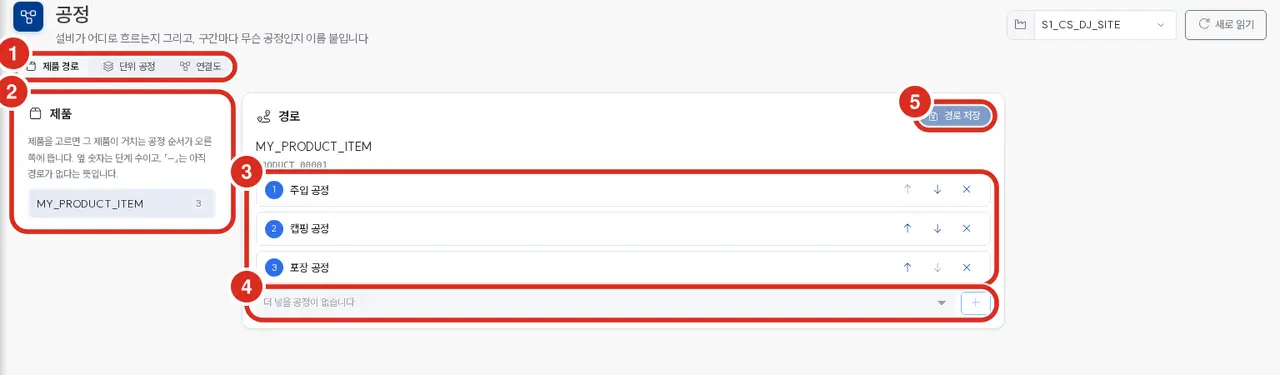
| Number | Location | Function |
|---|---|---|
| ① | Tab bar | Three tabs: Product Route · Unit Process · Connection Diagram |
| ② | Left 「Product」 | Product list. The number on the side indicates the number of steps, and 「–」 means no route exists yet |
| ③ | Center step list | Change the order using up/down arrows, and remove steps using × |
| ④ | Bottom selection bar | Select a process and + to add a step |
| ⑤ | Top right | 「Save Route」 |
Actions taken in ③ and ④ are drafts within the screen. Nothing is sent to the server until Save is pressed — this differs from other screens that save the moment a change is made.
If not saved, a 「Not yet saved」 notice appears below the list. If that line is visible, the changes have not been submitted.
Saving sends the entire list at once, not a single step. This is why step numbers are managed in one place on the server.
The selection bar in ④ may lock with the message 「No processes left to add」. This happens when the product already undergoes all processes available at the site — the same process cannot be entered into a single route twice (see Boundary).
② Unit Process
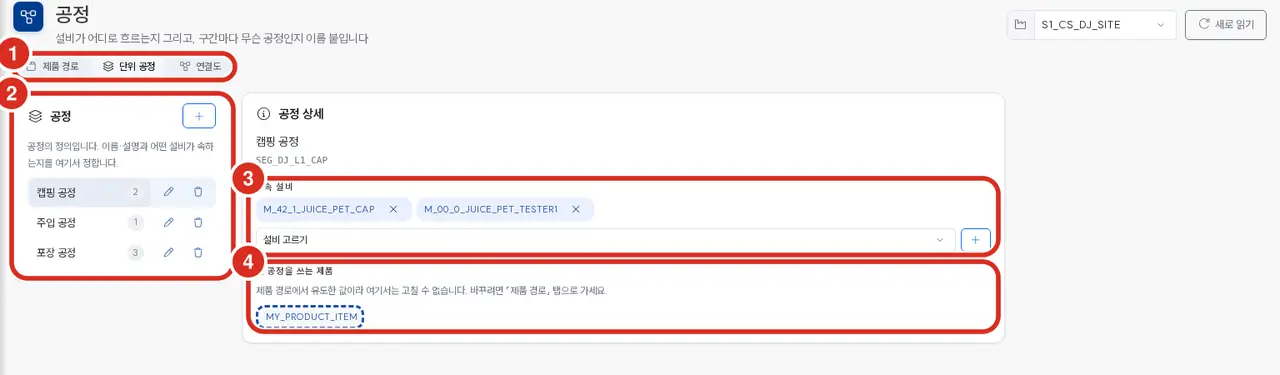
| Number | Location | Function |
|---|---|---|
| ① | Tab bar | 「Unit Process」 |
| ② | Left 「Process」 | Process list. Create with +, edit name/description with the pencil, and delete with the trash can. The number on the side is the number of associated equipment |
| ③ | 「Associated Equipment」 | Equipment belonging to this process. Select from the selection bar and add via +, or remove via the chip's × |
| ④ | 「Products Using This Process」 | Read-only — derived value from the product route |
「Products Using This Process」 is derived from the route. If editing were allowed here, the product sequence would be recorded in two places; if they diverged, nothing would be flagged in red. Therefore, only one path for editing exists.
Associated equipment can also be added or removed via the inspector in ③ Connection Diagram. These are two different entry points for editing the same table, and both yield the same result.
③ Connection Diagram
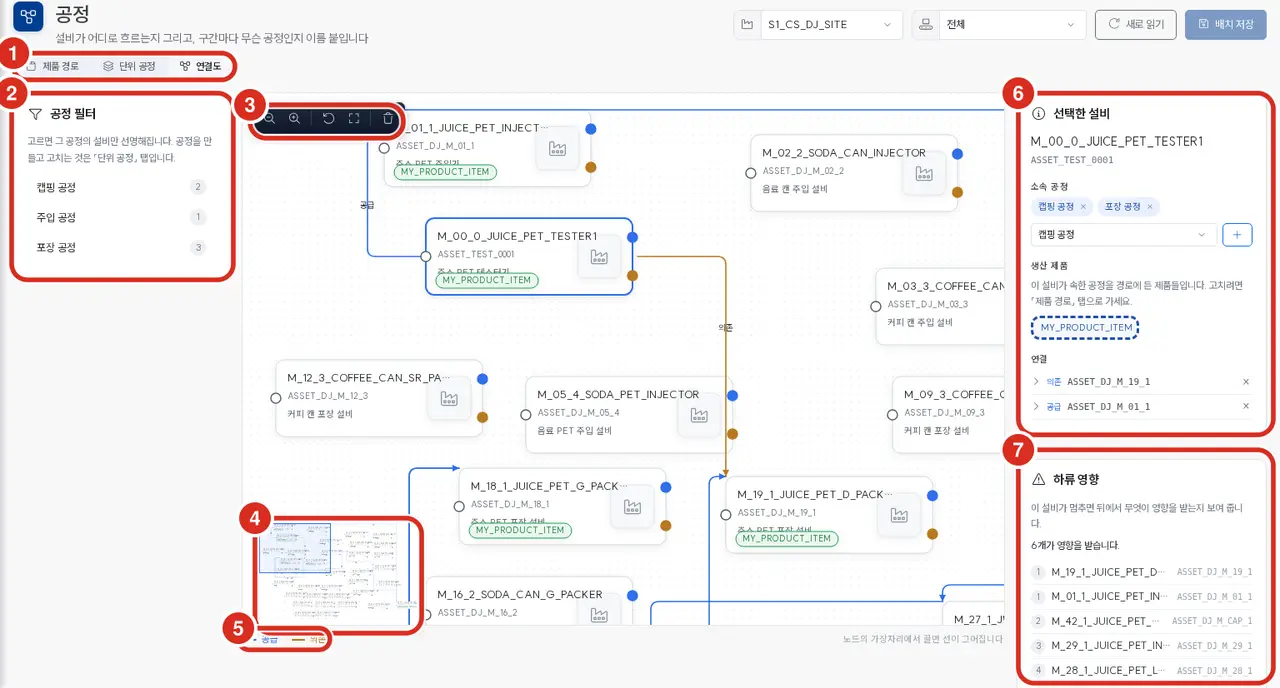
| Number | Location | Function |
|---|---|---|
| ① | Tab bar | 「Connection Diagram」 |
| ② | Left 「Process Filter」 | Narrows the viewing range only — only equipment of the selected process becomes clear. Creating, editing, and deleting are done in the ② Unit Process tab |
| ③ | Canvas top-left toolbar | Zoom out · Zoom in · Reset size · Fit to screen · Delete selected node |
| ④ | Bottom-left minimap | Click to jump to that location |
| ⑤ | Bottom legend | Supply(Blue) · Dependency(Orange) |
| ⑥ | Right 「Selected Equipment」 | Associated process · Produced product (Read-only) · Connection |
| ⑦ | Right 「Downstream Impact」 | What is affected downstream if this equipment stops |
The 「Save Layout」 button at the top right of the page is only visible on this tab — it is a button to save the coordinates of the nodes. Relationships and associations are reflected immediately upon editing and are independent of this button.
There are two types of relationships
| Relationship | Meaning | Line Color |
|---|---|---|
| FEEDS (Supply) | Upstream flows to downstream | Blue |
| DEPENDS_ON (Dependency) | Relies on utilities such as power, air, or cooling | Orange |
Both are applied only from equipment to equipment. Processes are labels attached to equipment, not nodes on the canvas, and products are handled via routes.
Drawing Lines
The left white circle of each node is the «receiving» port, and the right circles are the «sending» ports.
| Dragging from | Relationship created |
|---|---|
| Right blue circle | FEEDS (Supply) |
| Right orange circle | DEPENDS_ON (Dependency) |
🔴 The port from which you start dragging determines the relationship type. There is no step to choose the type after dropping the line — if started from a blue circle, it is supply; if started from an orange circle, it is dependency.
The line must be dropped on the «left white circle» of the target node to connect. It will not connect if dropped on the node body.
Instead of dragging, you can also select and add connections in the «Connection» section of the ⑥ inspector. This is convenient when the target is off-screen or when using only a keyboard.
This rule is implemented in both the UI and the database. The UI blocks it for convenience, but even if a request bypasses the UI, the server will reject it.
Navigating the Canvas
The canvas expands according to the drawn content. Therefore, horizontal and vertical scrollbars appear.
| Intent | Method |
|---|---|
| Move the screen | Drag the empty background (Panning) |
| Move a node | Drag the node body |
| Zoom in/out · Reset · Fit to screen | ③ Toolbar |
| Jump to a distant location | ④ Minimap |
Dragging the empty background moves the screen, while dragging a node moves the node — confusing these two may lead to the feeling that 「the node cannot be grabbed」.
No matter how much you scroll the canvas, the toolbar and minimap do not move. The minimap is located at the bottom left to match the flow editor, ensuring that users do not have to look for the minimap in two different places when moving between the two screens.
A route is a single ordered list
There are two things intentionally omitted from the route. Database constraints prevent these:
| Prohibited | Preventing Constraint |
|---|---|
| Parallelism within one step — Two processes in one step | Primary Key (product_id, step_no) — One process per step |
| Return flow (Re-entry) — The same process twice | Unique Key (product_id, segment_id) — Once per route |
"How do I draw two capping machines?" — Add both pieces of equipment to the capping process and, in the connection diagram, apply FEEDS from the upstream equipment to both machines. The branch is visible at the equipment layer, while the route simply passes through them in sequence.
To minimize the need for branching and re-entry, it would be necessary to record whether it is «both» or «one of the two», which belongs to the domain of higher-level MES along with work orders, actuals, LOTs, and BOMs. If needed, the system can be expanded to a junction table, and the currently entered data will be migrated as is — it is not that it cannot be done, but that it was intentionally omitted.
Use cases for the drawings
- Downstream impact inquiry — Answers «how far the impact reaches if this equipment stops» by following
FEEDS(⑦). - AI Assistant — MCP relationship graph traversal reads these same relationships → MCP Server
- API — Routes and relationships can be read and written programmatically.
| Intent | Endpoint |
|---|---|
| Read product route | GET /api/v5/product/{product_id}/route |
| Replace entire product route | PUT /api/v5/product/{product_id}/route — Body {"segment_ids":[…]} |
| Read products made by equipment (derived value) | GET /api/v5/asset/{asset_id}/product |
An empty segment_ids is a normal edit to delete a route. «Product not found» (404) and «Route not found» (200, empty list) are maintained as distinct responses.
If you ask about downstream impact at a site where relationships have not been registered, an empty result is returned. This means «nothing has been drawn», not «there is no impact». The API response includes a separate indicator to distinguish between these two states.
Related Topics
Factory Management · Equipment · UNS · Canvas