QR Labels and Public Pages
By creating and attaching QR labels to each zone, line, and equipment, you can instantly view equipment information by scanning the label with a mobile phone. Scanning a label opens a Public Page (/qr/<token>). Since public pages are accessible without logging in, they are disabled by default for every site, and equipment information is only displayed for sites where an administrator has enabled them.
Addresses to Configure First
Enter two keys in the Configuration screen. The values should be the addresses that users type into a browser—because these differ from the addresses the server listens to behind a proxy, the Platform cannot determine them automatically.
| Configuration Key | Usage | If Empty |
|---|---|---|
PP_UI_CONSOLE_URL | The address embedded in the label (<콘솔 주소>/qr/<token>). Links in alarm emails also use this address | QR codes will not be generated, and a notice stating "No console address for QR label" will appear |
PP_UI_FRONTLINE_URL | The destination address for the «Open in frontline» button on the public page | The button is hidden |
Values must be absolute addresses starting with http(s) as shown in https://plantpulse.example.com; any / following the address will be truncated upon saving. Values containing queries or # are rejected. For the public page to open on a mobile device, the mobile device must have network access to this address.
Creating Labels
Select a zone, line, or equipment in the Equipment Tree and open the Unique Properties tab to find the QR Label card. The label includes the QR code, name, ID, and location (Site › Zone › Line). The size is 70 × 40 mm, and it is rendered on the screen at the actual print size. If the ID or location is long, it may wrap up to two lines; beyond that, it will be truncated.
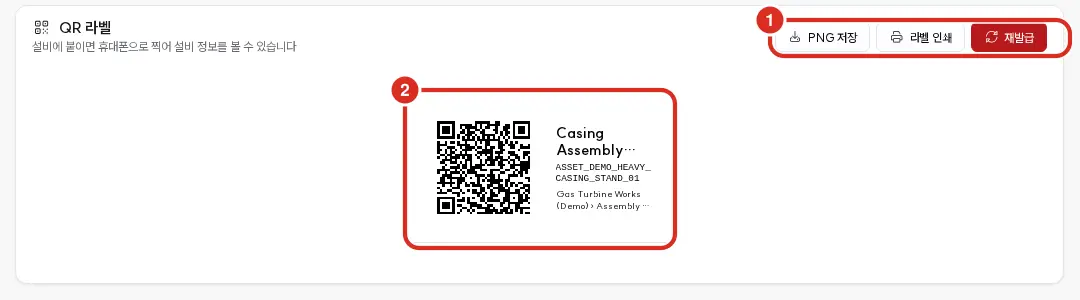
| Number | Position | Function |
|---|---|---|
| ① | Top right of card | Save PNG · Print Label · Reissue — see table below |
| ② | Card body | Label rendered at print size (QR · Name · ID · Location) |
| Button | Function | Who |
|---|---|---|
| Save PNG | Downloads the label as an image file | Any logged-in user |
| Print Label | Prints only the label | Any logged-in user |
| Reissue | Generates a new token | Administrator (ADMIN) |
Tokens are generated when a label is first viewed, and only one active token exists per piece of equipment. The label contains an unpredictable random token instead of the equipment ID.
Scanning an old label after reissuance will result in a «QR code not found» message. A new label must be printed and attached. This is used to block old labels, such as when a photo of a label has been leaked externally.
Enabling Public Pages
Public visibility is determined per site. Select a site in the equipment tree and change the setting in the QR Public Page card within the Unique Properties tab. Only administrators can toggle the switches.
| Switch | Default | If Enabled | If Disabled |
|---|---|---|---|
| Enable Public Page | Off | Scanning a label for equipment at that site displays the information below | Only «Equipment not public» and the login button are visible. Name and photo are hidden |
| Show Person in Charge Contact | Off | The phone number and email of the person in charge are displayed | Only the name of the person in charge is displayed. This applies only when the public page is enabled |
Content of Public Pages
| Item | Value |
|---|---|
| Name · Photo | Equipment name and linked photo. If no photo, the floor icon is shown |
| Location | Site › Zone › Line |
| Functional Location | The functional_location of the equipment. If missing, the line is omitted |
| Equipment Category | In the viewer's language |
| Operating Status | Recorded operating status (operational_status_code). Not a real-time value |
| Person in Charge | Assigned employee. If none, «No assigned person in charge» |
| Phone · Email | Only for sites where «Show Person in Charge Contact» is enabled |
Real-time values, alarms, serial numbers, manufacturers, models, and internal IDs do not appear on public pages. The language follows the viewer's browser settings.
There are two buttons at the bottom:
| Button | Destination |
|---|---|
| Open in frontline | The equipment in the field app. Visible only when PP_UI_FRONTLINE_URL exists — Opening Equipment via QR Label |
| View in Console | The equipment screen in the console. If not logged in, the user is redirected to this screen after login. The Login button shown when public visibility is disabled performs the same action |
Screen Display by Scenario
| Screen | Scenario |
|---|---|
| Equipment Information | Active label of a site where public visibility is enabled |
| «Equipment not public» | Label of a site where public visibility is disabled |
| «QR code not found» | Old label after reissuance or incorrect address |
| «Too many requests» | Burst of requests from a single address. Allows 10 requests initially, then up to 30 requests per minute |
Logging
Responses to public paths are logged in pp.mm_asset_qr_access_audit for each request — timestamp, token hint, access address, and result. Since no user is authenticated on public paths, identity is not logged, and the token value itself is not recorded. Public pages are configured to block caching and search engine indexing.
API
When searching for equipment using a token from the server, such as in the field app, use GET /api/v5/asset/qr/{token}. The address embedded in the label is the qr_payload of the GET /api/v5/asset/{id} response. Since this call does not generate a token, it will be an empty string for equipment whose labels have not yet been opened in the console or if no console address exists. Refer to the Full Endpoint List.