Virtual Tags
Overview
A Virtual Tag is not a tag read directly from a sensor or PLC. Instead, it is a new tag created by calculating values from multiple other tags. In the field, there are many «values that are not measured but need to be monitored», such as the difference between two pressures (differential pressure), the total line power, or the average of multiple sensors. By creating these as virtual tags, the values are stored, visualized on screens, and can be subject to alarms just like regular tags.
A virtual tag consists of two parts:
| Component | Location | Function |
|---|---|---|
| The Tag itself | Connection Edit screen → Connected Tag List → [Virtual Tag] | Register the tag ID, name, and data type |
| Formula | Tag configuration form → Calculation tab | An EQL statement that reads source tags to produce a value |
Without a formula, a virtual tag will not generate values (except for Virtual Points, which are entered manually).
Use Cases
| Purpose | Example | Core of Formula |
|---|---|---|
| Difference between two tags | Differential Pressure = Inlet Pressure − Outlet Pressure, Deviation = Setpoint − Measured Value | to_double(a.value) - to_double(b.value) |
| Sum | Total Line Power = Sum of equipment power | to_double(a.value) + to_double(b.value) + to_double(c.value) |
| Average | Average temperature of multiple sensors | (to_double(a.value) + to_double(b.value)) / 2 |
| Max · Min | Highest temperature among several sensors | CASE WHEN to_double(a.value) >= to_double(b.value) THEN a.value ELSE b.value END |
| Ratio | Production volume relative to raw material input | to_double(a.value) / to_double(b.value) |
| Time average of one tag | Average of the last 10 seconds | AVG(TO_DOUBLE(value)) and time window — see Calculation tab help examples |
Dedicated functions for selecting the maximum value among multiple tags (like greatest) are not in the EQL function list. Max and min are written using CASE as shown above.
How It Works
The EQL entered in the Calculation tab is deployed as a statement to the CEP the moment it is saved. When a new value arrives at a source tag, the statement produces one row of results, which becomes the value (point) of the virtual tag and enters the same pipeline as collected values. Therefore, virtual tag values are stored exactly like regular tags, can be read via stream/trend screens and APIs, and can be read by alarms and other formulas.
| Item | For Virtual Tags |
|---|---|
| Storage | Stored via the same path as regular tags. Viewed the same way in Trends, Streams, and APIs |
| Data Type | Follows the data type selected during registration |
| Unit | The field is empty in the registration dialog. Enter it in the Tag Properties tab of the tag configuration form |
| Update Timing | Occurs when a new value enters the source tag. It is not a calculation that runs on a fixed interval |
| Update Frequency | Determined by the statement. Adding OUTPUT LAST EVERY 1 SEC limits output to at most once per second |
| Quality | Source quality is not automatically propagated. The value written in the quality column of the statement is used (e.g., 192 = GOOD) |
| Source Disconnection | New values are not generated. It is not filled with «0» — it remains empty after the last value |
| Empty Result Value | The result is discarded and no point is created |
| Alarm | Subject to alarm bands and EQL alarms exactly like regular tags |
a.quality and b.quality are integer fields and can be read directly in the statement. To use quality differently based on source quality, you must put that formula directly into the statement — the Platform does not calculate this automatically.
Creating a Virtual Tag
1. Register the Virtual Tag
A virtual tag belongs to a single connection. Therefore, the registration button is located on the connection screen.
- In Connection Management, open the connection where the virtual tag will reside and enter the Edit screen. It is logical to place it in the connection where the source tags are received.
- Click the [Virtual Tag] button (tooltip «Add Virtual Tag») in the header of the Connected Tag List panel at the bottom of the form.
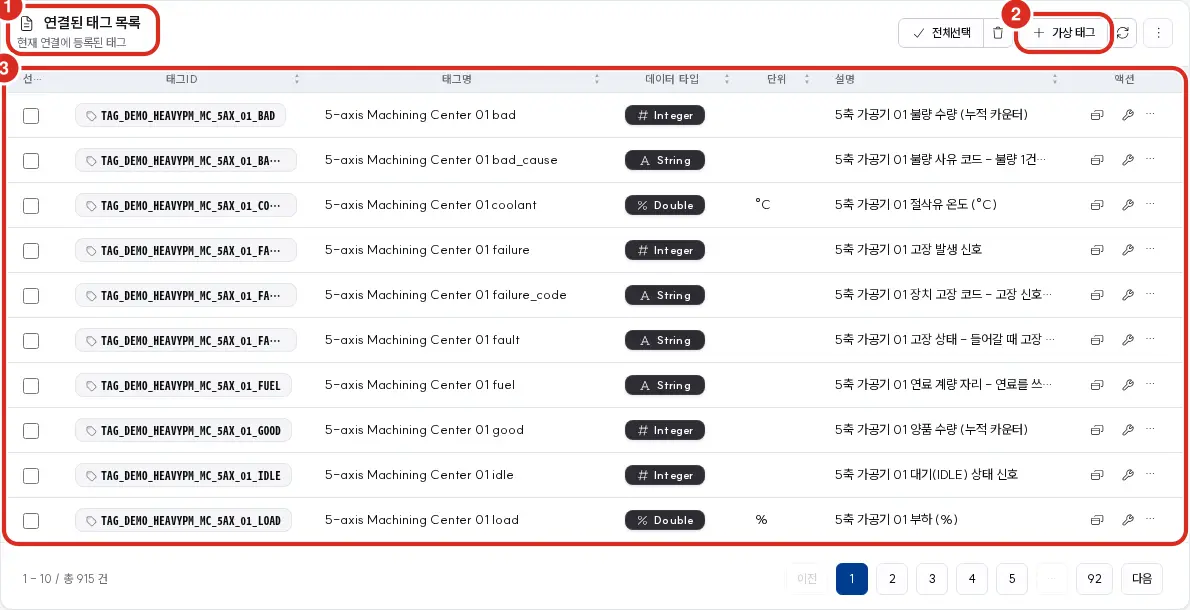
| Number | Location | Function |
|---|---|---|
| ① | Panel Header | Connected Tag List — «Tags registered to the current connection». Populated only in the edit screen of a saved connection |
| ② | Panel Header Right | [Virtual Tag] — Opens the Add Virtual Tag dialog below |
| ③ | Body | List of tags belonging to this connection — Tag ID, Tag Name, Data Type, Unit, Description |
- Enter the following in the Add Virtual Tag dialog and click Save.
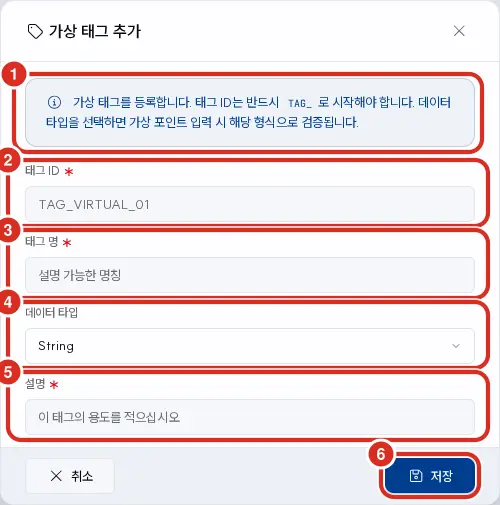
| Number | Field | Rule |
|---|---|---|
| ① | Guide | «Register a virtual tag. The tag ID must start with TAG_. Once a data type is selected, virtual point inputs will be validated against that format.» |
| ② | Tag ID | Required. Must start with TAG_ and contain only uppercase letters, numbers, and _, between 5 to 30 characters. By convention, virtual tags start with TAG_V_ — ID Rules |
| ③ | Tag Name | Required. Placeholder: «Descriptive name» |
| ④ | Data Type | String, Short, Integer, Long, Float, Double, Boolean, Date. Default is String |
| ⑤ | Description | Required. Placeholder: «Enter the purpose of this tag» — cannot be saved if empty |
| ⑥ | Bottom Right | [Save] |
StringThe dialog opens with String selected. If the virtual tag is for calculating numbers, change it to Double. Since alarm bands can only be applied to numeric and boolean tags, you will not be able to set band alarms later if it is left as String.
The Connected Tag List is only populated in the edit screen of a connection that has already been saved (Connection Management). Because virtual tags store the connection ID, registration is rejected for connections that have not yet been saved.
Deleting a connection removes all tags belonging to it, including virtual tags, and unbinds any associated alarm settings and formulas. Keep this in mind if you place the virtual tag in a connection different from its source tags.
2. Enter the Formula
- Open the configuration form of the tag you just created in the Tag screen.
- Enter the statement in the EQL field of the Calculation tab.
- Change the Application Status in the Deployment area of the same tab to Active.
- Click Save for that tab — each tab is saved independently (Tag Registration/Edit Form).
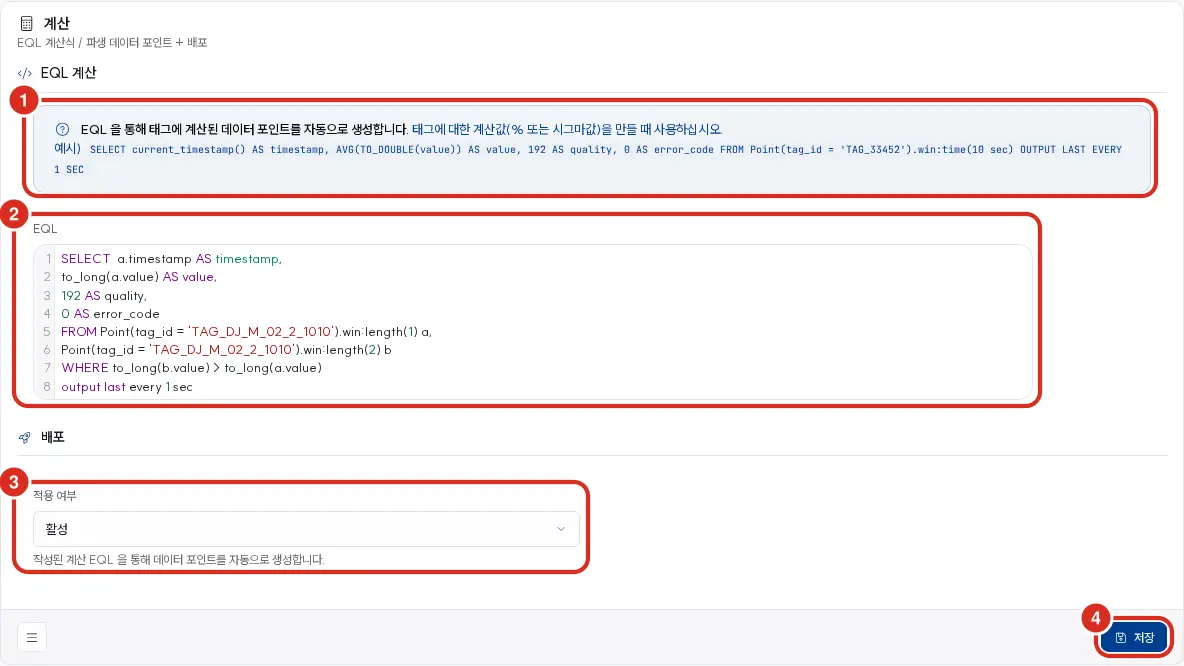
| Number | Location | Function |
|---|---|---|
| ① | EQL Calculation Help | «Automatically generate calculated data points for the tag via EQL.» and example statements |
| ② | EQL | Formula editor. If saving is rejected, the cause appears in the box immediately below this field — Below |
| ③ | Deployment → Application Status | Must be Active to be deployed |
| ④ | Bottom Right | [Save] — Saves only this tab |
Formula statements must follow these rules:
| Rule | Reason |
|---|---|
Produce four columns in the result: timestamp, value, quality, error_code | If any of the four are missing or if value is empty, the result is discarded |
Convert source values using to_double(…) for calculation | Tag values (value) flow as strings. They cannot be added or subtracted directly |
List source tags in Point(tag_id = '…').win:length(1) with aliases (a, b …) | Pairs the latest value from each tag for calculation |
Write the entire SELECT statement, not just a single line | CEP attempts to compile the statement upon saving |
If saving is rejected
The system attempts to compile the statement during saving; if it is incorrect, saving is rejected (HTTP 422). The cause is displayed on the screen.
A red guidance box «Cannot read EQL» appears immediately below the ② EQL field. This rejection does not appear as a separate toast notification.
| Box Content | Description |
|---|---|
| Location Chip | «Line N, Column M». The cursor moves to that position, and clicking the chip returns you there. A marker also appears at that position in the editor |
| Body | The compiler's statement (cause) and a hint for correction |
| View Engine Original | The collapsed original statement from the engine |
If the compiler does not specify a location, only the statement appears without a chip. The marker disappears once the statement is corrected.
Saving is also rejected if the CEP is not running and cannot be checked — unverified statements are not saved. In this case, it is not a statement error, so nothing appears in the editor; instead, a toast notification «Failed to verify EQL because the CEP engine could not be connected.» appears (HTTP 503). Save again after the CEP is running. Other areas that save or verify EQL, such as statements, alarm settings, and query execution, reject in the same format (cause statement and line/column) (Virtual Tag Operation).
General syntax can be found in EQL and CEP — EQL Language.
3. Verify the Value
Select the virtual tag in the Stream screen to verify that values are flowing. Values will only be generated for the virtual tag if values are arriving at the source tags.
If you need to input values without a formula — Virtual Points
The [Virtual Point] button on the Stream screen opens a dialog to manually input time and value for a single tag. Time is entered in ISO 8601 format (2024-01-15T17:10:15.123Z). Use this to test screens or alarms before a formula is implemented.
Example — Filter Differential Pressure
This example creates Differential Pressure using two pressure tags before and after a filter. The tag IDs below are for illustrative purposes.
| Tag | ID (Example) | Note |
|---|---|---|
| Filter Inlet Pressure | TAG_PT_FILTER_IN | Source |
| Filter Outlet Pressure | TAG_PT_FILTER_OUT | Source |
| Filter Differential Pressure | TAG_V_FILTER_DP | Virtual Tag · Data Type Double · Unit bar |
EQL in the Calculation tab:
SELECT current_timestamp() AS timestamp,
       to_double(a.value) - to_double(b.value) AS value,
       192 AS quality,
       0 AS error_code
FROM Point(tag_id = 'TAG_PT_FILTER_IN').win:length(1) a,
     Point(tag_id = 'TAG_PT_FILTER_OUT').win:length(1) b
OUTPUT LAST EVERY 1 SEC
| Part | Meaning |
|---|---|
win:length(1) a, win:length(1) b | Pairs the single latest value from the inlet and outlet respectively |
to_double(a.value) - to_double(b.value) | Differential Pressure = Inlet − Outlet |
192 AS quality | Declares the result quality as GOOD (source quality is not propagated) |
OUTPUT LAST EVERY 1 SEC | Recalculates whenever a value arrives at either source, but outputs at most once per second |
Similarly, changing - to + creates a sum, and changing it to / creates a ratio. For three or more sources, append c, d … in the same manner.
Alarms: «One Setting = One Tag»
Alarm settings—whether band alarms or EQL alarms—are applied to a single tag.
| Alarm | How it is applied to one tag |
|---|---|
| Band Alarm | Alarm Band tab in the tag configuration form — sets a threshold on the tag's own value. One per tag |
| EQL Alarm | Target Tag is required in the alarm setting form — the alarm is recorded as an alarm for that tag |
To trigger an alarm based on a combination of multiple tags, first create that combination as a virtual tag and apply the alarm to the virtual tag. Do not calculate 「Inlet − Outlet > 0.5」 by reading two tags within an EQL alarm; instead, create a differential pressure virtual tag and apply 「> 0.5」 to that tag. This ensures the combined value itself is stored and viewable as a trend, and the reason the alarm triggered is recorded on that single tag.
Saving is rejected (Error Code alarm.eql.one_tag, HTTP 422) if the EQL alarm statement reads a tag other than the target tag, mixes multiple tags, or lacks a tag condition. The [Execute EQL] button on the form also verifies using the same rules and will reject it immediately. Since this is a rule violation without a specific location, it appears in the orange box below the EQL editor as follows:
EQL alarms read only one tag - the tag of the alarm. Multiple tags, no tag conditions, or joins with other tags are rejected. Place one alarm per tag, or for tag comparisons (differential/deviation), calculate via a virtual tag and then set the alarm on that tag.
Even if a previously saved alarm produces rows from other tags, rows not belonging to the target tag are ignored during determination, and a diagnostic diagnostic.tag.alarm_foreign_tag_rows is left. Move such alarms to virtual tags.
Example — Differential Pressure exceeding 0.5 bar for 5 minutes
Set an EQL alarm on TAG_V_FILTER_DP above. In the Advanced Alarm screen, go to Add Alarm Setting → Target Tag is TAG_V_FILTER_DP, and the EQL in Condition (EQL) is as follows:
SELECT timestamp, tag_id, tag_name, value, quality, error_code,
       CASE WHEN to_double(value) > 0.5 THEN 'HIGH' ELSE 'NORMAL' END AS band
FROM Point(tag_id = 'TAG_V_FILTER_DP').win:length(1)
| Part | Meaning |
|---|---|
CASE … END AS band | Produces a band column for each value. An alarm turns on when 'HIGH' appears and off when 'NORMAL' appears — saving is rejected if the band column and 'NORMAL' are missing |
Point(tag_id = 'TAG_V_FILTER_DP') | Reads only one target tag. The combination of two pressures was already handled by the virtual tag |
The 5-minute duration is not set in the statement but by entering 300000 (ms) in Detection Setting (ISA-18.2) → On Delay in the form — Help text: «The condition must persist for this time (ms) for the alarm to sound. Set to 0 to disable, maximum 3,600,000 ms (1 hour).»
- Reduce repetitive notifications (push) via Redundant Alarm Suppression → Suppression Time (min) in the alarm setting form.
- Verify using [Execute EQL] in the form before saving. It is checked using the same rules (one tag ·
bandcolumn · compilation) — Alarm Setting Form. - If you need to be notified immediately upon exceeding without a duration condition, an EQL alarm is not necessary — simply enter the threshold in the Alarm Band tab of the differential pressure tag.
Limitations and Precautions
| Item | Detail |
|---|---|
| Number of Source Tags | There is no fixed upper limit in the product. However, since each source adds a window, keep the window small as in win:length(1) — large time windows can cause a combinatorial explosion |
| Virtual Tag of a Virtual Tag | Supported. Since the calculation result enters again as a regular tag value, other formulas can read it as a source |
| Self-referencing Calculations | Not checked during save. Do not create self-references or loops (e.g., A reads B, and B reads A) |
| Formula Length | Up to 4,000 characters when input via V5 API |
| CEP Backend | The above examples are based on the default backend (Aster CEP). For installations using other backends, refer to the table in CEP — Backends |
| Source Quality | Not automatically propagated — How It Works |
API and MCP
| Path | For Virtual Tags |
|---|---|
| V5 API — Registration | POST /api/v5/tag — Same as regular tag registration. opc_id is required and tag_id is named according to TAG_V_… |
| V5 API — Formula | PATCH /api/v5/tag/{tag_id}/calculation — calculation_eql and use_calculation (true/false). Redeploy the formula after saving |
| V5 API — Read | GET /api/v5/tag/{tag_id}/config returns calculation_eql and use_calculation |
| MCP | No dedicated virtual tag tools. MCP tools read values by tag ID, so virtual tags are read just like regular tags via list_latest_tag_values and get_tag_history. There are no MCP tools for creating or changing formulas |
SDK methods are available in the Tag Service.
Related Documents
- Virtual Tag Operation — For Administrators: Deployment · Diagnostics · Performance
- Factory Management — Tag Screen — Tag configuration form and tabs
- Connection Management — Where to register virtual tags
- Alarms — Band Alarms · EQL Alarms
- EQL — Statement syntax
- ID Rules —
TAG_V_convention